10 G-TECH / Pro Competition User Guide, Release 3.1
G-tech Front Side
We want you to be up and running in no time, so we have
created a “Quick Setup Procedure” to streamline the pro-
cess.
Please follow the steps described in this section to familiarize
yourself with the product, and to set it up.
Note:
In this manual, we will refer to the G-TECH / Pro
Competition product simply as the “G-tech”.
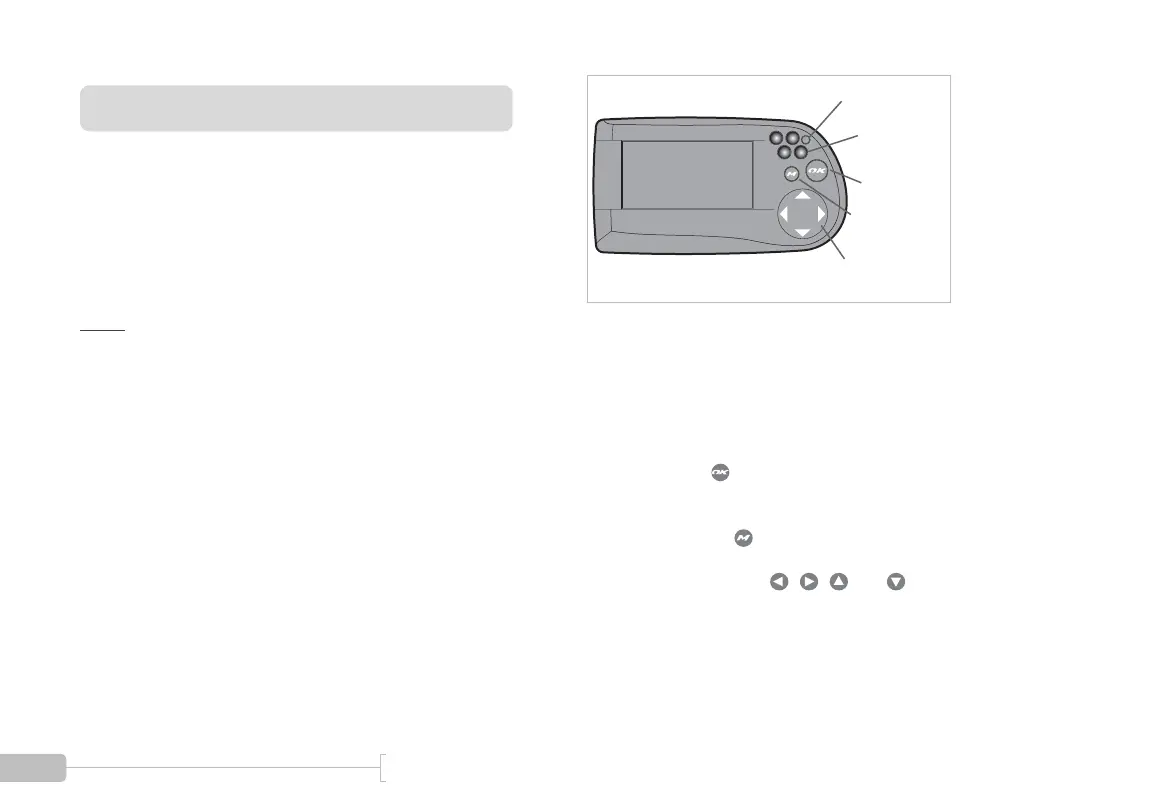
All input to the G-tech is done through the buttons on the
right-hand side.
Figure 1: G-tech front
• Photosensor – measures ambient light
• Light Emitting Diodes (LEDs) – red lights that turn on
under certain conditions
• OK button ( ) – used to confirm entry of data and
make menu selections
• MENU button ( ) – brings up multi-line menus
• Navigation buttons ( , , and ) – used for
moving cursor around in menus, graphs, etc.
OK Button
Menu Button
Navigation
Buttons
Photosensor
LEDs



 To Next Page