56 G-TECH / Pro Competition User Guide, Release 3.1
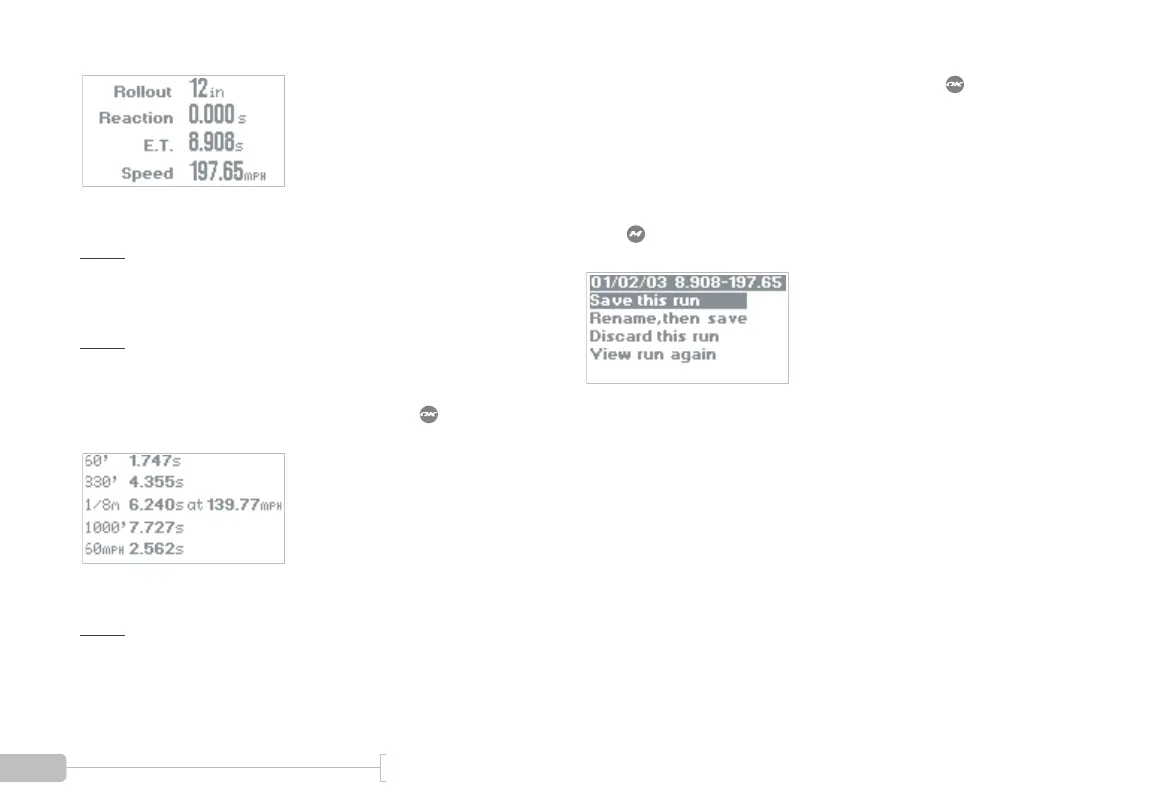
Figure 19: G-tech 1/4 mile results screen
Note:
In this example, we did not use the Reaction Time
measuring feature (page 128). Thus, the “Reaction” field reads
0.000.
Note: If you do not travel a full 1/4 mile, the “E.T.” and
“Speed” fields will read 0.000.
To view all the milestones from your run, press again to
get the Milestones screen (Figure 20).
Figure 20: G-tech milestones screen
Note: The G-tech will display “0.000” for any milestone
that you did not reach during the run.
After you have reviewed the run milestones, press to
return to the Run Viewing Menu (Figure 18).
There are other entries in the Run Viewing Menu that we will
explore soon, but for now let’s concentrate on the basic
functionality.
Press to leave the Run Viewing Menu, and you will see
the Run Save Menu (Figure 21).
Figure 21: Run Save menu
At this point you can:
• Save the run with the title that was created automati-
cally by the G-tech (see “Saving a run / default name” on
page 58)
• Rename the run to a title that you prefer and then save
the run (see “Renaming and saving a run” on page 60)
• Discard this run altogether (i.e., discard the results)



 To Next Page