60 G-TECH / Pro Competition User Guide, Release 3.1
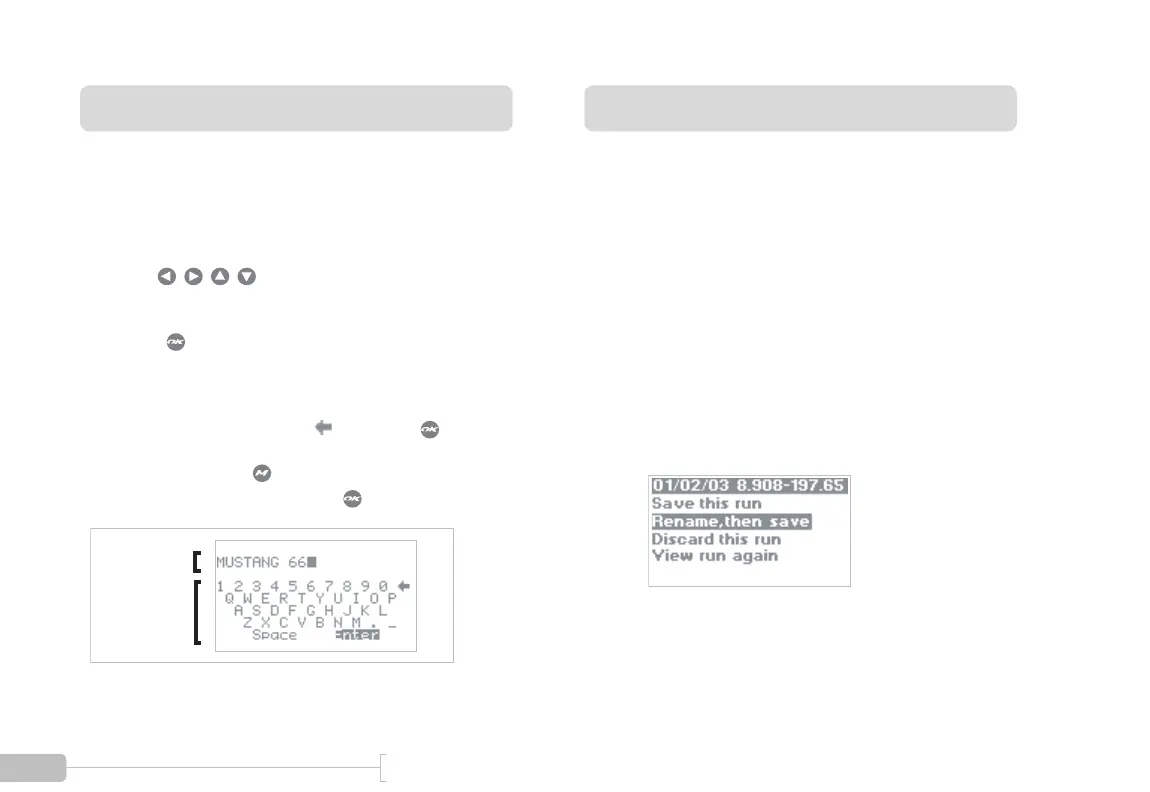
The G-tech Keyboard Screen
Some of the G-tech features allow you to enter text. The G-
tech has an on-screen keyboard to allow this.
Renaming and saving a run
By default, the G-tech auto-names every run that you save by
using the date and run results to create the name.
However, there may be times where you wish to rename a
run with information (such as the track name, the vehicle,
weather conditions, etc.) that is more meaningful to you.
Refer back to the G-tech Run Save menu in Figure 24. How-
ever, instead of accepting the default name, this time we will
rename the run.
• Use to move the selection cursor
around the keyboard
• Press to append the currently-selected character
to the text in the entry area
• To erase a letter in the entry area, move the selection
cursor to the back-arrow ( ), and press .
When done, press the button or move the cursor to
“Enter” on the keyboard, and press .
Entry Area
Keyboard
1
Select “Rename, then save”.



 To Next Page