GigE Area Scan Camera User Manual
26
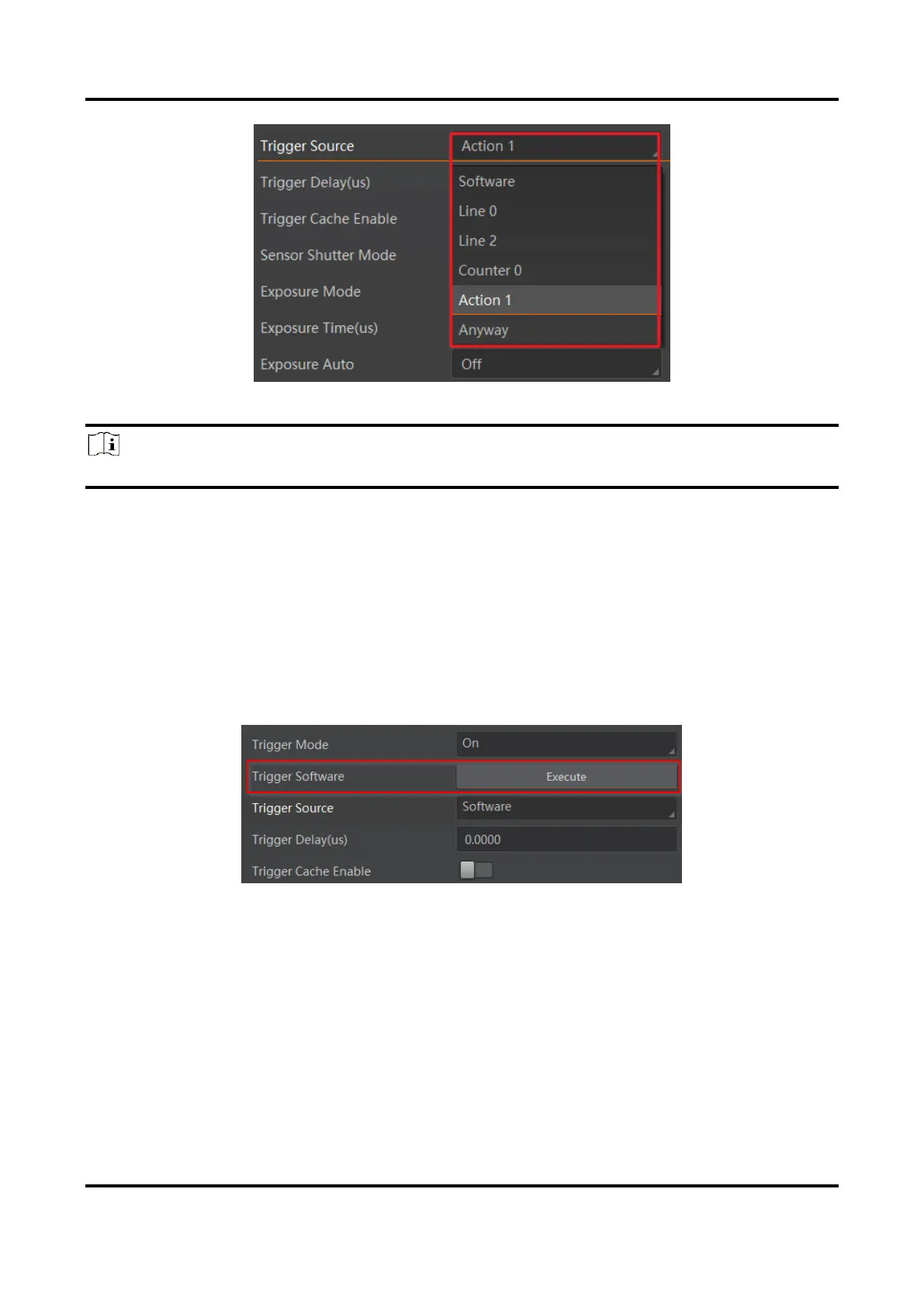
Figure 8-7 Set Trigger Source
Note
These five external trigger sources are valid only when the Trigger Mode is On.
Set and Execute Software Trigger
In software trigger, the software sends trigger signal to the device via GigE interface to
acquire images.
Steps
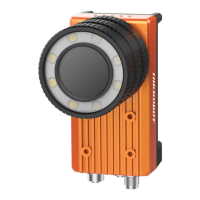
1. Go to Acquisition Control → Trigger Mode, and select On as Trigger Mode.
2. Select Software as Trigger Source.
3. Click Execute in Trigger Software.
Figure 8-8 Set and Execute Software Trigger
Set and Execute Hardware Trigger
The device has one opto-isolated input (Line 0), and one bi-directional I/O (Line 2) that can
be configured as input signal. The steps for configuring Line 2 as input signal as follows.
Steps
1. Go to Digital IO Control and select Line 2 as Line Selector.
2. Select Input as Line Mode.


 To Next Page