LIP-9070 iPKTS User Guide
11
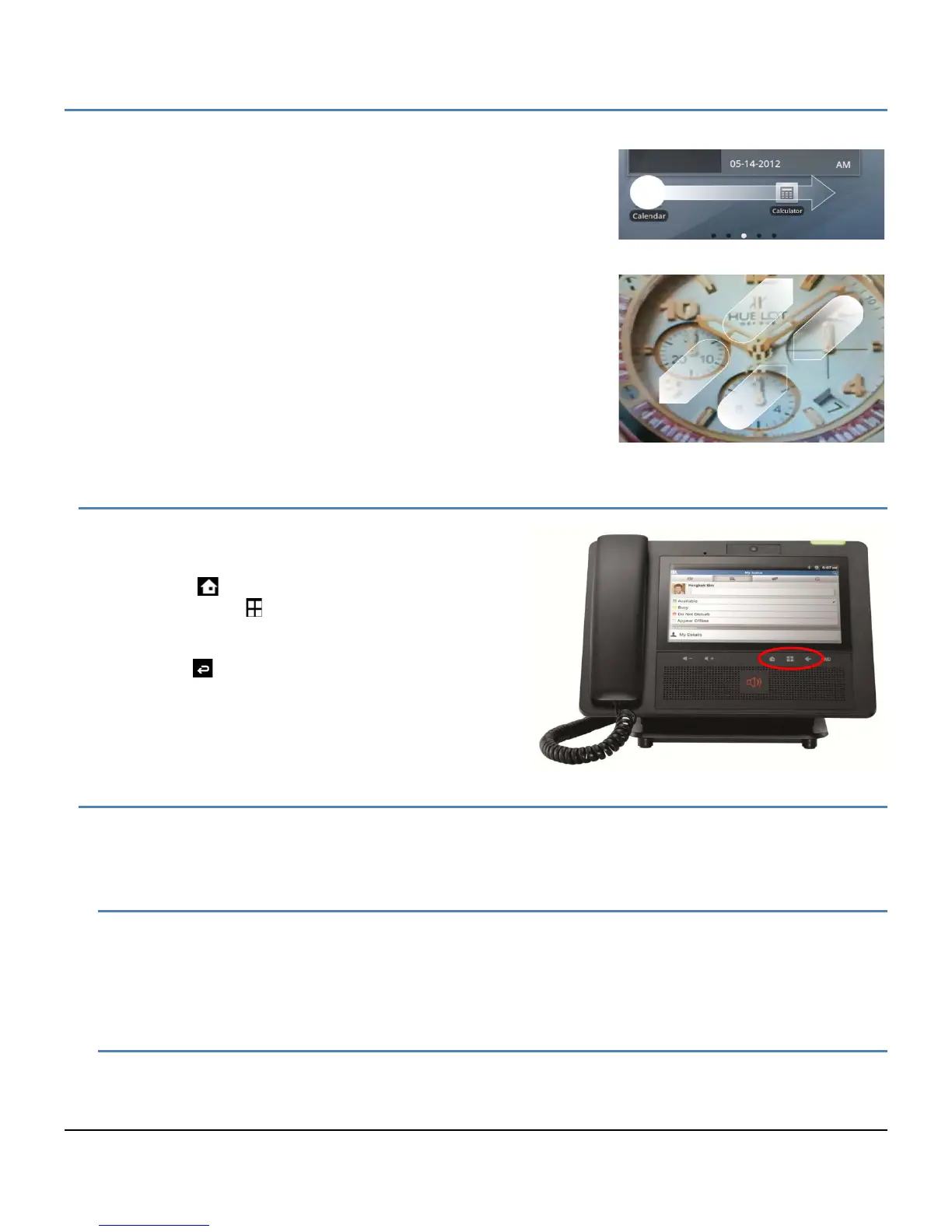
Drag and drop: To move an app or icon on the Launcher screens,
touch and hold momentarily then, while maintaining contact with
the screen, drag the item on the Launcher screen.
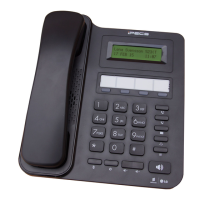
Pinch: To zoom in and out on a picture, touch the screen with the
thumb and forefinger and bring together or separate the fingers to
shrink or enlarge a picture.
4.2 Mini-Tab Function Buttons
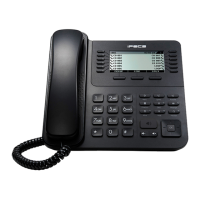
The LIP-9070 has three function buttons related to the
Android OS as shown to the right. The function buttons are:
Home: return to the Home screen.
Option menu:
menu associated with the viewed
screen. The menu displays in the bottom of the
screen.
Back :
return to the previous screen. If a
keyboard or numeric keypad is shown in the screen,
touching the Back button closes the keyboard or
keypad.
4.3 Mini-Tab Menus
The Mini-tab has several menus structured by the Android OS. Three basic menu types are employed the screen
Option menu, the touch and hold Context menu and general purpose popup menus.
4.3.1 Screen Option Menus
Many screens, including the Launcher screens, have an Options menu that is accessed by touching the Option
Menu button. The menu, which is specific to a screen, displays along the bottom of the screen. A ‘more’
selection is shown if there are more menu items then can be displayed comfortably. The ‘more’ selection
generally displays in a popup list.
4.3.2 Touch and Hold Context Menus
The Context menus impact an Individual item or record such as a contact, scheduled event, or song. These
menus display in a popup in response to the ‘Touch and Hold’ gesture.


 To Next Page