LIP-9070 iPKTS User Guide
35
8 Using SMS (Short Message Service)
The iPECS system incorporates a business SMS
application so users of iPECS phones including
softphones can send and receive short text messages to
other users. Each message can be a maximum of 80
characters. With the LIP-9070, messages are stored as
a conversation or thread between two specific users and
linked for display purposes. That is, all the messages
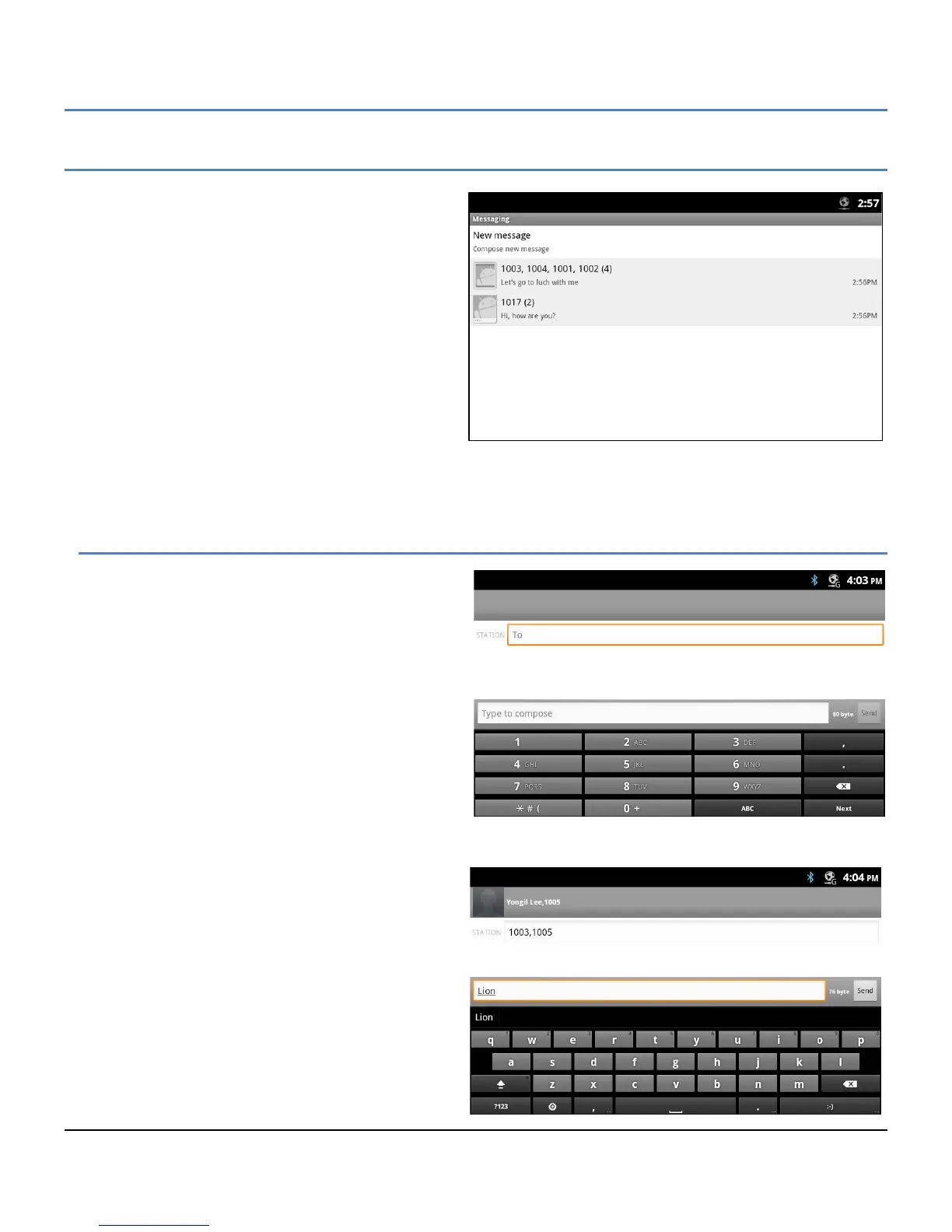
sent to or received from a user or group of users are
shown as a single thread in the Messaging screen. Up
to 100 threads with up to 100 messages each can be
stored.
The Messaging screen is shown when the Message icon
in a Launcher screen or in the dock is touched, or when a
‘New’ message notification is selected from the
Notifications screen.
8.1 Send a Message
From the Messaging screen or from the Messaging
screen Option menu, see section 8.4, a new message
can be prepared and sent to up to 4 users.
To send a message,
1. From the Messaging screen select ‘New
message’ or select ‘Compose’ from the
Option menu. The Compose screen appears.
2. Touch the ‘To’ entry box, a number pad
appears.
3. Enter the receiving station number.
Note for a receiver that is a Contact, the qwerty
keyboard can be displayed by touching ‘ABC’ on
the number pad, and then enter the name. Matches are displayed for selection as characters are entered.
4. Repeat steps 2 and 3 for up to four (4) receivers.
5. Touch the ‘Type to compose’ entry box and
enter the message. As characters are
entered, the number of bytes shown to the
right of the box is reduced to provide an
indication of the remaining characters
allowed.
6. When the message is complete, press Send.
The Messaging screen displays with the new
message added to the appropriate thread.
Prior to sending the message, the message can be
edited, or smiley faces can be added, section 8.1.1.


 To Next Page