LIP-9070 iPKTS User Guide
40
9.1 Viewing Schedule details
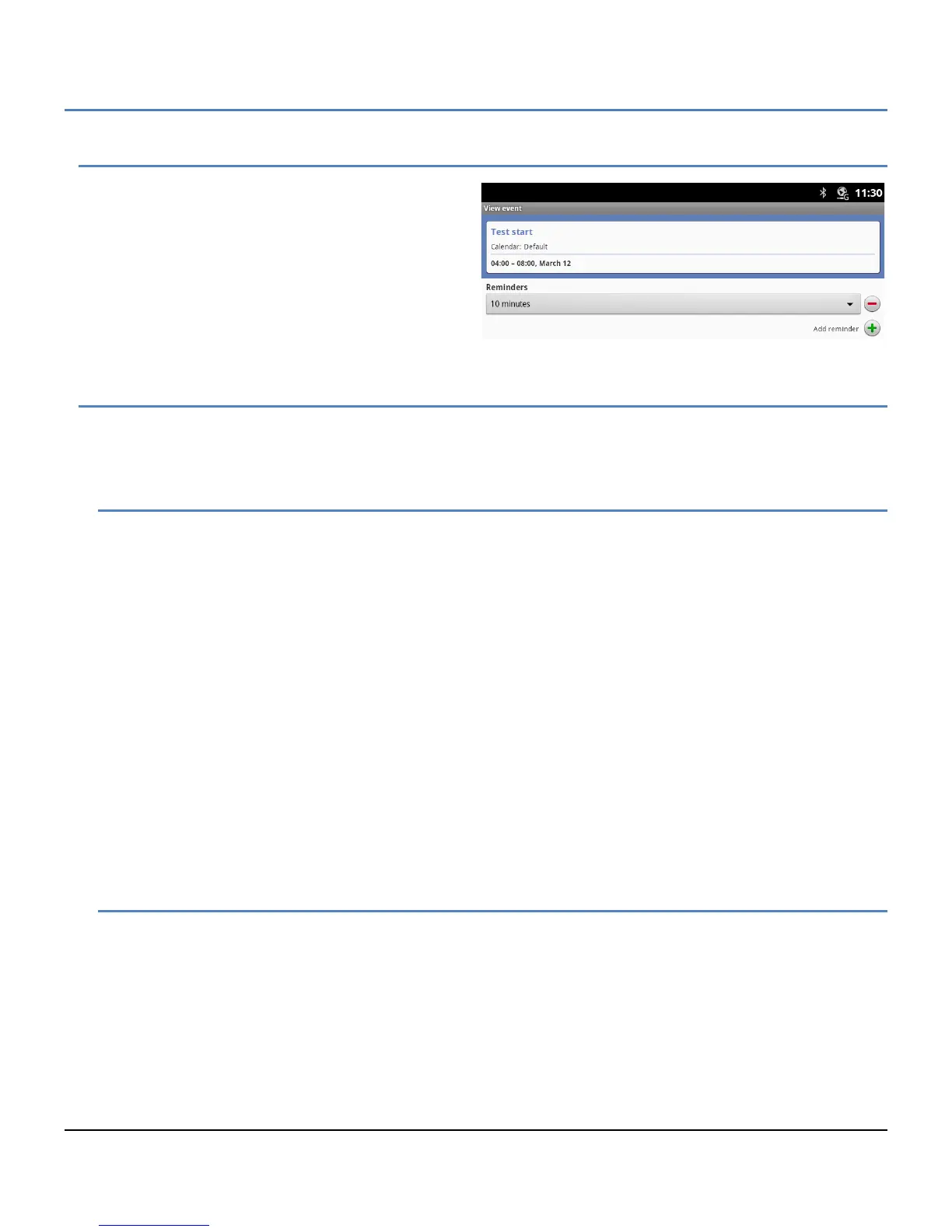
The details of a scheduled event display by touching
the event in any of the Schedule views. The details
provided include the Event name, Calendar location,
the time and date for the event, and the reminder
setting.
To view the details,
1. Touch the event to display the details screen.
9.2 Managing Schedules
Event schedules can be managed from the day, week or month view using the Context (touch and hold) menu.
Also, event schedules can be added from the Options menu of any schedule view.
9.2.1 Add an Event Schedule
An event can be scheduled in the Day, Week or Month view with the Context menu or from any view using the
Options menu.
To schedule an event,
1. In any view, touch the Options menu button, select ‘more’ and then select ‘New Event.
or
Touch and hold a spot in the Day, Week or Month view.
2. In the popup, select ‘New event’, the Event details screen appears.
3. In the Event details screen touch and enter the:
Event Name,
Start time
End time
Location,
Event description,
Repetition
Reminder, time to begin reminder prior to the actual occurrence, multiple reminders can be assigned
4. Touch ‘Done’ when finished or ‘Revert’ to cancel and return to the previous view.
9.2.2 Edit an Event Schedule
To edit an event schedule,
1. In the Day, Week or Month view, touch and hold a scheduled event.
2. In the screen Context menu, select ‘Edit’.
3. In the popup Event details screen, touch an item and enter new information.
4. Touch ‘Done’ when finished, ‘Revert’ to cancel or ‘Delete’, and return to the previous view.


 To Next Page