LIP-9070 iPKTS User Guide
44
10.3.1 Taking Pictures
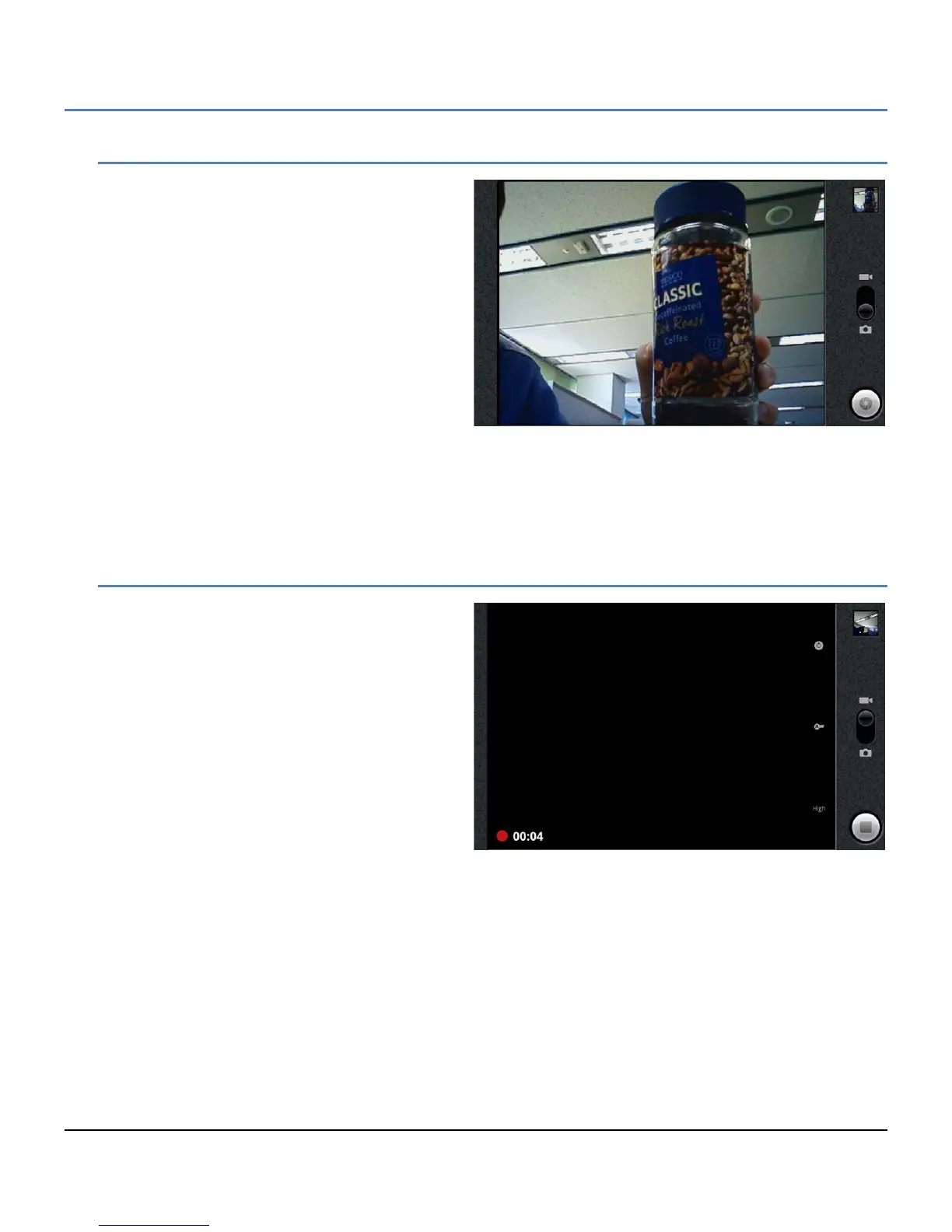
Touching the Camera icon in the App Dock or on a
Launcher screen, opens the Camera screen in the
landscape orientation. The right side of the screen
includes several controls.
Picture Thumbnail: displays a thumbnail of the
last picture or Video in the upper right of the
screen.
Picture/Video Control: switch the Camera mode
between still shots or video.
Shutter/Record: take picture or start/stop video
recording.
To take a picture,
1. Frame the subject in the display.
2. Touch and hold the shutter icon. The camera focuses on the subject and takes the picture.
The picture is displayed for several moments then the display is cleared and a thumbnail of the last picture
displays in the upper right of the screen.
10.3.2 Recording Videos
As a default, when the Picture application opens,
the camera mode is set for single shot pictures. By
changing the camera mode, videos up to 30
minutes in length can be recorded. To record a
video,
1. Change the Camera control to the Video
Camera.
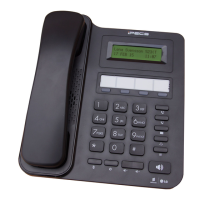
2. Touch the Record button. The video
recording starts with the recording duration
displayed at the bottom left of the screen.
Once complete a thumbnail of the video
displays in the upper right corner.
To stop recording video,
1. Touch the Record button.
Note
° Videos and pictures taken with the camera are stored in the user dedicated 2G memory.
° A video can be a maximum of 30 minutes.


 To Next Page