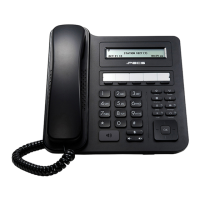
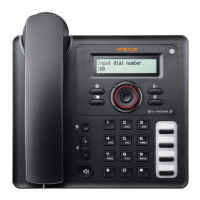
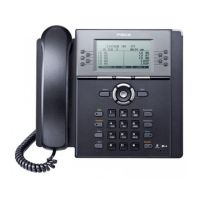
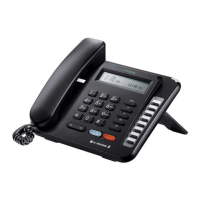
LIP-9070 iPKTS User Guide
14
4.7 Notification And Status Bar
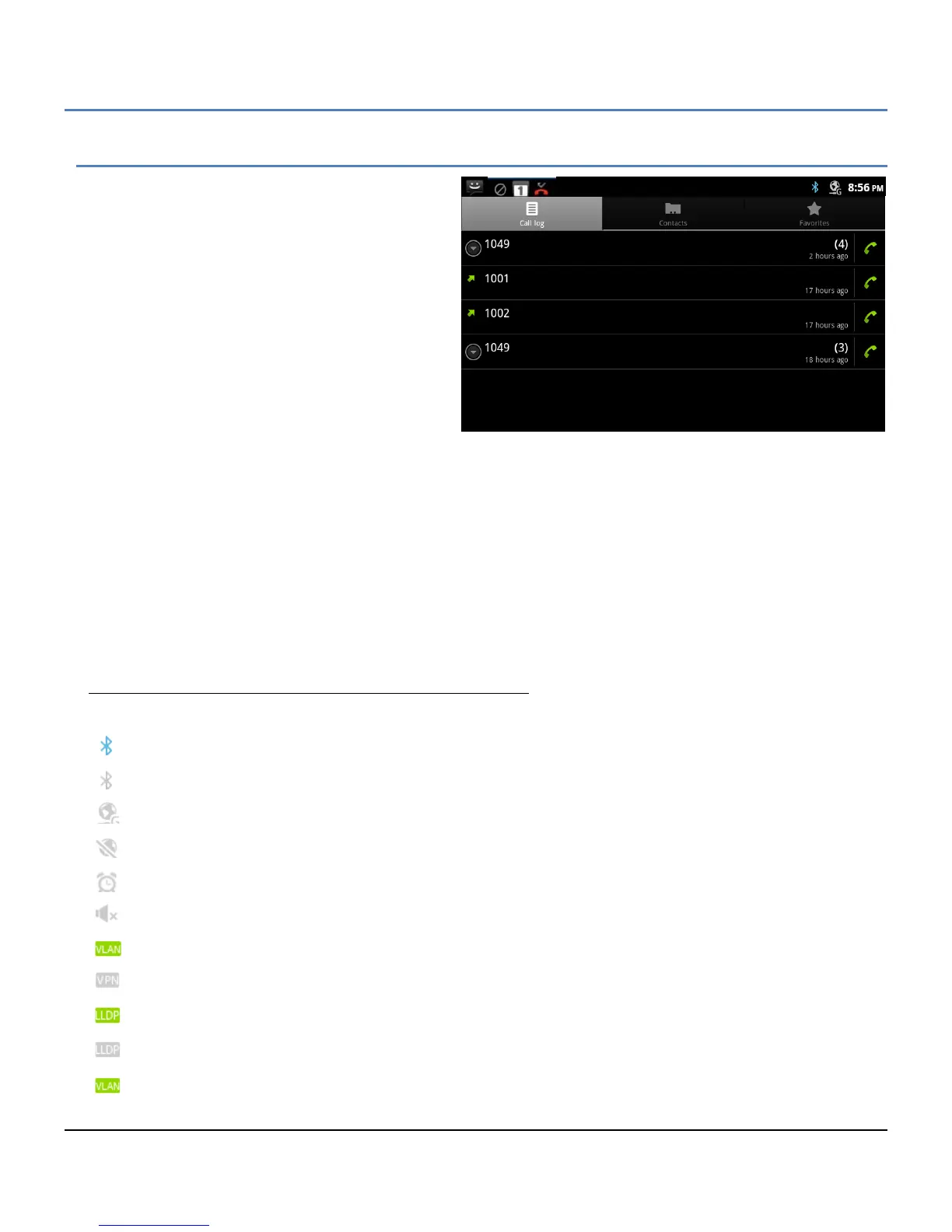
At the top of the screen is the Notifications and
Status bar. Icons to the right indicate the status of
connections to the phone, the speaker and alarms.
Icons to the left are notifications of new events such
as a new SMS and missed call or ongoing events
such as call forward or mute. Icons displayed for
notifications and states are shown in the chart
below.
When a Notification is given a summary is
displayed briefly along with the icon. The user can
view details of the notification and respond from the
Notifications panel. The panel is a scrollable list of
all active notifications starting with ongoing events.
To view the Notification panel,
1. On a Launcher screen touch the Option menu button
or
Touch anywhere along the Notification and Status bar to expose the Notification tab and drag the tab down
to open the panel.
2. Scroll the list to review the notifications.
3. Touch a notification to respond.
4. Touch ‘Clear’ to delete all notifications. This does not delete on-going events such as Call Forward.
5. Touch the Back button to return to the previous screen.
Status icons:
Bluetooth interface active and connected
Bluetooth active, but not connected
LAN connected and available
LAN connected but internet is not available.
Speaker of speakerphone off. Music and alarms still sound
Phone is connected to a network using VPN.
Phone is connected to a network using LLDP.
VLAN enabled, there is no disabled icon


 To Next Page