LIP-9070 iPKTS User Guide
16
4.8 Customize the Launcher Screens
Each of the Launcher screens display application icons, widgets and shortcuts to a favorites, playlists, etc. The
icons and widgets can be added to or deleted from the Launcher screens or repositioned on the screens. Also, the
background wallpaper can be changed.
4.8.1 Adding Apps and Widget
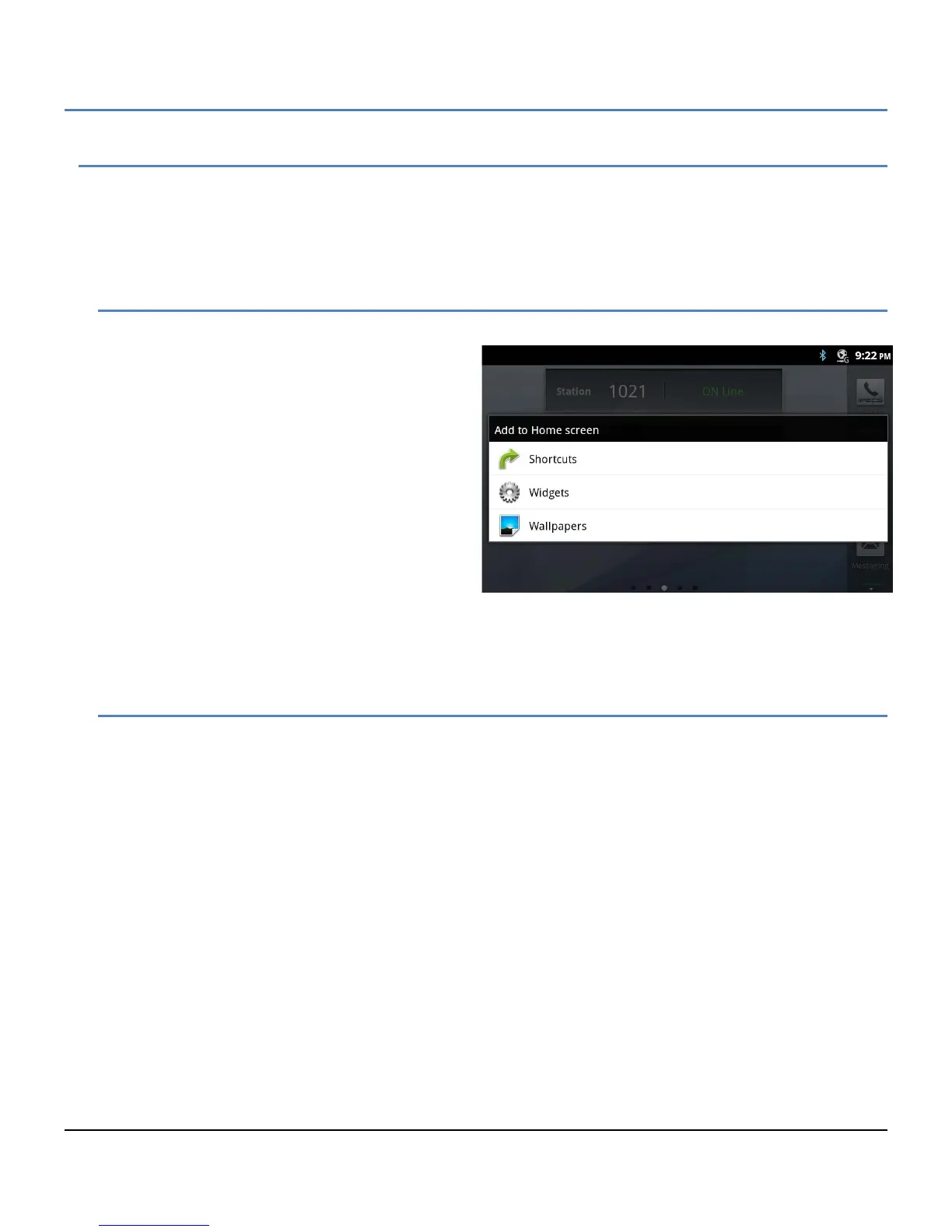
To add a shortcut icon or widget to a Launcher screen,
1. Touch and hold an empty spot on the screen
or
on the desired Launcher screen, touch the
Option menu button and touch ‘Add’.
2. Select the type of item (Shortcut icon, widget
or Wallpapers).
3. In the popup select the specific item to add
and touch OK.
Note
° If there is no available space on a Launcher
screen, the Add selection in the Options menu
will be grey out. To place another widget or icon on the screen an existing icon or widget must be deleted.
° A picture taken with the Camera app can be used as wallpaper as discussed in section 10.3.4.
° Deleting an app or widget from a screen does not delete the application from the LIP-9070.
4.8.2 Reposition or Delete a Screen Item
To reposition or delete an icon or widget, use the drag and drop gesture.
1. Touch and hold the application until the Waste-can appears to the right.
2. Drag the icon across the screen, releasing the item at the desired location or on Waste-can to delete.
3. Release the item to reposition or delete it.
Note
° When an item is dragged to the Waste-can it will change to a red color.


 To Next Page