June 2018
200 Legrand PDU User Guide
Send Email
You can configure emails to be sent when an event occurs and can customize the message.
Messages consist of a combination of free text and Legrand PDU placeholders. The placeholders represent
information which is pulled from the Legrand PDU and inserted into the message.
For example:
[USERNAME] logged into the device on [TIMESTAMP]
translates to
Mary logged into the device on 2012-January-30 21:00
For a list and definition of available variables, see Placeholders for Custom Messages (on page 210).
Opera
tion:
1.
Choose Device Settings > Event Rules >
.
2. Select "Send email" from the Action list.
3. In the "Recipient Email Addresses" field, specify the email address(es) of the recipient(s). Use a comma
to separate multiple email addresses.
4. By default, the SMTP server specified on the SMTP Server page will be the SMTP server for performing
this action.
To use a different SMTP server, select the "Use custom settings" radio button. The fields for customized
SMTP settings appear. For information on each field, see Configuring SMTP Settings (on page 161).
Default messages are se
nt based on the event. For a list of default log messages and events that trigger
them, see Default Log Messages (on page 189).
5. If needed, sele
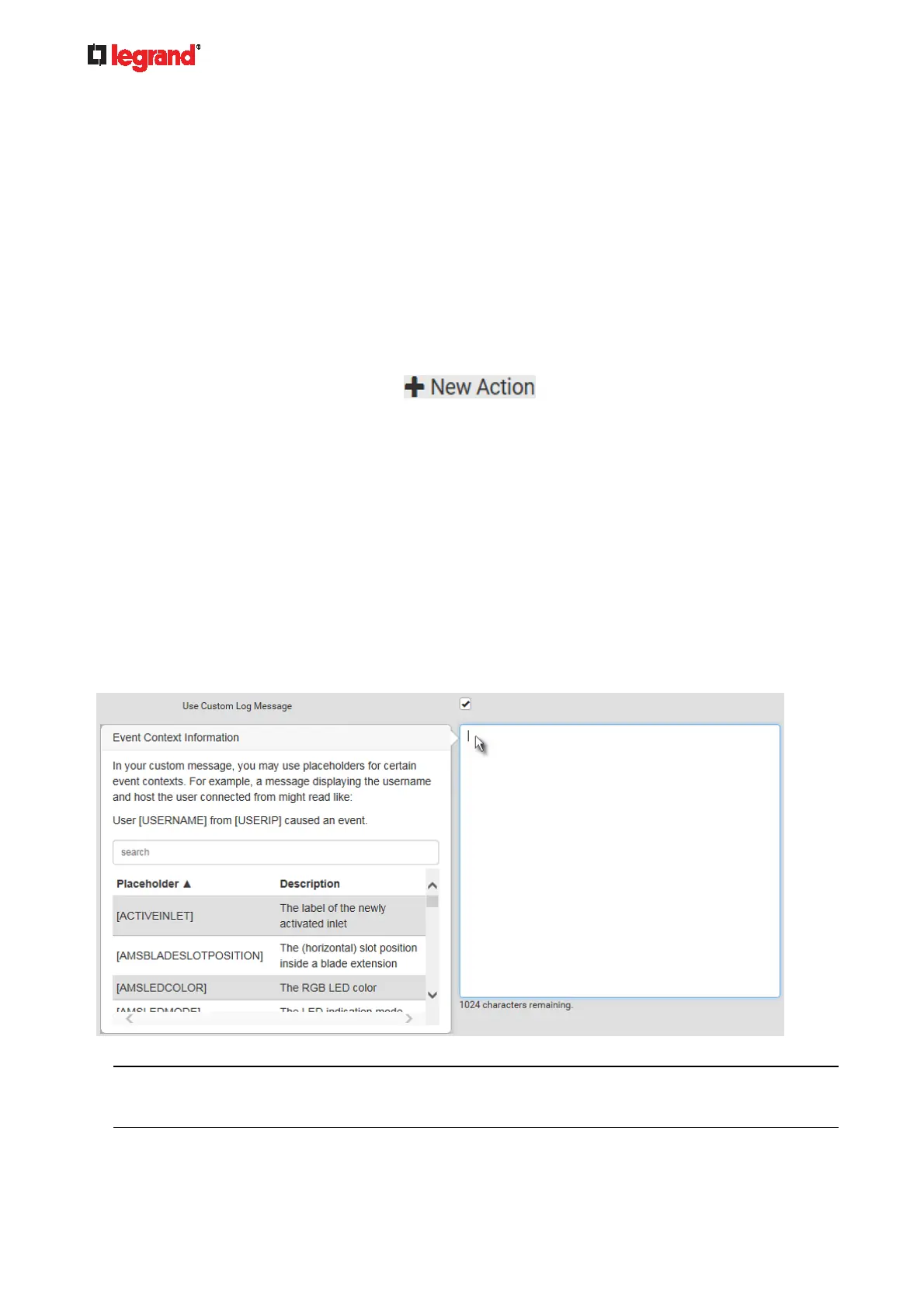
ct the Use Custom Log Message checkbox, and then create a custom message up to
1024 characters in the provided field.
When clicking anywhere inside the text box, the Event Context Information displays, showing a list of
placeholders and their definitions. Just scroll down to select the desired placeholder. For details, see
Placeholders for Custom Messages (on page 210).
To start a new line in the text box, press Enter.
Note: In case you need to type any square brackets "[" and "]" in the custom message for
non-placeholder words, always add a backslash in front of the square bracket. That is, \[ or \]. Otherwise,
the message sent will not display the square brackets.


 To Next Page