Chapter 17
| IP Configuration
Setting the Switch’s IP Address (IP Version 6)
– 455 –
Note:
If you lose the management connection, make a console connection to the
switch and enter “show ip interface” to determine the new switch address.
Renewing DCHP – DHCP may lease addresses to clients indefinitely or for a specific
period of time. If the address expires or the switch is moved to another network
segment, you will lose management access to the switch. In this case, you can
reboot the switch or submit a client request to restart DHCP service via the CLI.
If the address assigned by DHCP is no longer functioning, you will not be able to
renew the IP settings via the web interface. You can only restart DHCP service via
the web interface if the current address is still available.
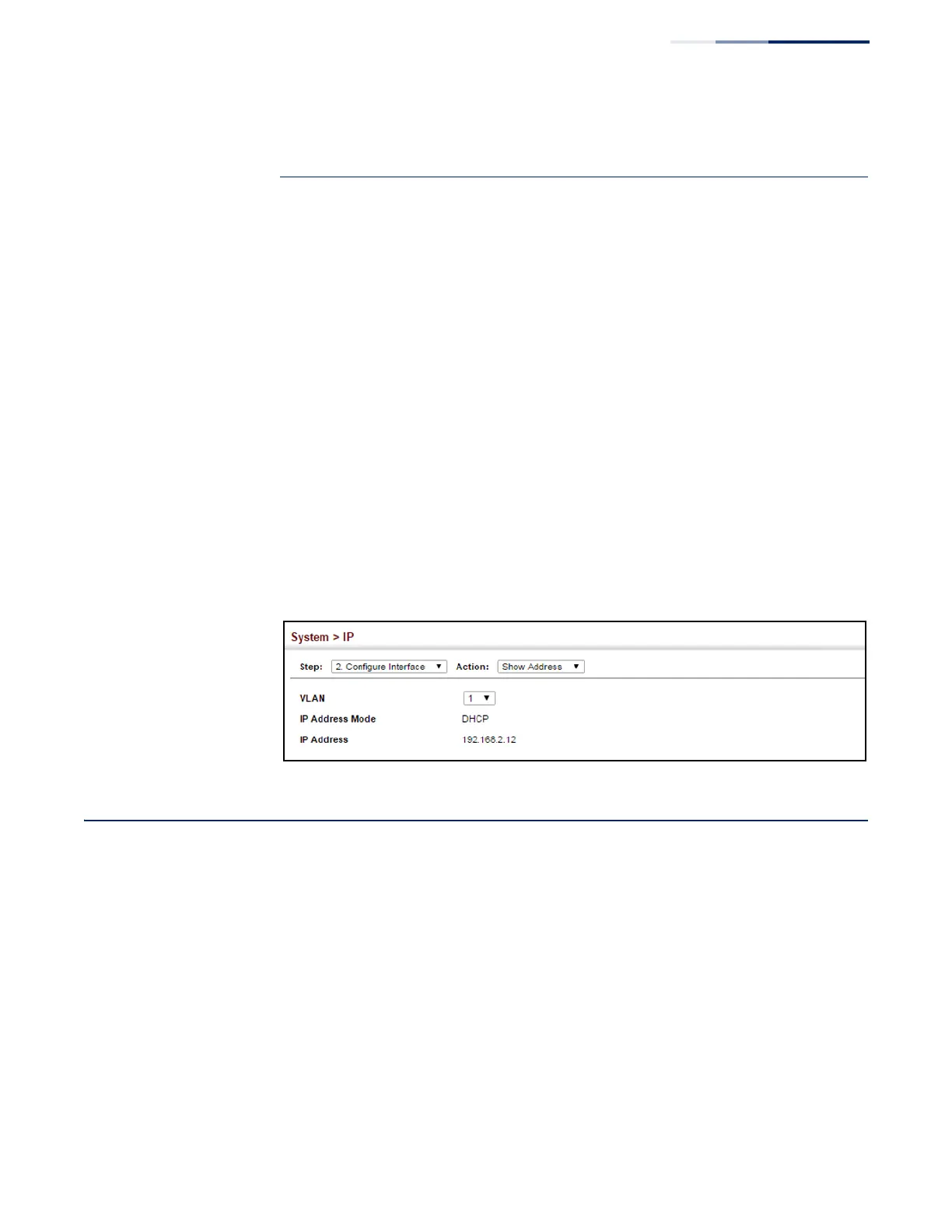
To show the IPv4 address configured for an interface:
1.
Click System, IP.
2.
Select Configure Interface from the Step list.
3.
Select Show Address from the Action list.
4.
Select an entry from the VLAN list.
Figure 305: Showing the Configured IPv4 Address for an Interface
Setting the Switch’s IP Address (IP Version 6)
This section describes how to configure an IPv6 interface for management access
over the network. This switch supports both IPv4 and IPv6, and can be managed
through either of these address types. For information on configuring the switch
with an IPv4 address, see “Setting the Switch’s IP Address (IP Version 4)” on
page 451.
Command Usage
◆
IPv6 includes two distinct address types – link-local unicast and global unicast.
A link-local address makes the switch accessible over IPv6 for all devices
attached to the same local subnet. Management traffic using this kind of
address cannot be passed by any router outside of the subnet. A link-local
address is easy to set up, and may be useful for simple networks or basic
troubleshooting tasks. However, to connect to a larger network with multiple





 To Next Page