217
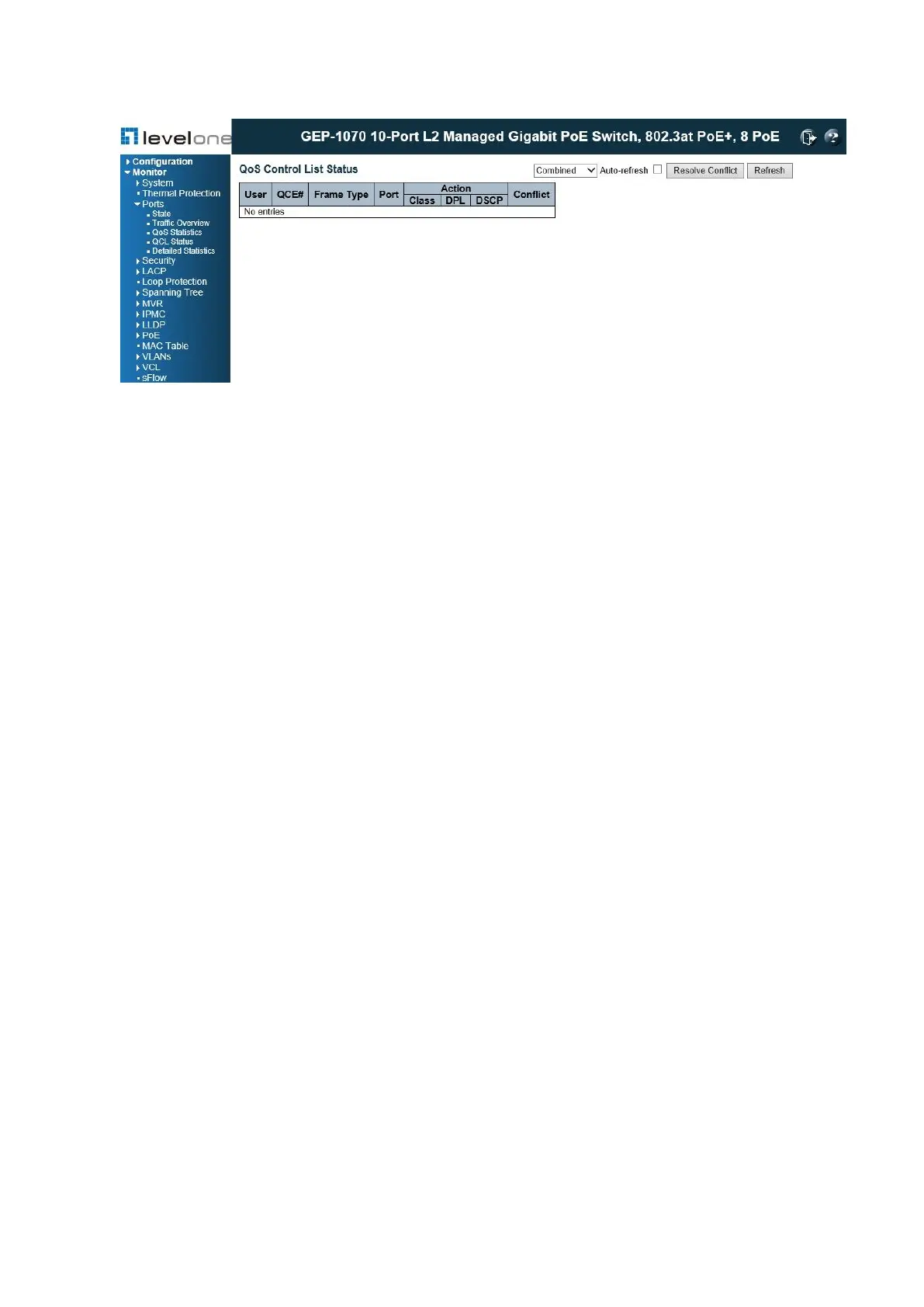
Figure 99: QoS Control List Status
PARAMETERS
These parameters are displayed:
◆ User – Indicates the user (static entry, software module, or conflicting entry) of this QCE.
The information displayed in this field depends on the option selected in the drop-down list
at the top of this page (Combined, Static, Voice VLAN, Conflict).
◆ QCE# – QoS Control Entry index.
◆ Frame Type – Indicates the type of frame to look for in incoming frames. Possible frame
types are: Any, Ethernet, LLC, SNAP, IPv4, IPv6.
◆ Port - Port identifier.
◆ Action – Indicates the classification action taken on ingress frame if the configured
parameters are matched in the frame's content. If a frame matches the QCE, the following
actions will be taken:
■ Class (Classified QoS Class) – If a frame matches the QCE, it will be put in the queue
corresponding to the specified QoS class.
■ DP – The drop precedence level will be set to the specified value.
■ DSCP – The DSCP value will be set the specified value.
◆ Conflict – Displays QCE status. It may happen that resources required to add a QCE may
not available, in that case it shows conflict status as Yes, otherwise it is always shows No.
Please note that conflict can be resolved by releasing the resource required by the QCE
and pressing Refresh button.
WEB INTERFACE
To display the show the status of QCE entries
1. Click Monitor, Ports, QCL Status.
2. Select the user type to display from the drop-down list at the top of the page.
3. If any of the entries display a conflict, click Resolve Conflict to release the resource
required by a QCE. Then click Refresh to verify that the conflict has been resolved.




 To Next Page