ScreenitemDescription
1Back
•Displayswithatouchscreen—Selectthe
onscreenBackicontogobacktothe
previousmenu.
•Non–touchscreenorHybridTouchdisplays
—UsetheBackbuttontogobacktothe
previousmenu.
2
Functionicons—Somedialogsinclude
iconswhichcanbeselectedtoaccess
additionalfunctions.Forexample,inthe
WaypointListdialog,theSortbyiconcan
beusedtochangehowthewaypointslistis
sorted.
3
Menu/Listitem
•Displayswithatouchscreen—
Momentarilytouchinganitemautomatically
selectstheitemanddisplaystheitem
optionsmenu.
•Non–touchscreenorHybridTouchdisplays
—UsetheRotarycontroltohighlightan
item,andtheOkbuttontoselectitand
displaytheitemoptionsmenu.
4
Close
•Displayswithatouchscreen—Selectthe
onscreenCloseicontoclosethedialog.
•Non–touchscreenorHybridTouchdisplays
—UsetheBackbuttontoclosethedialog.
5
Scrollbar
•Displayswithatouchscreen—Toscroll
throughtheavailableitems,pressand
holdyourngeronthescrollbaranddrag
itupordown.
•Non–touchscreenorHybridTouchdisplays
—Toscrollthroughtheavailablemenu
items,usetheRotarycontrol.
Shortcutspage
Anumberofusefulfunctionscanbeaccessedfrom
theShortcutspage.
1Decreasedisplaybrightness
2Increasedisplaybrightness
3
Powerup/PowerdownRadar
4
Radarstandby/Radartransmit
5
Autopilotstandby(duringactivenavigation)
6Displaypilotcontroldialog
7
PowerSavemode
8
Screenshot/Screencapture
Editdialogs
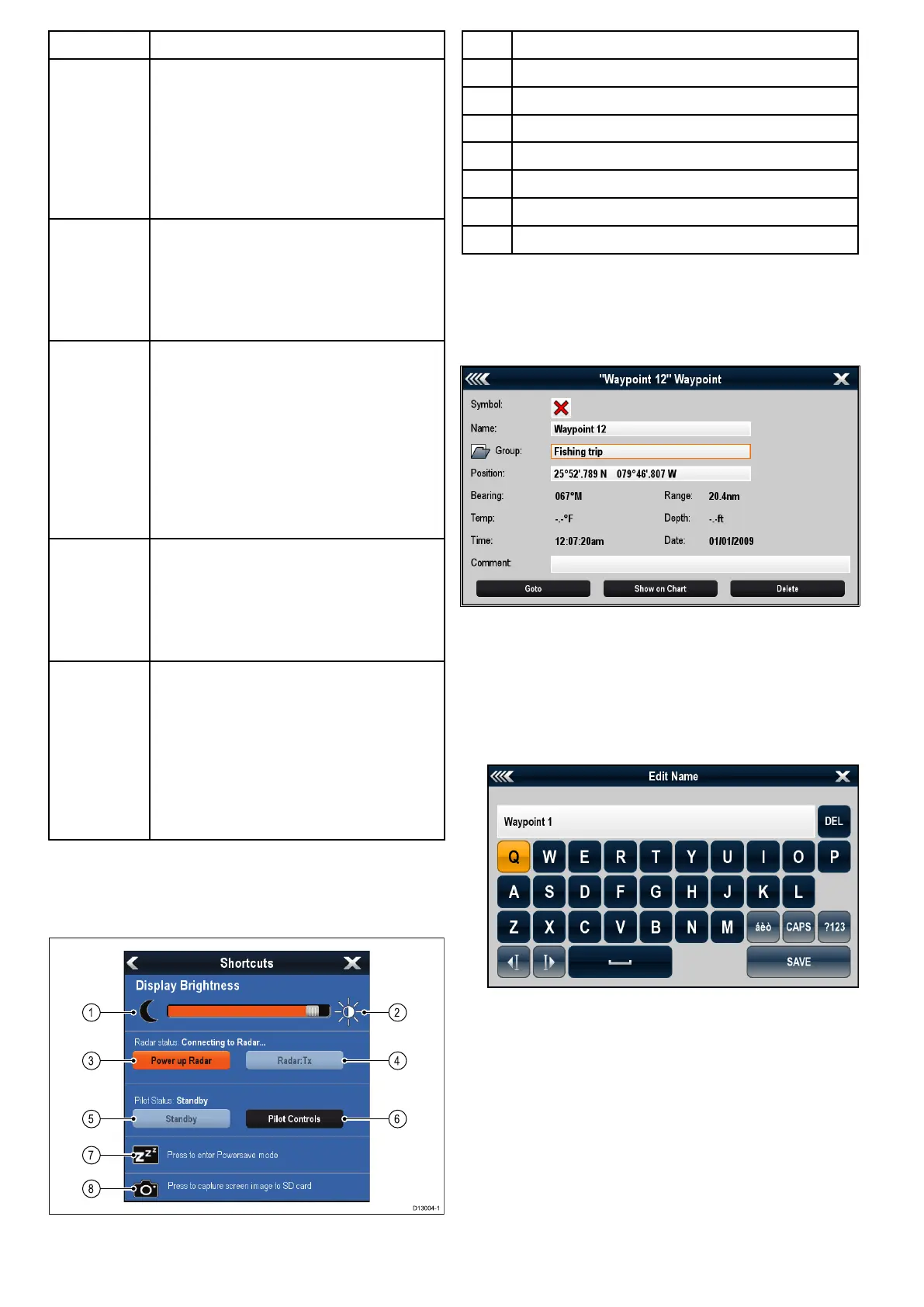
Editdialogsenableyoutoeditthedetailsofdata
itemsstoredonyourmultifunctiondisplay,suchas
waypoints,routes,andtracks.
Selectingatextelddisplaystheonscreenkeyboard,
whichcanbeusedtoeditthedetails.
Editinginformationindialogs
Withthedialogdisplayed:
1.Selecttheeldyouwanttoedit.
Theonscreenkeyboardisdisplayed:
2.Usetheonscreenkeyboardtomakethechanges.
3.SelectSAVEtosavethechanges.
Enteringspecialoraccentedcharacters
Withtheonscreenkeyboarddisplayed:
1.Selecttheonscreenkeyboard'sàèòkey.
2.Selectthecharacteryouwanttoaccent.
Theavailableaccentedcharactersaredisplayed
abovethetextentryeld.
3.Forcharactersthathavemultipleavailable
accents,usethecharacterkeytotogglebetween
them.
4.Selecttheàèòkeytoenterthecharacter.
100aSeries/cSeries/eSeries



 To Next Page