6.19Softwareupdates
Raymarine’smultifunctiondisplaysoftwareis
updatedregularlytoprovidenewandenhanced
featuresandimprovedperformanceandusability.
Youshouldensureyouhavethelatestsoftwareby
regularlycheckingtheRaymarinewebsitefornew
software.
Youcanidentifyyourmultifunctiondisplay’scurrent
softwareversionfromtheLimitationsonUse(LoU)
splashscreen:
Thesoftwareversioncanalsobeidentiedfromthe
Maintenancemenu.
Thesoftwareupdateprocesscanbeusedtoupdate
allmultifunctiondisplaysandremotekeypadsthat
areconnectedtothesamenetwork.
Caution:Downloadingsoftware
updates
Thesoftwareupdateprocessiscarried
outatyourownrisk.Beforeinitiatingthe
updateprocessensureyouhavebacked
upanyimportantles.
Ensurethattheunithasareliablepower
supplyandthattheupdateprocessisnot
interrupted.
Damagecausedbyincompleteupdates
arenotcoveredbyRaymarinewarranty.
Bydownloadingthesoftwareupdate
package,youagreetotheseterms.
Updatingthesoftware
Softwareupdatescanbedownloadedfromthe
Raymarinewebsite.
Toperformasoftwareupdateyouwillneed:
•APCorAppleMacwithaninternetconnection
andacardreader.
•AFAT32formattedMicroSDcardwithSDcard
adaptor.
Note:Donotuseacartographychartcardtosave
softwareupdateoruserdata/settingsles.
1.GototheRaymarinewebsitewww.raymarine.com
2.ClicktheServiceandSupportfromthetop
banner.
3.SelectSoftwareUpdatesfromthedropdown
list.
4.Selecttherelevantproduct.
5.Comparethelatestavailablesoftwareagainstthe
softwareversiononyourmultifunctiondisplay.
6.Ifthesoftwareonthewebsiteisnewerthanthe
softwareonyourmultifunctiondisplayselectthe
optiontodownloadthesoftware.
7.PlacetheMicroSDcardintoanSDcardadaptor.
8.PlacetheSDcardadaptorintothecardreader
ofyourPCorMac.
9.Unzipthedownloadedsoftwareupdatezipleto
theMicroSDcard.
10.RemovetheMicroSDcardfromtheSDcard
adaptor.
11.Backupyouruserdataandsettingsbyfollowing
theproceduredescribedinsection8.5Saving
userdataandusersettings.
12.InserttheMicroSDcardintothecardreaderof
yourmultifunctiondisplay.
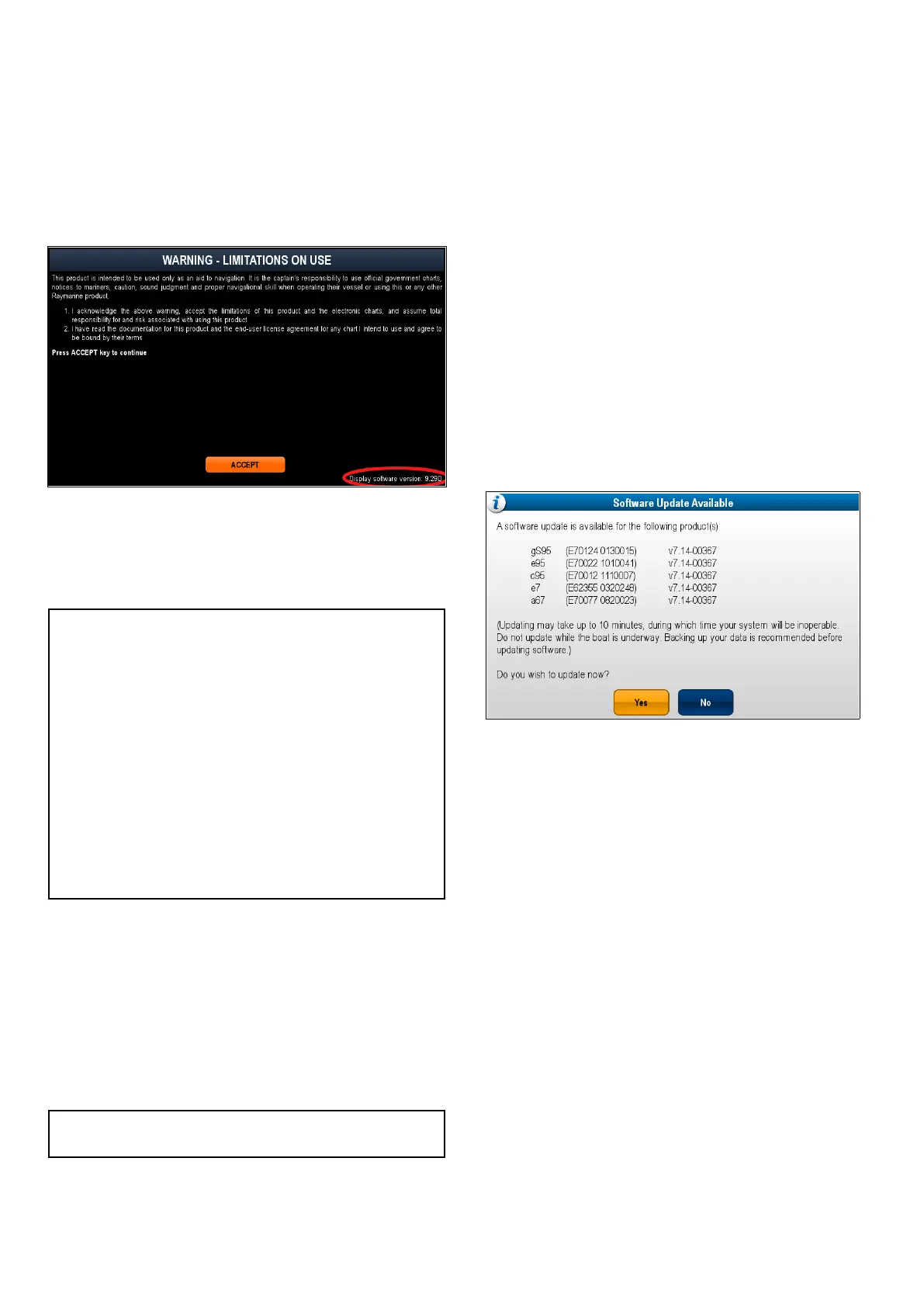
Afterafewsecondsyourmultifunctiondisplaywill
alertyouthatasoftwareupdateisavailableand
whichmultifunctiondisplaysandremotekeypads
requiretheupdate.
Thesoftwarealertisonlydisplayedonceper
powercycle.
13.SelectYestobeginthesoftwareupdate.
Thefollowingstepswillnowtakeplace:
1.Allnetworkedmultifunctiondisplayswill
rebootandcommenceasimultaneous
softwareupdate(Duringthesoftwareupdate
thedisplaywiththesoftwareupdatememory
cardinsertedwilldisplayaprogressindicator.
2.Oncethenetworkeddisplayshavebeen
updatedthedisplaycontainingthesoftware
updatememorycardwillrebootand
commencethesoftwareupdate.
3.Oncealldisplayshavebeenupdatedthe
systemwillchecktoseeifanyconnected
remotekeypadsrequireasoftwareupdate.
112
aSeries/cSeries/eSeries



 To Next Page