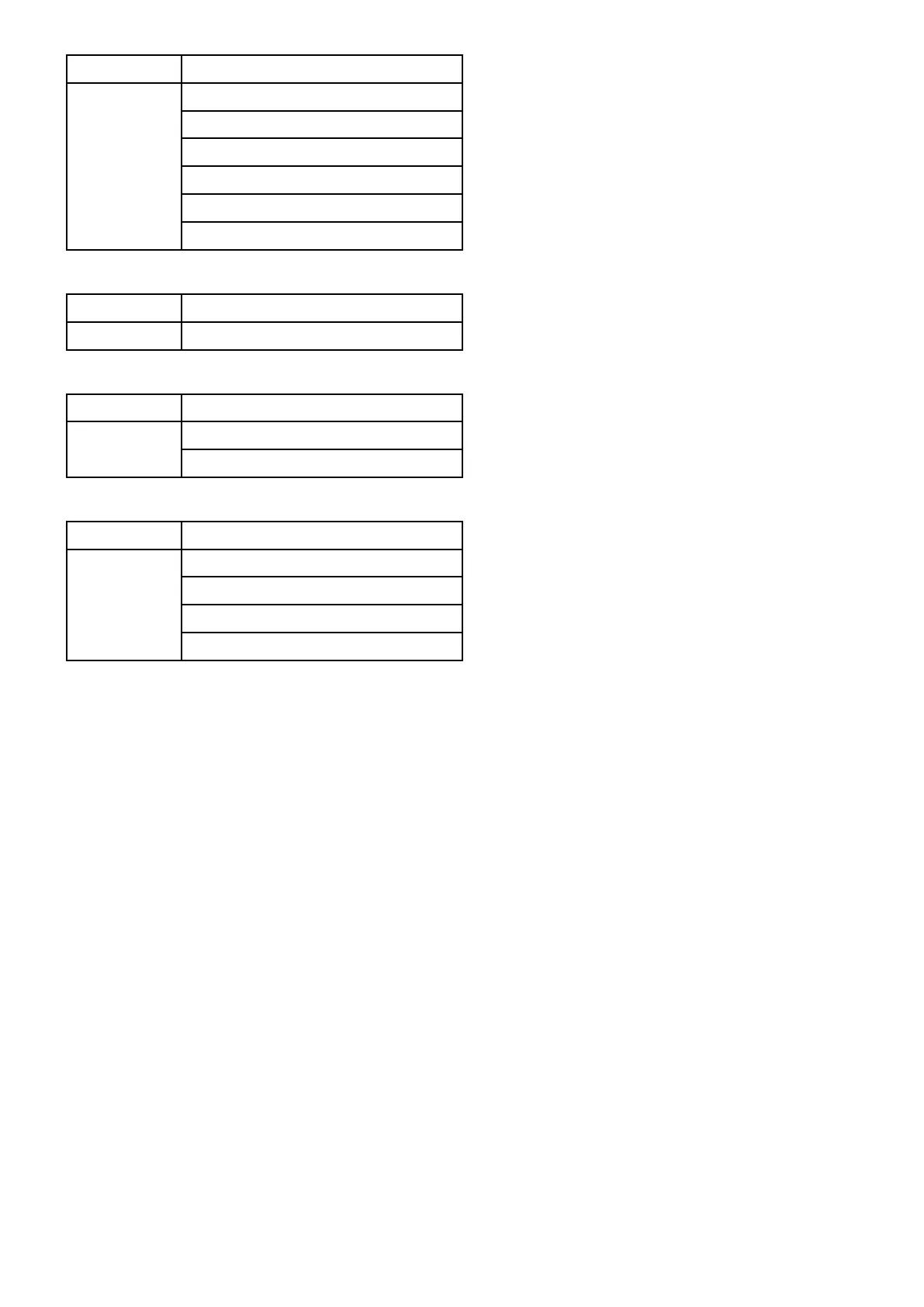
Dataapplication
ApplicationSetting
Datapagesandcontent
Datapageorder
Colortheme
Dialcolor
Numberofengines
Data
Maximumtachometerrange
Fishnderapplication
ApplicationSetting
FishnderCongurepresetfrequencies
Weatherapplication
ApplicationSetting
WindsymbolWeather
Watchboxalerts
Boatdetails
ApplicationSetting
Fueleconomyunits
Lowfuelthreshold
Fuelalarmon/off
Boat
Totalfuelcapacity
8.6Screenshots
Youcantakeascreenshotofwhatiscurrently
displayedonthescreen.
ScreenshotsaresavedtoaMicroSDcardin.bmp
(bitmap)format.Thesavedimagecanbeviewed
fromanydevicecapableofviewingbitmapimages.
Takingascreenshot
Youcantakeascreenshotbyfollowingthesteps
below.
1.InsertaMicroSDcardwithsuitablefreespace
availableintothecardreader.
2.PressthePowerbutton.
TheShortcutspageisdisplayed:
3.SelecttheCameraicon.
Aconrmationmessageisdisplayed.
4.SelectOk.
ThescreenshotisnowsavedtotheMicroSD
card.
TipIfyourmultifunctiondisplayhasaBackbutton
youcanalsotakeascreenshotbypressingand
holdingtheBackbuttonuntiltheconrmation
messageappears.
SelectingtheSDcardslotforscreenshots
Ifyourmultifunctiondisplayhas2cardreader
slots,youmustselectwhichcardslottosavethe
screenshotto.
Fromthehomescreen.
1.SelectCustomize.
2.SelectDisplayPreferences.
3.SelectScreenshotFile:.
4.SelecteitherMicroSD1orMicroSD2.
Viewingascreenshotonthemultifunction
display
Youcanviewimagesonthemultifunctiondisplay.
1.InsertaMicroSDcardcontainingthescreenshot
orimageintotheMicroSDcardslotofyour
multifunctiondisplay.
2.Fromthehomescreen,selectMyData.
3.SelectImagesandVideo.
Thelebrowserdialogisdisplayed.
4.Usethelebrowsertolocatetheleonthe
MicroSDcard.
5.Selecttheleyouwanttoview.
Thelewillnowopen.
6.SelectBackorClosetoclosetheimage.
Managingdisplaydata
129



 To Next Page