Note:Raymarinerecommendsthatyoucheckthe
displayedvesselpositioninthechartapplication
againstyouractualproximitytoaknowncharted
object.AtypicalGPShasanaccuracyofbetween
5and15m.
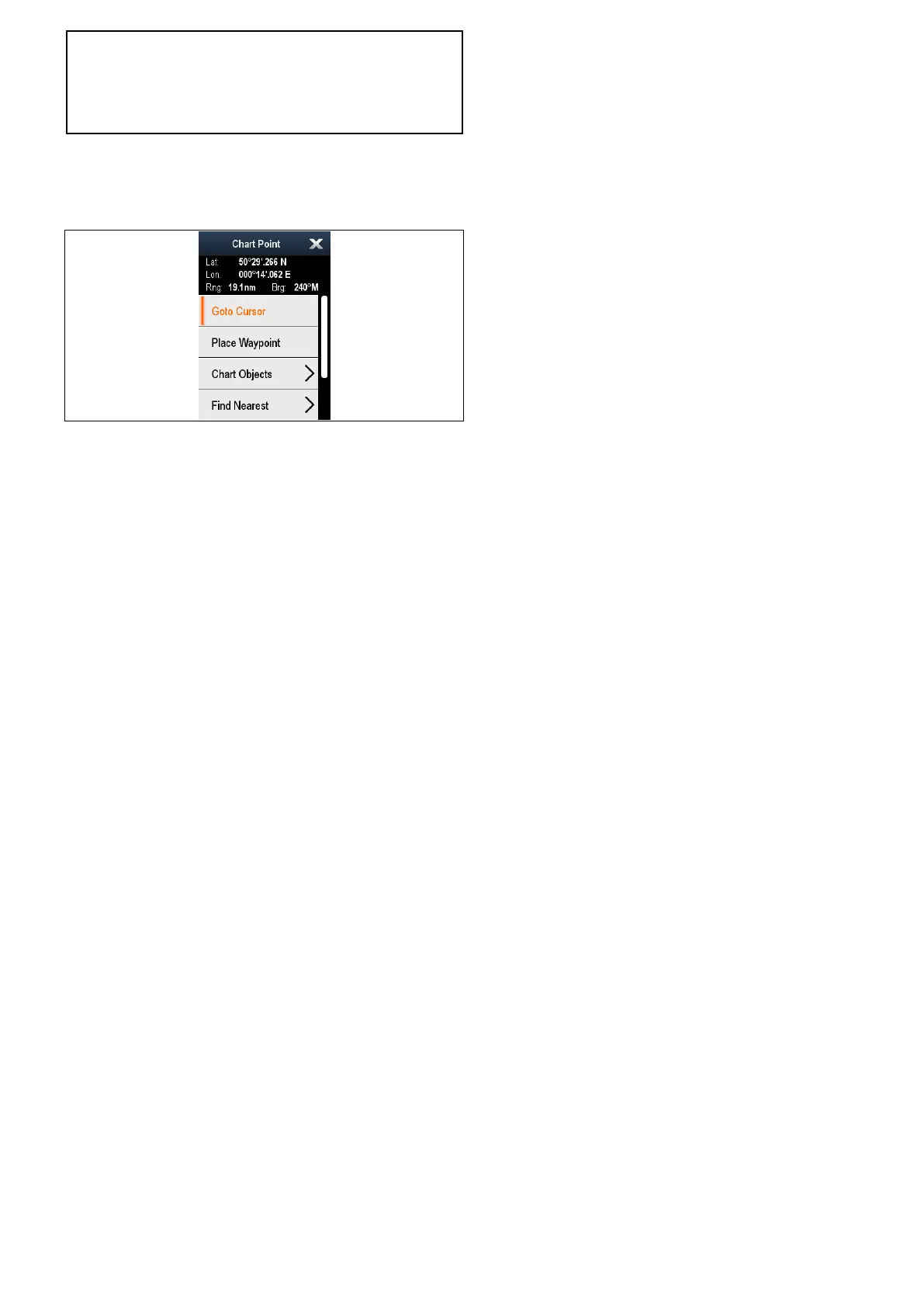
Chartcontextmenu
TheChartcontextmenuprovidesthecursors
positionaldataandshortcutstomenuoptions.
Themethodofselectingachartobjectusinga
touchscreendisplaydependsontheContextMenu
settinginthechartSet-upmenu,whichcanbeset
toTouchorHold.
Thecontextmenuprovidesthefollowingpositional
dataforthecursorpositioninrelationtoyourvessel:
•Latitude
•Longitude
•Range
•Bearing
Thefollowingmenuitemsareavailable:
•GotoCursor/StopGoto/StopFollow
•PlaceWaypoint
•Photo
•TideStation(onlyavailableifatidestationis
selected.)
•CurrentStation(onlyavailableifacurrentstation
isselected.)
•PilotBook(onlyavailableatcertainports.)
•Animate(onlyavailableifatideorcurrentstation
isselected.)
•ChartObjects
•FindNearest
•Measure
•BuildRoute
•AcquireTarget(onlyavailableifRadaroverlayis
switchedon.)
•Slewthermalcamera(onlyavailablewhen
thermalcameraisconnectedandoperating.)
Accessingthecontextmenu
Youcanaccessthecontextmenubyfollowingthe
stepsbelow.
1.Non-touchscreenandHybridT ouchdisplays:
i.Selectingalocation,objectortargeton-screen
andpressingtheOkbutton.
2.HybridTouchandTouchonlydisplays:
i.Selectinganobjectortargeton-screen.
ii.Selectingandholdingonalocationon-screen.
Selectingcontextmenusettings
Ontouchscreenmultifunctiondisplaysyoucan
choosehowchartobjectcontextmenusarea
accessed.
FromtheHomescreen:
1.SelectCustomize.
2.SelectDisplayPreferences.
3.SelectChartCtxtMenutoswitchbetweenTouch
orHold.
•Hold—requiresyoutotouchandholdona
chartobjecttoaccessthecontextmenu.
•Touch—requiresyoutotouchachartobject
toaccessthecontextmenu.
Chartapplication
233



 To Next Page