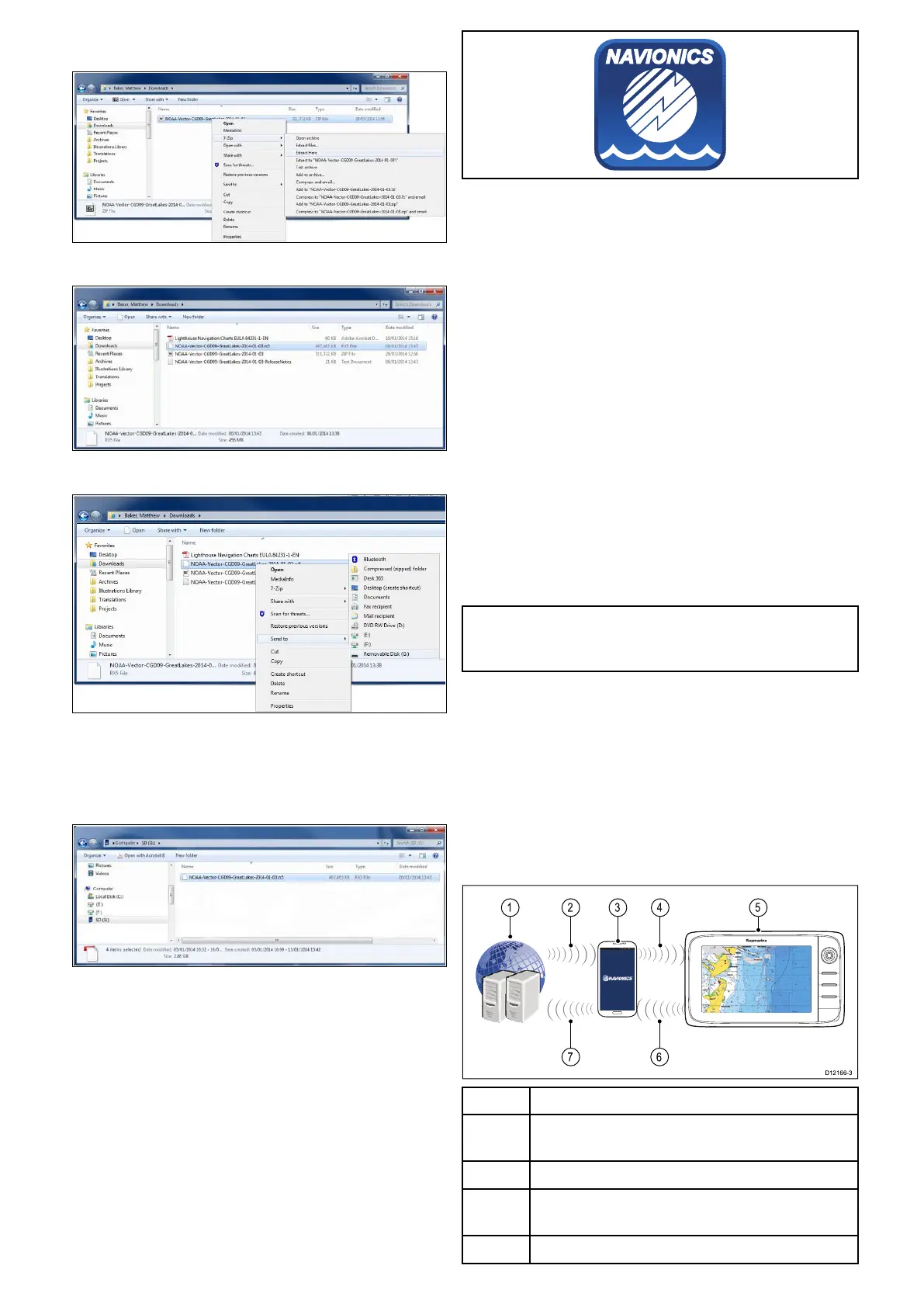
2.RightclickontheleandselecttheExtractHere
optionfromthezipoptions.
3.Onceallleshavebeenextractedselectthe
chartles.
4.RightclickandchooseSendto>Removable
Disk
TheChartleswillnowbecopiedtoyourmemory
card.
5.Checkthattheleshavebeensuccessfully
placedonyourmemorycardbyviewingits
contentsinyourlebrowser.
6.SafelyremoveyourmemorycardfromyourPC’s
cardreader.
7.Insertyourmemorycardintothecardreaderof
yourmultifunctiondisplay.
8.OpentheChartapplicationonyourmultifunction
display.
9.SelectthenewchartfromtheChartselection
menu:Menu>Presentation>ChartSelection.
TheChartscreenwillberedrawntodisplaythe
newlyselectedcharttype.
Navionicscharts
Yourmultifunctiondisplayiscompatiblewith
Navionicscartography.
ThefollowingNavionicscartographytypesare
availableforyourmultifunctiondisplay:
•ReadytoNavigate
•Silver
•Gold
•Gold+
•Platinum
•Platinum+
•Fish'NChip
•Hotmaps
TocheckthecurrentavailabilityofNavionicschart
cardsandtypes,pleasevisitwww.navionics.comor
www.navionics.it.
Note:RefertotheRaymarinewebsite
(www.raymarine.com)forthelatestlistof
supportedcartography.
Navionicsmobilemarineapp
Youcanwirelesslysynchronizedatabetweenyour
multifunctiondisplay(MFD)andamobiledevicethat
isrunningtheNavionicsmobilemarineapp.
ThesynchronizationdownloadsNavionicsFreshest
DatafromyourmobiledevicetoyourMFD
anduploadssonarlogsfromyourMFDtoyour
mobiledevice.Waypointsandroutescanalsobe
synchronizedbetweenyourmobiledeviceandMFD.
1Navionicsservers
2DownloadNavionicsFreshestDatatomobile
device(internetconnectionrequired)
3MobiledevicerunningNavionicsmobileapp
4
DownloadNavionicsFreshestDatatoMFD(Wi-Fi
connectiontoMFDrequired)
5
MFD
236aSeries/cSeries/eSeries



 To Next Page