YoucanalsoviewimagesfromtheMyDatamenu
fromtheHomescreen:Homescreen>MyData>
ImagesandVideos.
MovingandcopyingPhotos
Youcancopyandmovelesbetweenyourdisplay’s
internalstorageandmemorycardsusingthesteps
below.
Ensureyouhaveamemorycardinsertedinthecard
reader.
FromtheCameraapplication:
1.SelectMenu.
2.SelectPhotos.
3.SelectView.
TheMyFilesbrowserisopened.
4.Locatetherelevantphoto.
Photosstoredoninternalstoragearesavedin
Internal>UserData>Imageles.
PhotosstoredonmemorycardaresavedinSD
Card#>Raymarine>Imageles.
5.Selectthele.
Theleoptionsdialogisdisplayed.
6.SelectMoveorCopy.
7.Conrmthelocationyouwanttomoveorcopy
theleto.
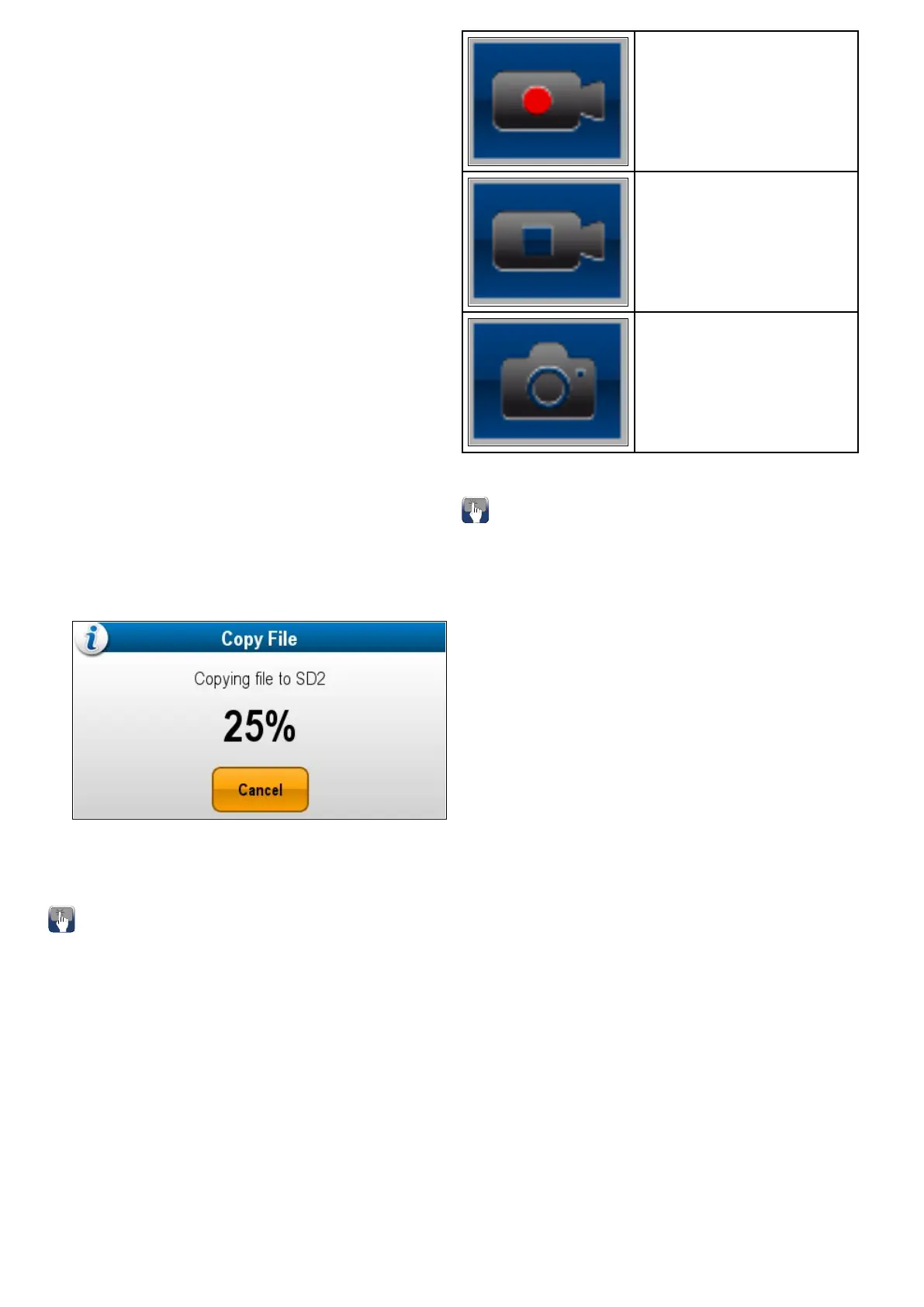
Aprogressindicatorisdisplayede.g.:
Whentheoperationiscompleteaconrmation
pop-upmessageisdisplayed.
8.SelectOK.
Onscreenicons
OnT ouchscreenmultifunctiondisplaysyoucantouch
anywhereonthescreentodisplaytheonscreen
icons
Theonscreeniconscanbeusedtostart/stop
recordingortotakeapicture.
Recordicon
StopRecordingicon
TakePhotoicon
Theonscreeniconswillcloseafter5seconds.
Usingtheonscreenicons
1.SelecttheRecordicontostartrecording.
2.SelecttheStoprecordingicontostopthe
recording.
3.SelecttheTakePhotoicontocaptureastill
image.
372aSeries/cSeries/eSeries



 To Next Page