97
M
ANAGING CALLS DIRECTORY
Downloading the Directory Mitel Web UI
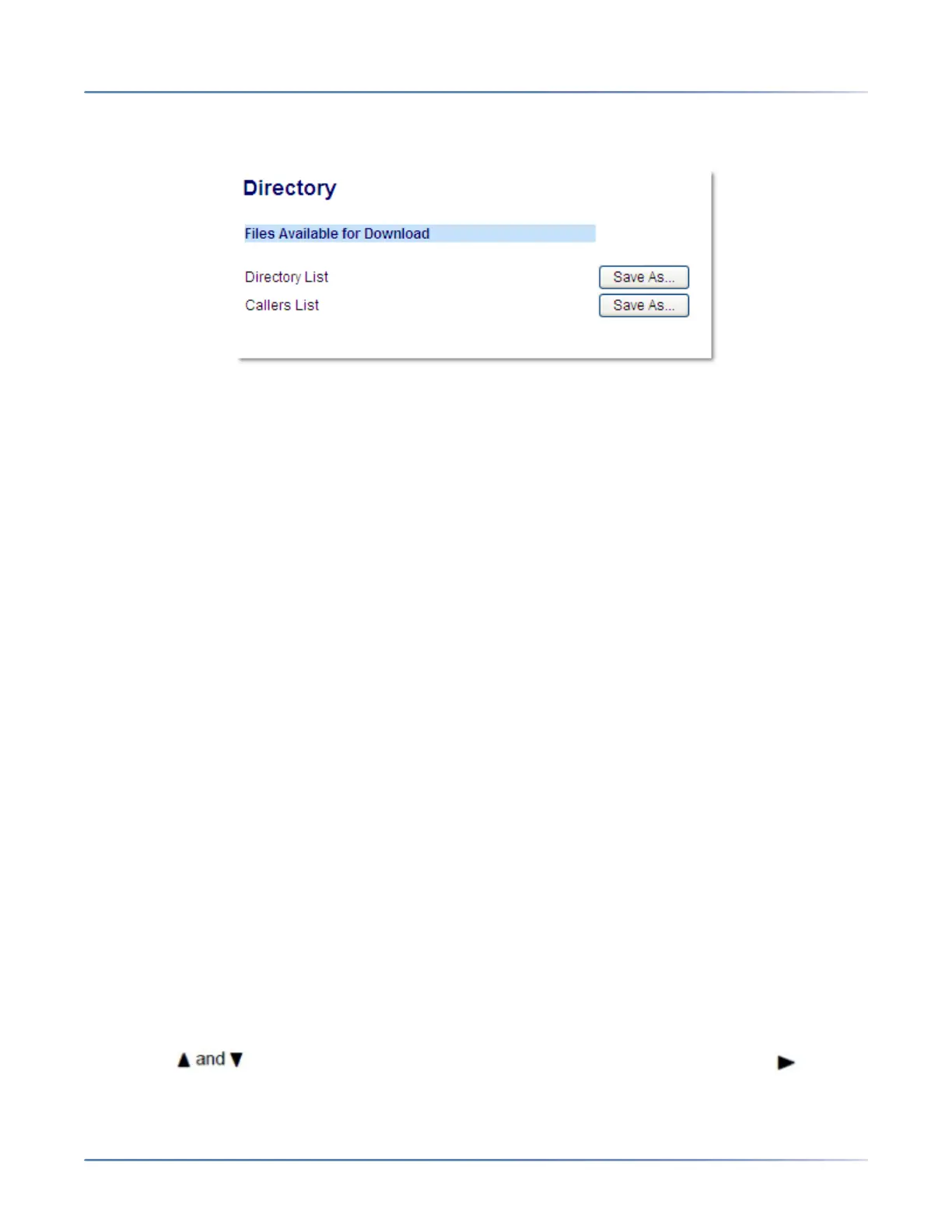
1. Click on Operation > Directory.
2. In the Directory field, click on Save As.
3. A download window displays.
4. Click OK .
5. Enter the location on your computer where you want to download the Directory and click Save.
6. The directorylist.csv file downloads to your computer.
7. Use a spreadsheet application to open and view the directorylist.csv file.
External Directory Source Features
The following external Directory sources may be configured on your phone:
• Two CSV-based directories.
NOTE: CSV-based directories, directory 1 and directory 2 can now support 2000 contacts in each
directory.
• Lightweight Directory Access Protocol (LDAP) Directory.
• Microsoft Exchange contacts (Exchange 2007 SP1 or greater interface supported).
• BroadSoft Xsi Enterprise Directory, Personal Contacts, Enterprise Common Phone List, Group Direc-
tory, and Group Common Phone List.
When any of these external Directory sources are configured, the contacts from the respective sources
will be loaded into your Directory. From the Directory List, you will be able to search for any external Direc-
tory source contacts, dial out to the contacts, copy the contacts to the Local Directory, or simply view the
external Directory source contact’s details.
Configuring an External Directory Source Using the Phone UI
For details on how to enable/disable the external Directory source, change the default folder labels, and
enter credentials, please refer to Enabling/Disabling Directories and Renaming Labels Using the IP
Phone UI and Entering Usernames/Passwords and Connection Testing Using the IP Phone UI .
Copying a Contact in an External Directory Source to the Local Directory IP Phone UI
1. Press the programmed Directory key.
2. Use the keys to navigate to the respective Directory source folder and select Enter.



 To Next Page