56
L
INE KEY AND PROGRAMMABLE KEYS EDITING SPEED DIAL KEYS
NOTE:
a. If a number on the keypad is setup as a speed dial key, pressing the applicable number in the
speed dial editing process also displays the speed dial edit screen. The edit screen allows you
to change the Speed Dial Number and Line setting.
b. If you press a key that is NOT setup as a speed dial key, the phone displays an Invalid Key
message. However, if you press an empty keypad key or programmable key that is set to None,
it initiates the Add a Speed Dial Key process allowing you to setup a new speed dial key.
5. Edit the speed dial information as applicable and press 4 Save .
NOTE:
a. You can cancel out of the speed dial editing process at any time without saving, by pressing the
key.
b. On the 6905, you can remove the speed dial key by erasing the speed dial number digits (leaving
the speed dial value blank) and then pressing 4 Save . Use the 3 key to delete the digits.
Editing a Speed Dial on a Programmable Key
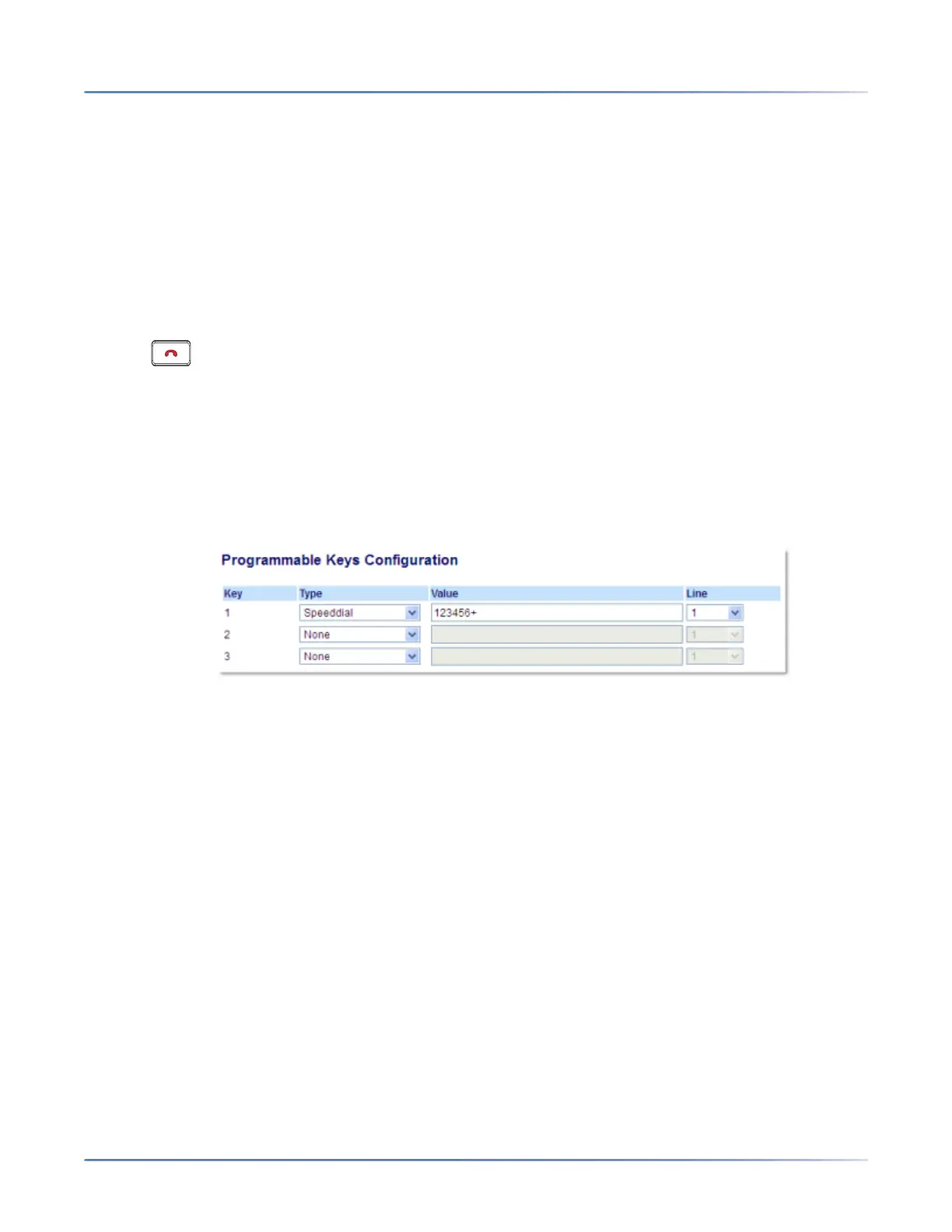
Mitel Web UI
1. Click on Operation > Programmable Keys.
2. Select the key configured for speed dial.
3. In the Value field, edit the phone number, extension, or speed dial prefix to apply to this hard key. If
you enter a speed dial prefix, you must enter the + character at the end of the prefix number (for
example, 123456+).
4. If required in the Line field, select a line for which to apply the speed dial to. Valid values are 1 and 2.
5. Click Save Settings.
NOTE: You can delete a speed dial key by changing the Type field to None .



 To Next Page