42
C
USTOMIZING YOUR PHONE RESETTING A USER PASSWORD
Setting a User Password
IP Phone UI
1. Press on the phone to enter the Options List.
2. Select Password.
3. At the Current Password prompt, enter the current user password and press the key or select
Done.
4. At the New Password prompt, enter the new user password and press the key or select
Done.
5. At the Enter Again prompt, re-enter the new user password and press the key or select Done.
A message, Password Changed displays on the screen.
Mitel Web UI
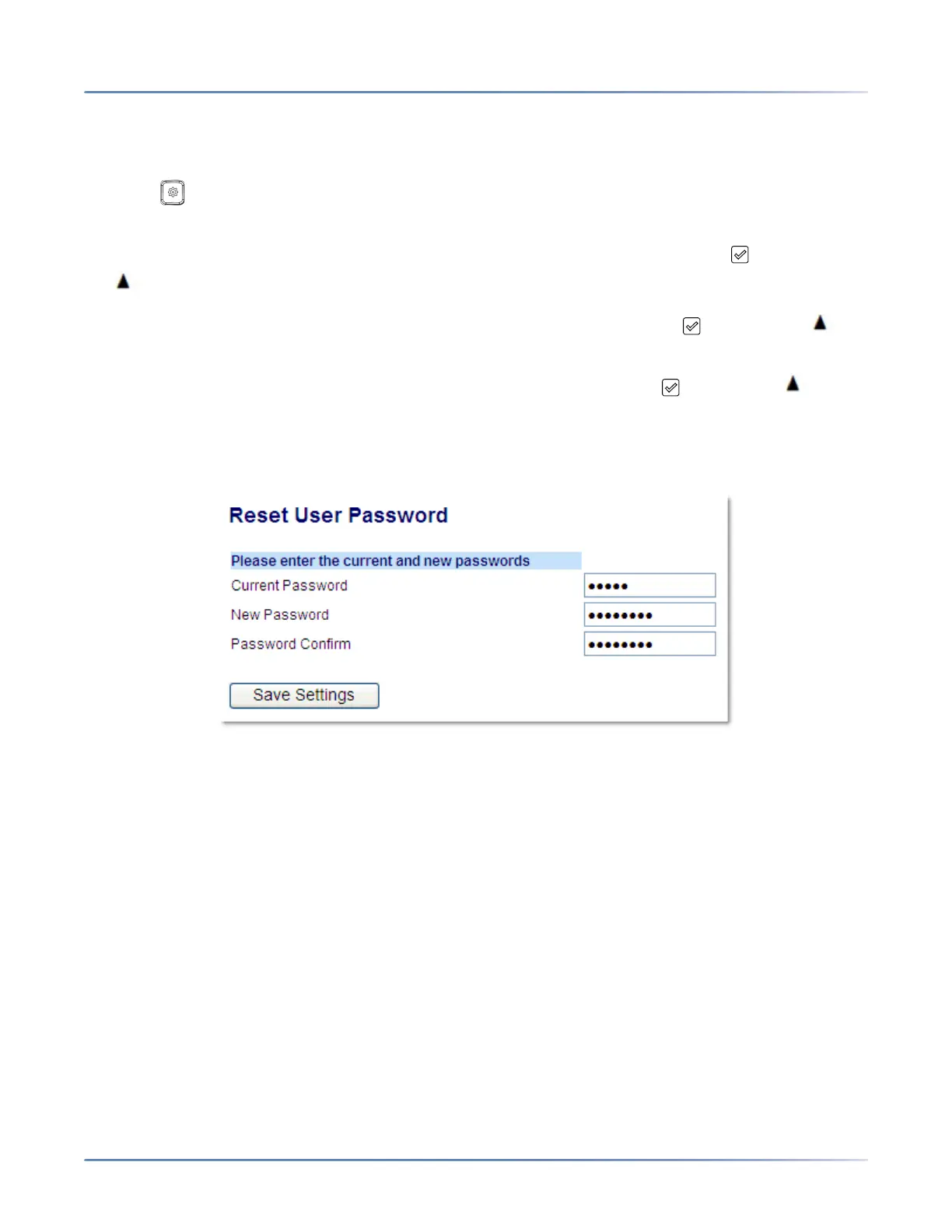
1. Click on Operation > User Password.
2. In the Current Password field, enter the current user password.
NOTE: By default, the user name is user (all lowercase) and the password field is left blank.
3. In the New Password field, enter the new user password.
4. In the Password Confirm field, enter the new user password again.
5. Click Save Settings.
Resetting a User Password
If you forget your password, you can reset it and enter a new password. The reset user password feature
resets the password to the factory default which is blank (no password). You can reset a user password
using the Mitel Web UI only.
NOTE: The IP phones support alphanumeric password with the supported characters.



 To Next Page