53
L
INE KEY AND PROGRAMMABLE KEYS CREATING A SPEED DIAL KEY
IP Phone UI
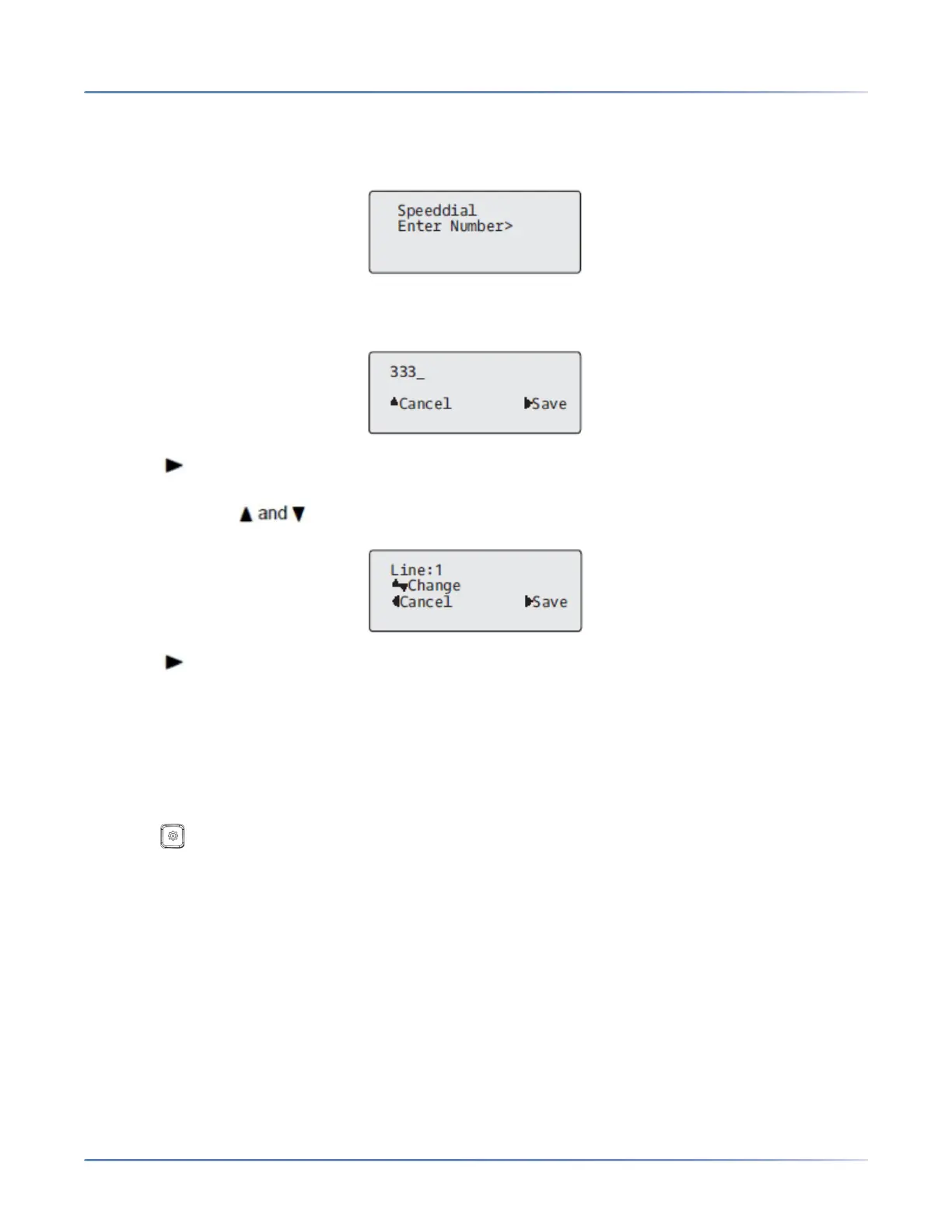
1. Press a programmable key or a number key on the keypad for three seconds. A screen displays with
the prompt, Enter Number> .
2. Enter a phone number or extension to assign to that speed dial key. The following example illustrates
the screen display:
3. Press Save to save the number as a speed dial key.
By default, the phone automatically assigns the speed dial key to line 1 if available. To select a differ-
ent line, use the navigation keys.
4. Press Save to save the speed dial key to the line specified.
Creating a Speed Dial Using the Speed Dial Edit Option
You can use the IP phone UI at the path, Options > Preferences > Speed Dial Edit , to create a speed dial
key.
IP Phone UI
1. Press on the phone to enter the Options List.
2. Select Preferences.
3. Select Speed Dial Edit .
The following prompt displays:
Press SD button
NOTE: If you select a key that is currently set as a speed dial key, the speed dial information displays
for you to edit
4. Press an unconfigured programmable key or keypad key.



 To Next Page