89
H
ANDLING CALLS CONFERENCING CALLS
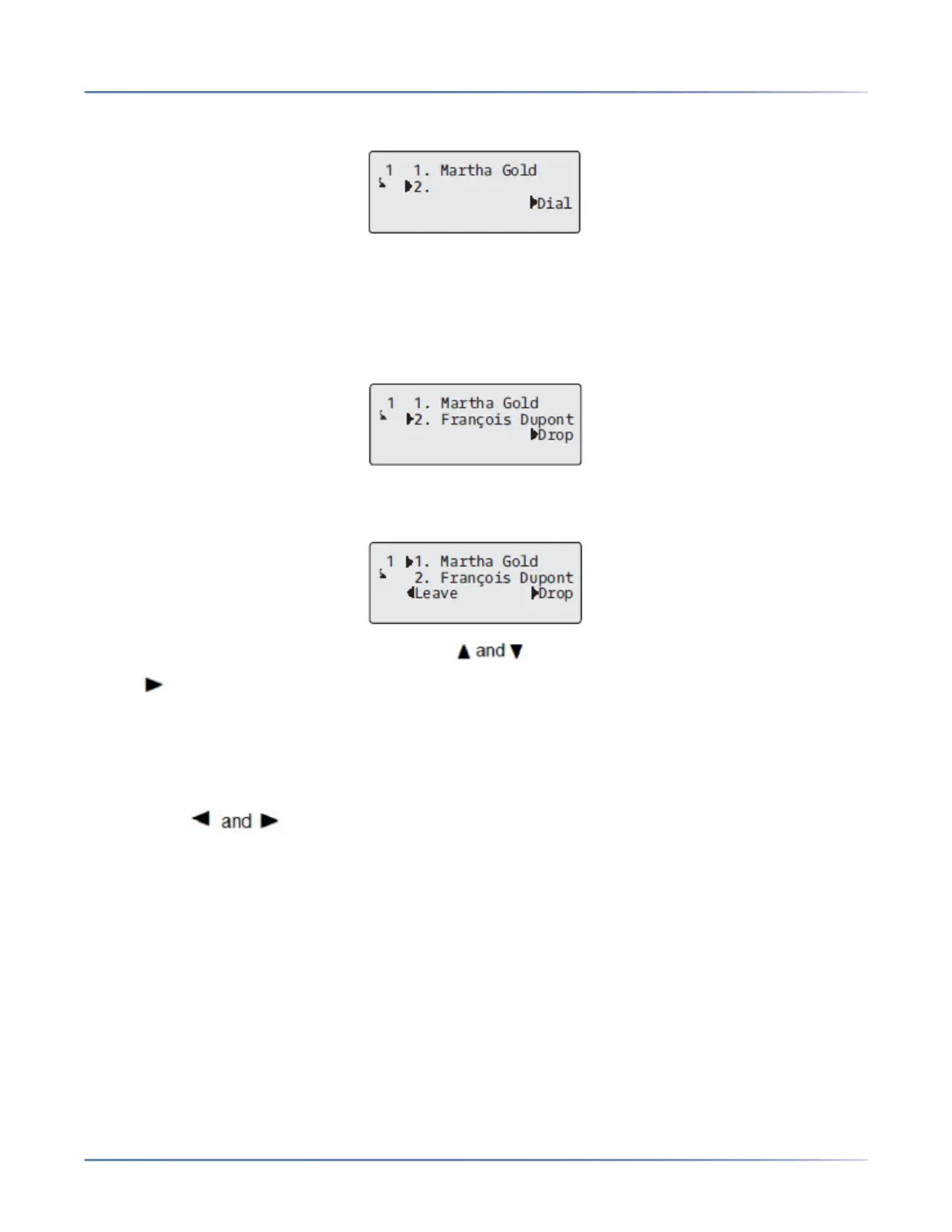
4. Press the programmed Conference key.
5. Enter the phone number of Party 3.
NOTE: Users are able to edit the destination number by pressing the 3 navigation key, which acts as
a Backspace key.
6. Wait for Party 3 to answer. When Party 3 answers, you can consult with them before adding them to
the conference.
7. Press the programmed Conference key again to add Party 3 to the conference. Party 1 (which is
yourself), Party 2, and Party 3 are all connected to a single conference.
8. To drop a party from the conference, use the navigation key to select the party and press
the Drop key.
Creating a Conference Call by Joining Two Existing Calls
IP Phone UI
1. Ensure you are on an active call with one of the parties with whom you wish to create a conference
(the other party should be placed on hold).
2. Press the navigation keys to scroll to the party you wish to conference in.
3. Press the programmed Conference key. The two parties will connect with you to form a conference
call.
Centralized Conferencing (for Sylantro and BroadSoft Call Managers)
The 6905 allows you to create multiple conferences with unlimited participants (depending on your server
limitations) when your Administrator enables Centralized Conferencing.
If your Administrator does not enable Centralized Conferencing, then the 6905 uses Local Conferencing
by default.
Your Administrator can configure Centralized Conferencing globally on all lines or on specific lines.
Although, for the global setting to work, you must configure the lines with the applicable phone number.



 To Next Page