110
MANAGING CALLS DIRECTORY
3. Press the programmed Save key.
4. Press the programmed Directory key to save the contact you selected to the Directory.
Saving from the Redial List
IP PHONE UI
1. Press the key.
2. From the Redial List, scroll through the list to find contact that you want to save to your directory.
3. Press the programmed Save key.
4. Press the programmed Directory key to save the contact you selected to the Directory.
DOWNLOADING THE DIRECTORY TO YOUR PC
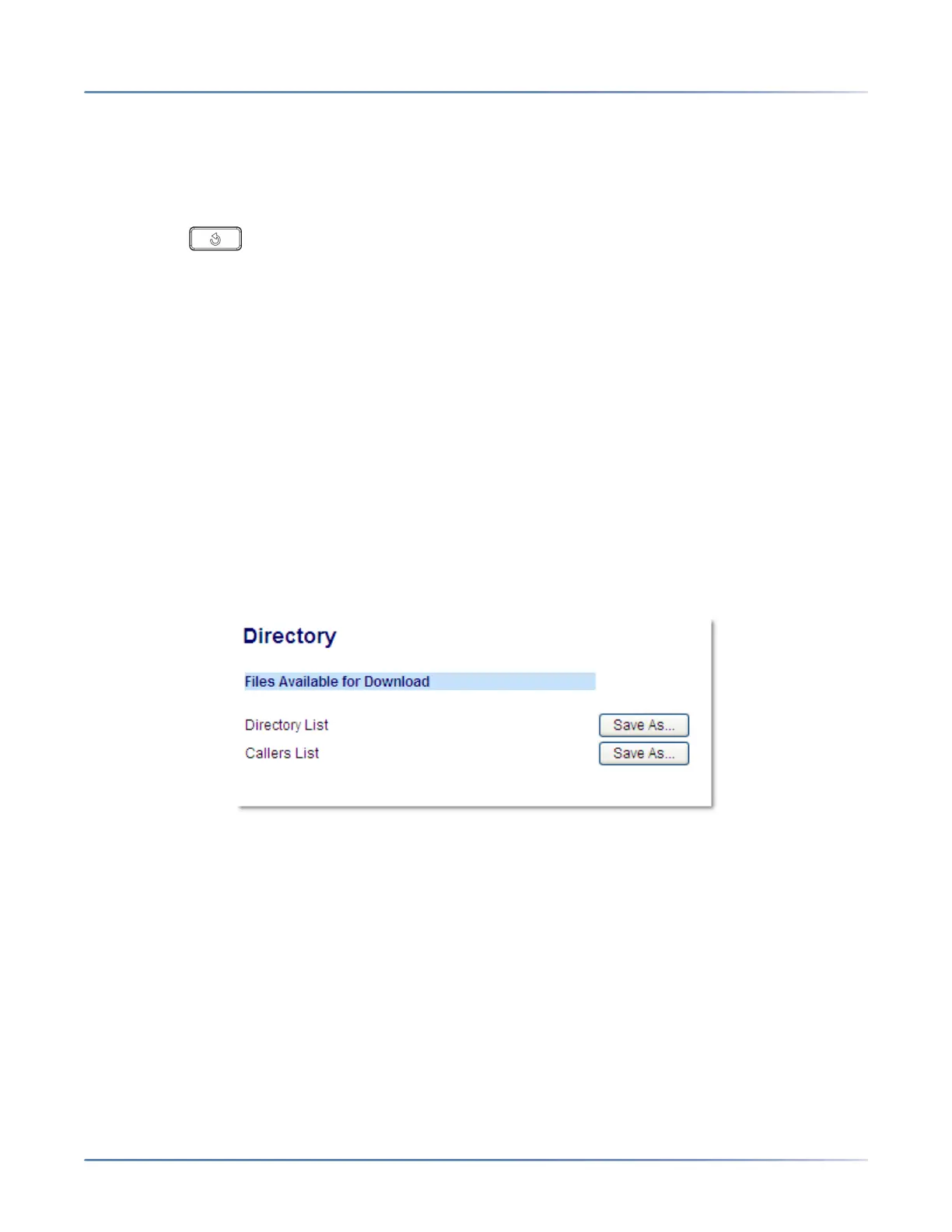
You can download the Directory to your PC via the Mitel Web UI. The phone stores the directorylist.csv
file to your PC in comma-separated value (CSV) format.
You can use any spreadsheet application to open the file for viewing. The file displays the all the relevant
items for each Local Directory entry (such as first and last names, phone numbers, phone number types,
corresponding line numbers, etc...)
Downloading the Directory
MITEL WEB UI
1. Click on Operation > Directory.
2. In the Directory field, click on Save As.
A download window displays.
3. Click OK.
4. Enter the location on your computer where you want to download the Directory and click Save.
The directorylist.csv file downloads to your computer.
5. Use a spreadsheet application to open and view the directorylist.csv file.
EXTERNAL DIRECTORY SOURCE FEATURES
The following external Directory sources may be configured on your phone:
• Two CSV-based directories.



 To Next Page