62
LINE KEYS AND PROGRAMMABLE KEYS AUTOMATIC CALL DISTRIBUTION (ACD) KEY (FOR SYLANTRO CALL
The ACD key LED changes when you log into the phone queue and are available to take calls. The LED
changes again when you are busy with an active call. The table below shows the status of the LED as
they may appear on your IP phone.
NOTE: It is recommended you configure no more than a single ACD key or programmable key per IP
phone.
CONFIGURING AN AUTOMATIC CALL DISTRIBUTION (ACD) KEY USING
THE MITEL WEB UI
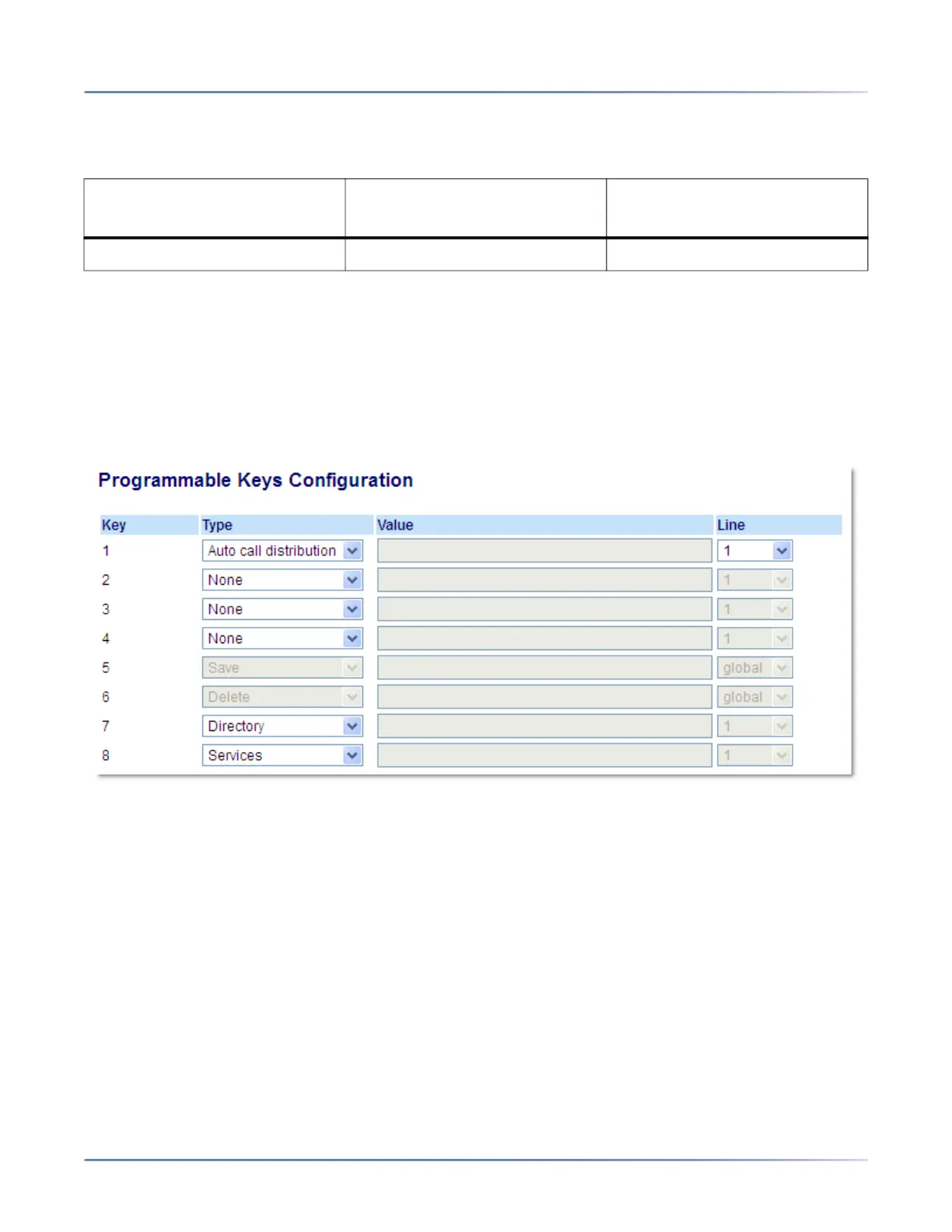
1. Click on Operation >Programmable Keys .
Programmable Keys
2. Select from Key 1 through Key 8 .
3. In the Type field, select Auto call distribution.
4. In the Line field, select a line to apply Automatic call distribution. Valid values are 1 through 24 .
5. Click Save Settings .
USING THE ACD KEY
Use the following procedure to log into a phone queue from your IP phone:
IP Phone UI
1. Check with your Administrator to verify the queue linked to your ACD key.
2. Press the ACD Key on your IP phone.
Status: Logged In and
Available Status: Unavailable Logged Out
Solid Red LED Blinking Red LED No LED



 To Next Page