34
CUSTOMIZING YOUR PHONE TIME AND DATE
4. Select Daylight Savings.
5. Select a Daylight Savings time from the list of options.
Valid values are:
– OFF
– 30 min summertime
– 1 h summertime
– Automatic (Default)
6. Press the key or select Set to save the Daylight Savings setting.
CONFIGURING TIME SERVERS
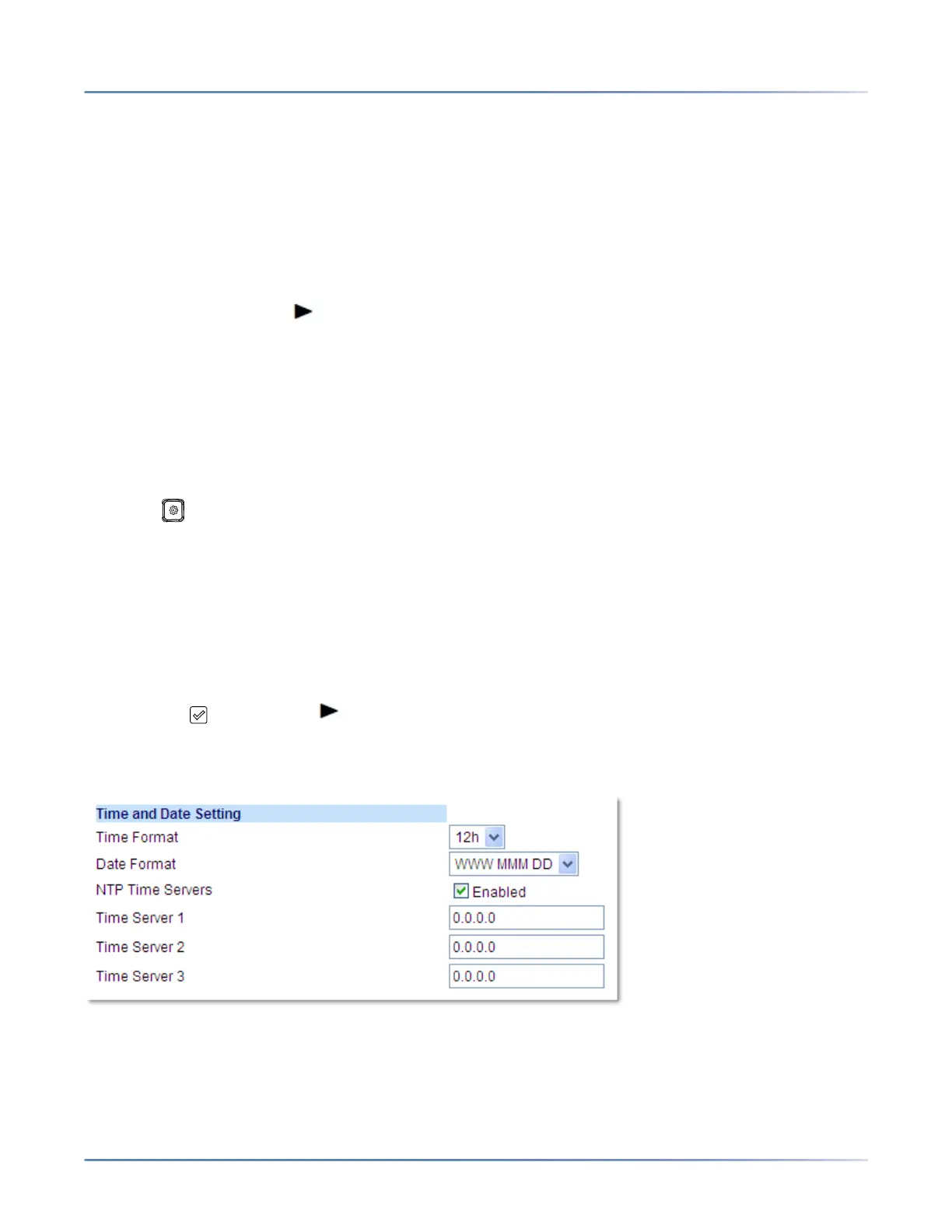
With a valid time server enabled your IP phone will synchronize the time displayed with the specified
configuration server. The phone will use the time from Time Server 1 unless it is not configured or unavail-
able, in which case it will move on to Time Server 2, and if necessary Time Server 3
IP PHONE UI
1. Press on the phone to enter the Options List.
2. Select Preferences.
3. Select Time and Date.
4. Select from Time Server 1, Time Server 2, or Time Server 3.
5. Enter an IP address or domain name for the time server.
NOTE: Time Servers are enabled by default. The Time Servers can be Enabled orDisabled only from
the Mitel Web UI.
6. Press the key or select Set to save the time server setting.
MITEL WEB UI
1. Click on Basic Settings > Preferences > Time and Date Setting.
2. In the Time Format field, select the time format you want to use on your phone. Valid values are:
– 12h (12 hour format) (default)
– 24h (24 hour format)
NOTE: The time and time format you configure display on the phone’s idle screen.



 To Next Page