124
MANAGING CALLS DND AND CALL FORWARD
IP PHONE UI
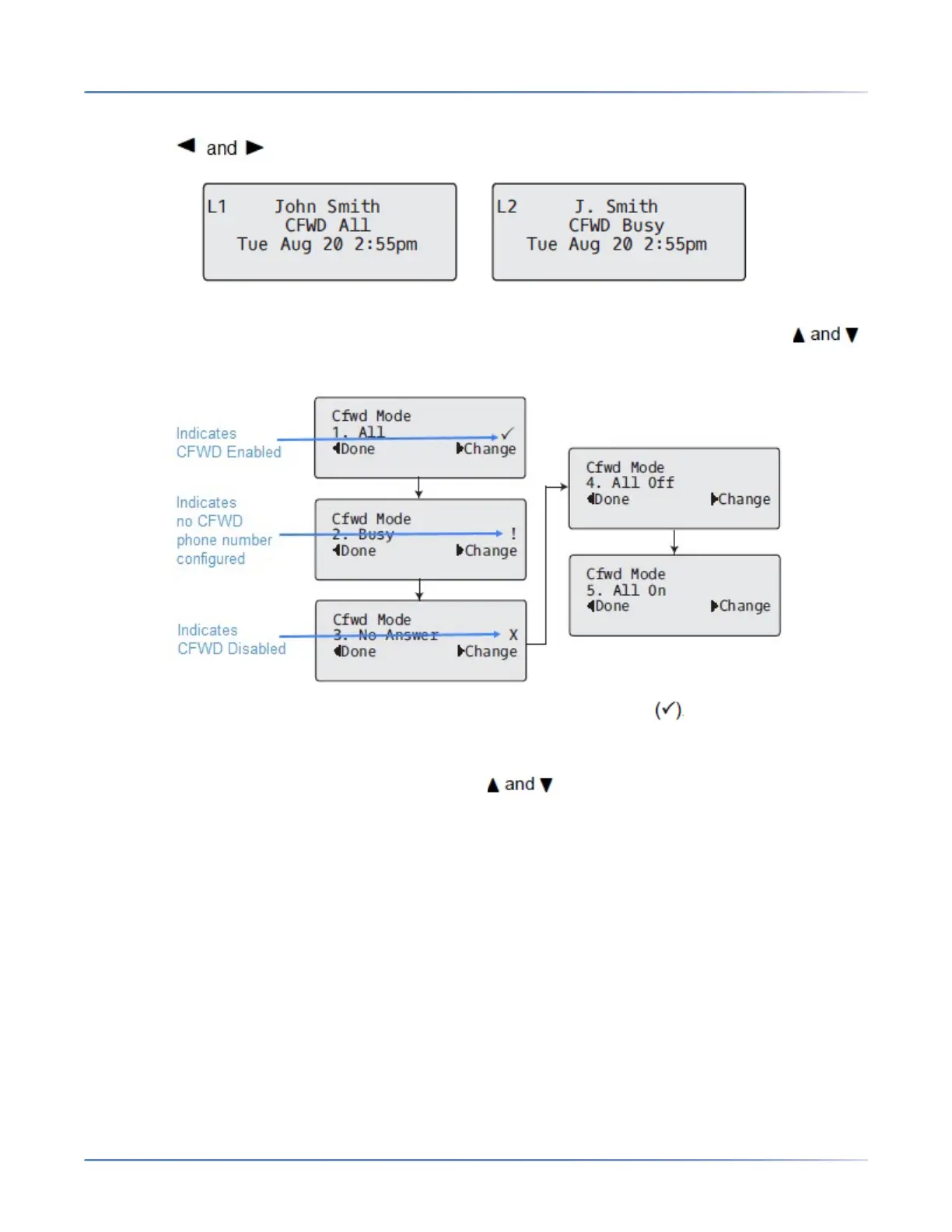
1. Use the navigation keys to scroll through each account.
In the above example, account 1 has CFWD All enabled and account 2 has CFWD Busyenabled.
2. Press the programmed Call Forward key. The Call Forward Mode screen displays. Use the
navigation keys to scroll through each state type.
In the above example, CFWD All is enabled as indicated by a check mark , CFWD Busy is enabled
but no call forward phone number configured as indicated by a !, and CFWD No Answer is disabled,
as indicated by an X.
3. Select a state for the account(s) in focus using the navigation keys. You can enable/disable
any or all of the following states for an account:
– All: Forwards all incoming calls for the respective account to the specified number.
– Busy: Forwards incoming calls to a specified number if DND has been enabled for that account OR
if the account is currently engaged in another call.
– No Answer: Forwards incoming calls to a specified number if the call has not been answered for the
specified number of rings.
NOTE: If CFWD All, CFWD Busy, and CFWD No Answer are all enabled (and/or if the account
has DND enabled), the CFWD All settings take precedence over CFWD Busy and CFWD No
Answer.
You can also use the following keys if required:
• All Off: Disables all CFWD states for the current account in focus
• All On: Enables all CFWD states for the current account in focus



 To Next Page