112/128
T25 System Manual Part 2: System Expansion with MxEasy
© MOBOTIX AG • Security-Vision-Systems • Made in Germany
www.mobotix.com • sales@mobotix.com
Step5: Integrating Door Stations Over the Internet in MxEasy
Launch MxEasy as described in
Section 5.1
. You now have to manually add the T25 in
MxEasy using your DynDNS name:
1. If this is not automatically displayed when the program starts, open the Camera List
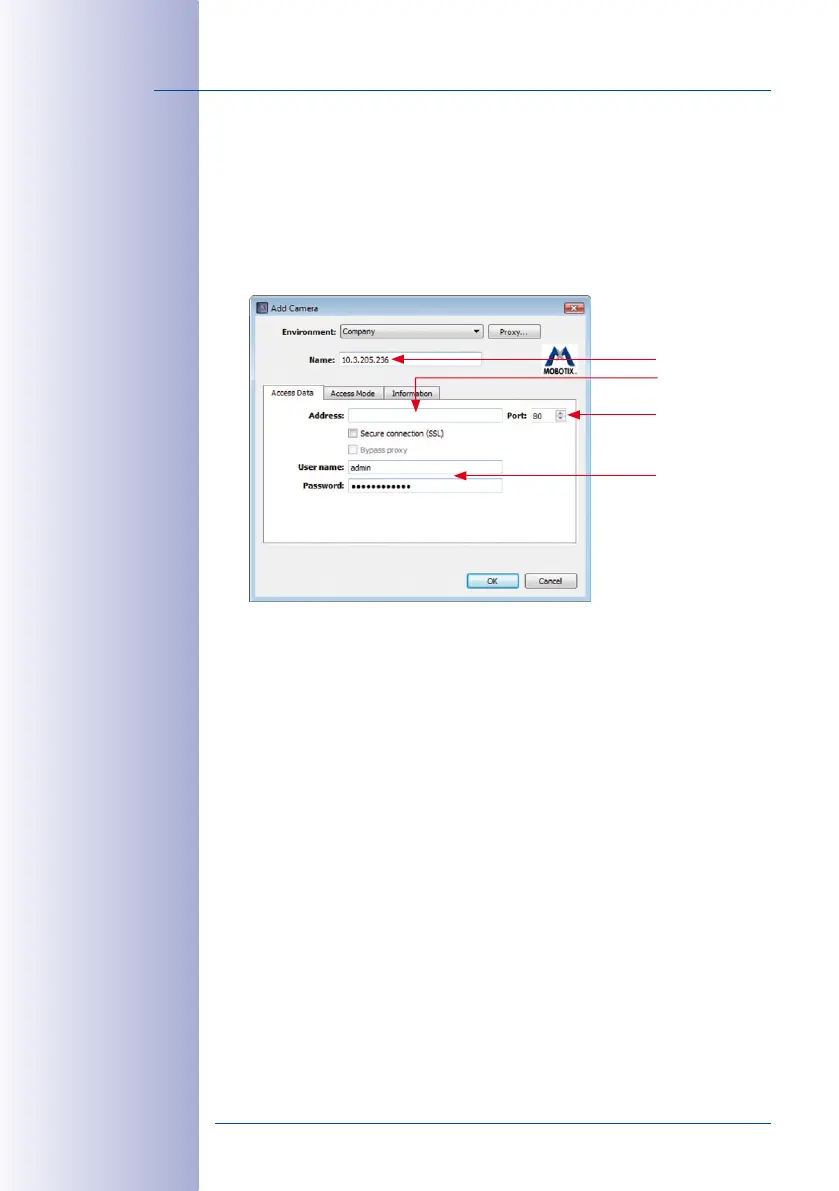
in MxEasy (e.g., under the menu item Camera>Add Cameras). Click on the + button
to the lower left of the list. The Add MOBOTIX Camera window opens.
2. Enter the DynDNS name for the router in the Address field and the corresponding
Port for the Door Station (as defined in the router).
Data from the example above:
• Address: fritz-mueller.dyndns.org
• Port: 19801
3. Now enter the user name and password for the Door Station:
• User name: admin
• Password: <Super PIN>
4. Click OK to confirm and finish. If everything is set up correctly, the network status of
the Door Station automatically switches to accessible (symbolized by a green dot
without lock) and MxEasy displays a live preview image.
Camera name
be on router
User name and
password for
camera access
fritz-mueller.dyndns.org
IP address or
DynDNS name


 To Next Page