75/128
Managing Access PINs
© MOBOTIX AG • Security-Vision-Systems • Made in Germany
www.mobotix.com • sales@mobotix.com
3.4 Managing Access PINs
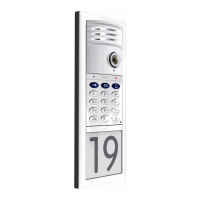
The electrical door opener can also be triggered by entering an access PIN and then
pressing the blue key button. You first need to set up an access PIN in the system to
activate this function for a user. You can freely choose the PIN. Every user can have
their own PIN.
Notes on How to Securely Use Access PINs
In general, there is an increased security risk in using an access PIN instead of a card,
because a potential burglar can find out the code. PIN access should therefore be using
sparingly, such as in emergencies, and they should always involve long PINs (never
1-1-1-1, date of birth, etc.) and only be used for non-critical doors (such as garage doors,
inside doors of a building, etc.).
An access PIN needs to have at least four and no more than 16 digits, and it may not
consist of zeros only.
MOBOTIX recommends changing your access PINs on a regular basis.
Always make a note of your access PINs on your T25 Product Pass, which should be
stored in a secure location (
Section 3.2.2
).
3.4.1 Adding PINs
One way to set up access PINs is to assign them to specific users via their personal num-
bers. This is useful in cases where you wish to erase all the access PINs (and user cards)
of a user without having to enter the access PINs (
Section 3.5
).
You need the red admin card to set up an access PIN.
Proceed as Follows:
1. Select an access PIN and enter it on your T25 Product Pass.
2. Enter Configuration Mode: Press the OK/MENU button until you hear the second
beep (button flashes blue).
3. Hold your admin card up to the KeypadRFID buttons until you hear a beep and the
OK/MENU button lights up blue continuously.
OK


 To Next Page