33/128
Step2: Set Up the KeypadRFID Access Module
© MOBOTIX AG • Security-Vision-Systems • Made in Germany
www.mobotix.com • sales@mobotix.com
2.2.1 Entering the Super PIN at a KeypadRFID Module
You require the Super PIN during the initial setup of the KeypadRFID. The Super PIN is
used to protect your system. In an emergency, the Super PIN can be used in place of the
admin card for authentication on the KeypadRFID. The Super PIN therefore also allows you
to erase cards or set up a new access PIN.
The Super PIN should not have a series of zeros only and it must be dicult for unauthorized
persons to guess. Select a number that has at least eight and no more than 16 digits (using
the digits 0–9). The more digits the number has, the more secure it is.
Make a note of your personal Super PIN immediately in your T25 Product Pass (see
Section 3.2.2
).
Step3 of the initial setup process requires you to enter your Super PIN on the video phone
for authentication purposes (see
Section 2.4.2, «Opening the Admin Setup»
).
Enter the Super PIN
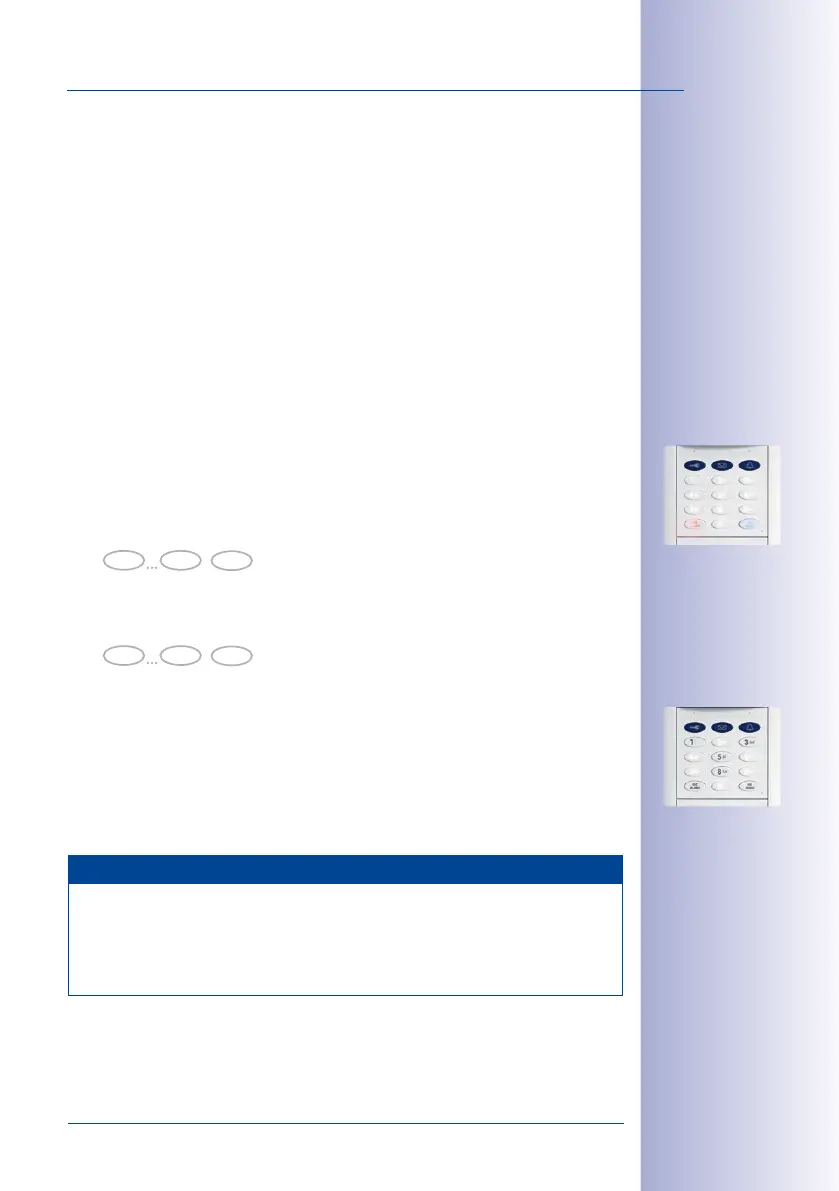
1. The KeypadRFID shows the flashing pattern of the successfully completed Auto
Configuration process (ESC/ALARM flashes red, OK/MENU flashes blue).
2. Enter your personal Super PIN and press the OK/MENU button (which then flashes
blue even faster).
3. Re-enter your Super PIN and press the (quickly flashing) OK/MENU button again.
4. A flashing ring pattern on the KeypadRFID confirms entry of the Super PIN.
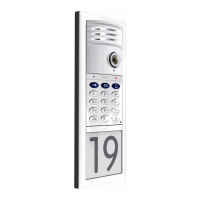
5. After approximately ten seconds, the number buttons on the KeypadRFID light up
white continuously, the KeypadRFID bell button, key button and OK/MENU button flash
blue and the ESC/ALARM button flashes red. Continue with
Section 2.2.2, «Adding
Admin Cards at the KeypadRFID Module»
.
Note
If you make an incorrect entry (for example, you enter two dierent Super PINs) or if
you wait longer than 60 seconds between two entries, a warning beep will sound and
the KeypadRFID will return to the original state it was in after the Auto Configuration
(number buttons will flash white). Repeat the procedure for entering the Super PIN, as
described here.
0 9
Super PIN
OK
0 9
Super PIN
OK



 To Next Page