96/128
T25 System Manual Part 2: System Expansion with MxEasy
© MOBOTIX AG • Security-Vision-Systems • Made in Germany
www.mobotix.com • sales@mobotix.com
5.1.3 Connecting a Door Station Using the MxEasy Wizard
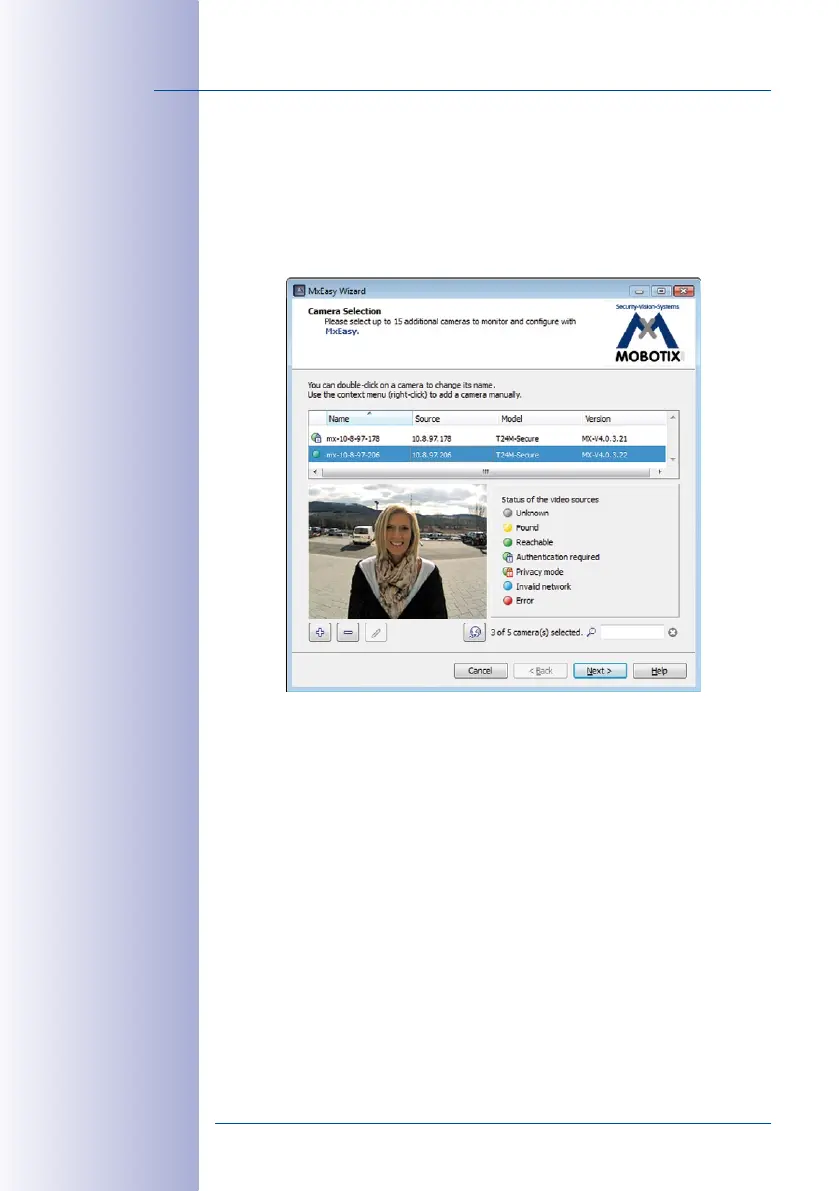
Step1: Select Door Station
When you start MxEasy for the first time on a computer, the MxEasy Wizard automatically
begins to search for MOBOTIX cameras and Door Stations with integrated camera mod
-
ules, and displays all devices found in a list.
A Door Station already set up for operation without a computer, which is in the local net
-
work, is shown with the 'Green dot with lock' icon. This means that the Door Station can,
in principle, be accessed (green), but it is protected by a password (lock). This password
is (normally) the Super PIN that was assigned to this T25 when the system had been set
up for operation (see
Section 2.2.1, «Entering the Super PIN at a KeypadRFID Module»
,
Section 2.3.1, «Entering the Super PIN at a BellRFID Module»
or
Section 2.4.3, «Changing
the Super PIN at the Video Phone»
).
Step2: Enable Access to Door Station
Right-click on the Door Station (or the T25-CamCore camera module) and enter the cur
-
rently valid data in the User and password window (see note at beginning of
Chapter 5
):
• User name: admin
• Password: <Super PIN>
After the data is entered correctly and confirmed the status display changes to a green
dot without a lock. The Select Integration with MxEasy window opens.


 To Next Page