102/128
T25 System Manual Part 2: System Expansion with MxEasy
© MOBOTIX AG • Security-Vision-Systems • Made in Germany
www.mobotix.com • sales@mobotix.com
5.1.4 Setting Date and Time
After you have completed the MxEasy Wizard, you should make sure that all integrated
Door Stations, cameras and devices are running in a synchronized manner. You can do
this by using a time server that synchronizes the system to a particular time.
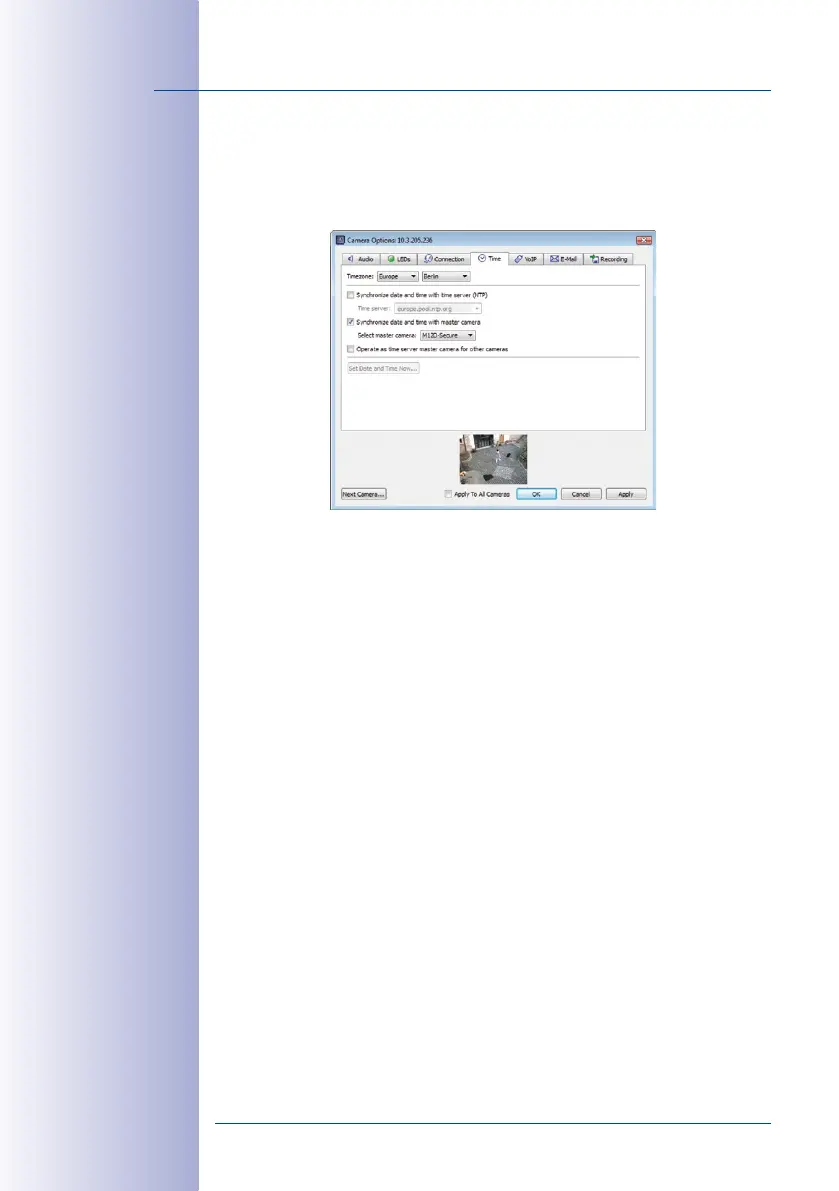
1. Open the Time tab under the Camera> Camera options menu item.
2. Select the required time zone (time at the location of the T25). This allows the system
to automatically switch between summer and winter time.
3. Activate the desired checkbox:
• Synchronize date and time with Internet time server (NTP)
Select a time server from the list or enter the name of your preferred NTP time
server. If the camera/Door Station does not automatically fetch its network data
via DHCP, a valid DNS server must also be entered (Connection tab).
• Synchronize date and time with master camera/Door Station
If there is no Internet connection and you have several MOBOTIX cameras or Door
Stations simultaneously in one network, you should make one master camera/
Door Station be the time server for all devices. This ensures that the system runs
in a synchronized manner and that saved video sequences can be replayed in
a synchronized format.
4. Activate the checkbox Use as master time server camera for other cameras to use
the currently selected (door) camera as the time server.
MxEasy Camera
Options dialog box


 To Next Page