38/128
T25 System Manual Part 2: Initial Setup without a Computer
© MOBOTIX AG • Security-Vision-Systems • Made in Germany
www.mobotix.com • sales@mobotix.com
2.2.4 Setting the Time Zone, Time and Date
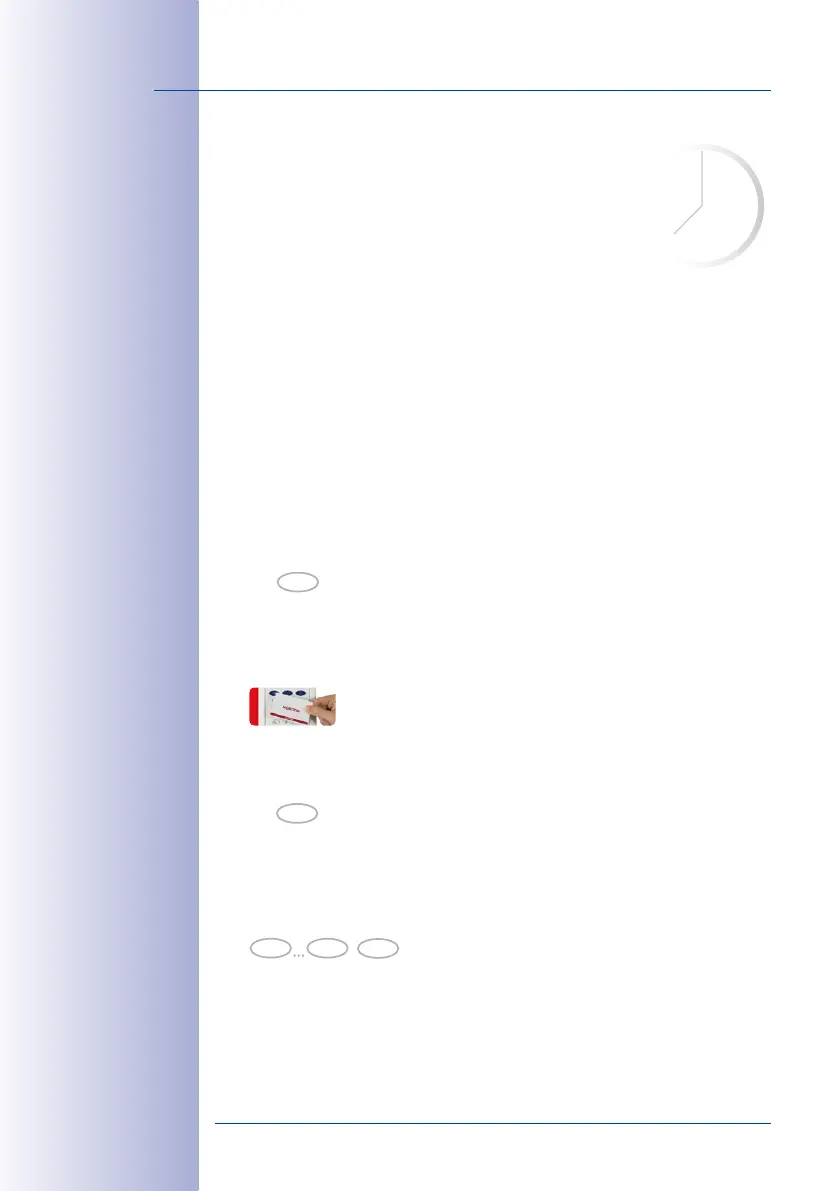
The video phone display shows the current system time. If this is
incorrect, you can manually set the time, date and time zone on
the KeypadRFID.
You must first set the correct time zone* on the KeypadRFID to
enable the switch from daylight saving time to standard time to
take place automatically.
Afterwards, date and time should be adjusted.
After you have completed these time settings,continue with
Section 2.4, «Step3: Configure
the System Using a Video Phone»
, if you have not done so already.
Set Time Zone Code:
For this, you need the three-digit code for your time zone. Please refer to the list of time
zone codes at the end of this manual. The list is also available as a PDF document from
the MOBOTIX website (www.mobotix.com> Support> Manuals).
1. Switch on configuration mode: Press the OK/MENU button until you hear the second
beep (button flashes blue).
2.
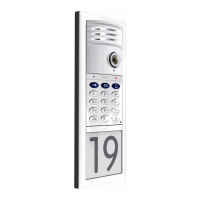
Hold your admin card up to the KeypadRFID buttons until the OK/MENU button lights
up blue continuously.
3. Switch on Time Zone mode: Press 9 until you hear the second beep and it flashes
(reminder: The letter “z“ on the button stands for “zone“).
4. Now enter the three-digit time zone code for the location to which you are closest
(for example, 452 for Europe/London). Confirm your entry by pressing the OK/MENU
button.
5. The respective number buttons on the KeypadRFID light up to show the time zone
that you have set.
If you entered the wrong time zone code, repeat steps 1–5.
* Factory setting: GMT +
1 hour (Berlin, Germany)
hold (2nd beep)
OK
hold (2nd beep)
9
OK
0 9
Time Code


 To Next Page