85/128
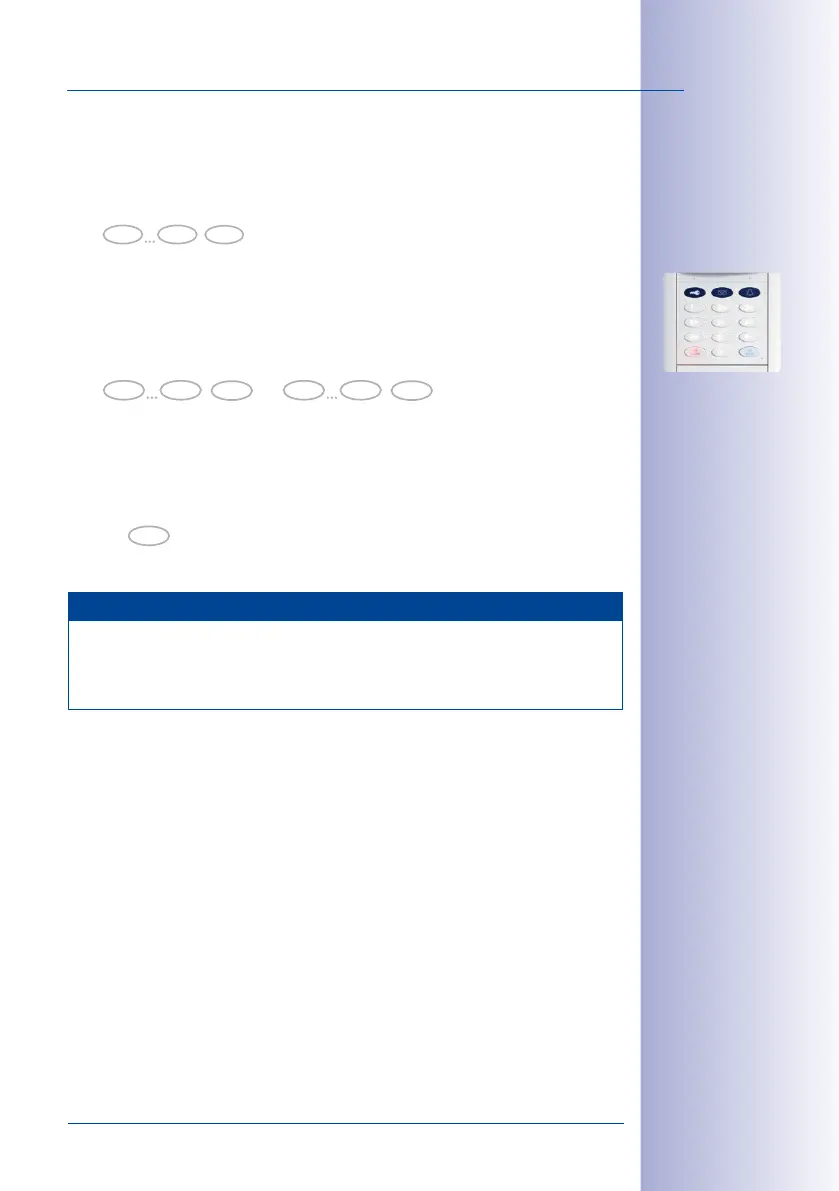
Changing the Super PIN at the KeypadRFID Module
© MOBOTIX AG • Security-Vision-Systems • Made in Germany
www.mobotix.com • sales@mobotix.com
5. Enter old Super PIN once: Enter the old Super PIN and briefly press the OK/MENU
button (the button’s flashing pattern will change). Please note: If the module software
of your KeypadRFID is release number 1.0.1.4 or older, you do not need to enter the
old Super PIN. Proceed to step6.
6. Enter new Super PIN twice: Enter the new Super PIN and briefly press the OK/MENU
button (the button’s flashing pattern will change). Re-enter the new Super PIN for
confirmation and briefly press the OK/MENU button (button lights up white). A beep
sounds and the KeypadRFID displays a flashing ring pattern.
7. As soon as the pattern stops flashing, the new Super PIN has been changed. You
are now back in configuration mode (the OK/MENU button lights up blue). Press the
ESC/ALARM button to exit. After 60 seconds, the mode is exited automatically.
Note
In case of a wrong entry, cancellation of entry via the ESC/ALARM button, or a delay
of more than 60 seconds, a low warning tone is sounded and the system reverts to
the regular operating mode (all buttons light up white). If required, re-enter into Add
mode as described above.
0 9
Super PIN old
OK
0 9
Super PIN new
OK
0 9
Super PIN new
OK
ESC



 To Next Page