The Intelligent Surveillance Solution
NUUO NVR/DVR/Hybrid NDVR System
- 34 -
2.2.6 Time Table
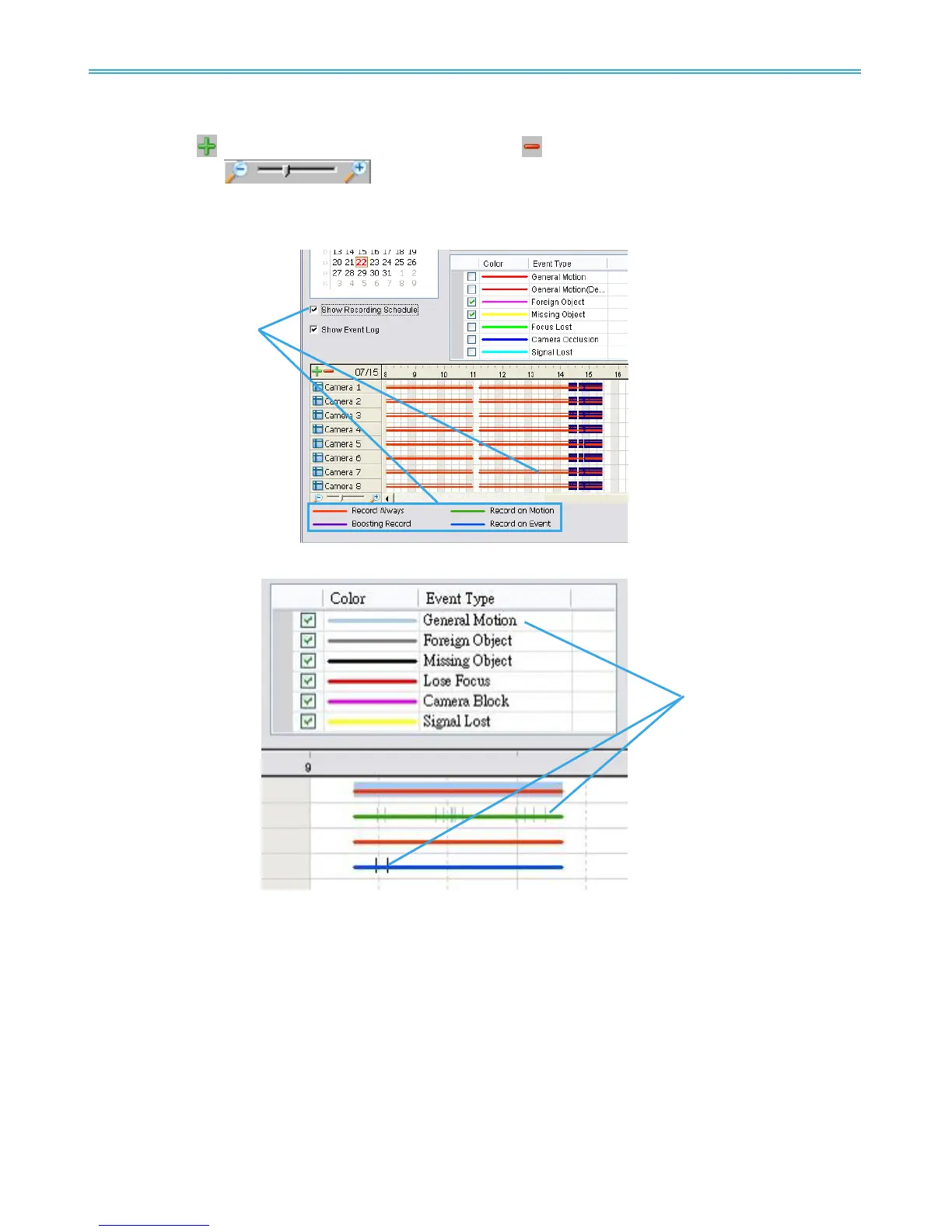
Utilize the
icon to select all channels; also utilize the icon to deselect all channels. Finally, utilize
the scale bar
to modify the scale of the time table.
Video records are displayed as a thin line on the time table. Check Show Recording Schedule to show
the defined period for scheduled recording. It is shown as a thick line in colors according to recording
mode.
Selecting Show Event Log makes Time Table show the time of event detection like below:
2.2.7 Withdraw the Record
Step 1: From the record display window, top left of the Date Time Panel, select the date you want to
withdraw the record from. The red/purple/green/blue lines shown on the time table indicate
available recorded video records.
Note: The record display window can be shown in (a) calendar view or (b) list control view. To modify
the setting of the record display window, click on the Setting button at the right of the Playback
Console. See page 43 for more details.
Step 2: Use color bars to differentiate event types from each other. This will help you select video clips.
Step 3: Highlight the video clip you want to review by left-clicking and dragging the time period. You may
also utilize the Start Time and End Time in Date Time Period Section. In addition, modify the scale of



 To Next Page