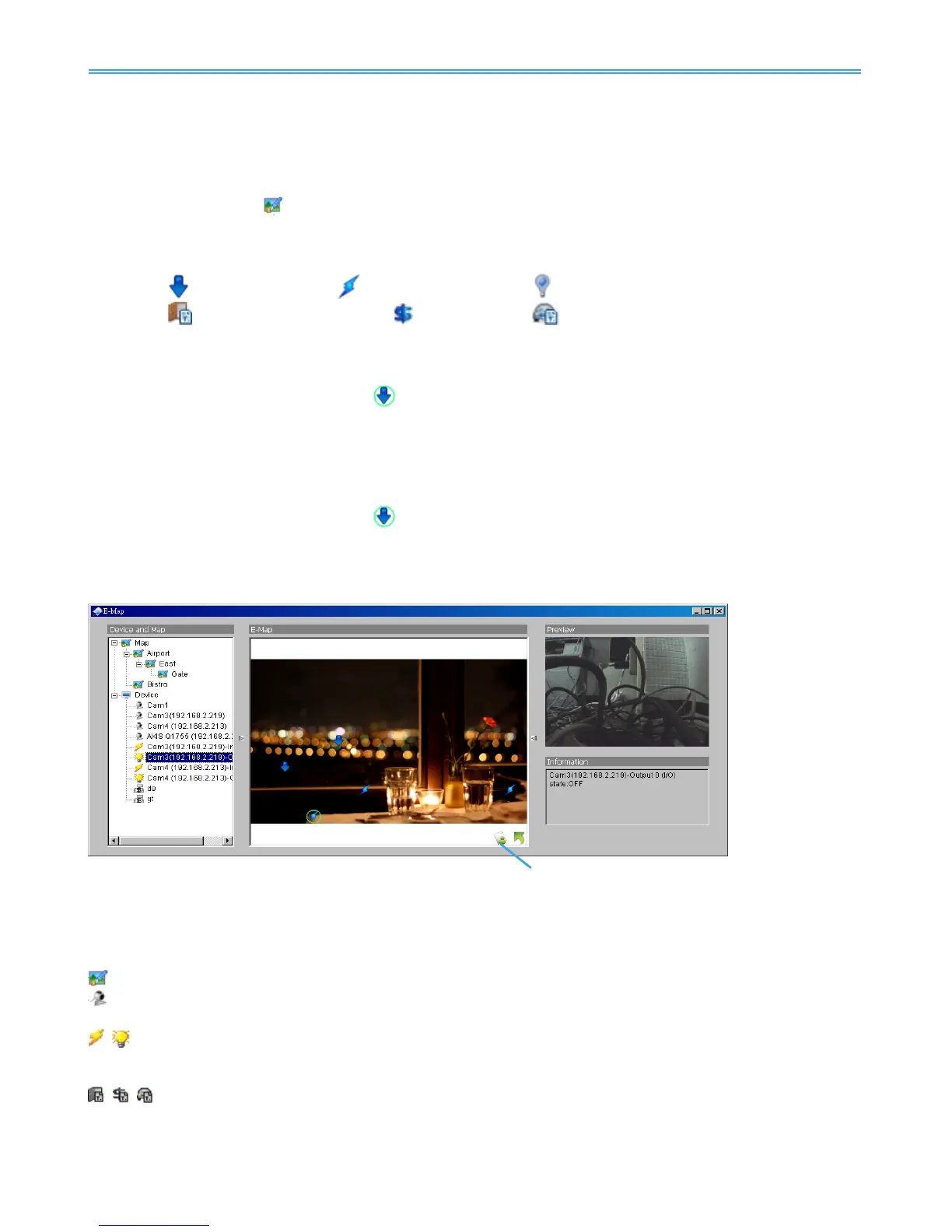
Switch button
6.1.2 Add/Rotate/Delete Device Indicator
Add Indicator:
Step 1: Make sure you are in Edit mode and all devices are connected and inserted.
Step 2: Click on the “
Map
”
icon to go to the desired map layer.
Step 3: Please make sure the map you want is displayed. Select device from the list and drag a device
directly to the desired location on the map.
Note: Different devices are symbolized by different indicators.
- Camera indicator, - Digital Input indicator, - Digital Output indicator
- Access Control indicator, -POS indicator, - LPR indicator
Rotate Indicator:
Step 1: Click on an existing camera indicator on your map under Edit mode. This camera indicator will
be marked with a green ring
.
Step 2: Each click on the Rotate button rotates the indicator 45 degrees clockwise.
Note: Only camera indicators are allowed to be rotated.
Delete Indicator:
Step 1: Click on an existing camera indicator on your map under Edit mode. This camera indicator will
be marked with a green ring
.
Step 2: Click on the Delete button and the indicator will be gone.
6.2 Operate Mode
After configuration under Edit mode, switch to Operate mode to commit settings.
6.2.1 Device and Map Tree list
This window will list all devices and map hierarchies; click device or map indicator to show related
information on E-Map windows.
Map – Select the map you want to show on E-Map Window.
Camera – A preview of the selected camera will show in the preview window. The indicator, if
previously created, will be highlighted on the map.
Digital Input/Output – Select to highlight the device with a green ring on the map and show status on
Information window. If the Digital Input/Output is from an IP camera, the preview window will display
live video of the camera.
Access Control/POS/LPR – Select to highlight the Access Control / POS / LPR device with a green
ring on the map, and display live video of the first associated camera on the preview window
.


 To Next Page