The Intelligent Surveillance Solution
NUUO NVR/DVR/Hybrid NDVR System
- 98 -
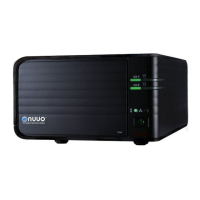
7.3 Unusual Event
Step1
Step2
Step 3
Step1: Choose the type of events you wish to view or select All from the drop-down menu to view all. The
types of Unusual Events include General Motion, Foreign Object, Missing Object, Focus Lost, Camera
Occlusion, Signal Lost, Disk Space Exhausted, System Health Unusual, Digital Input Triggered and
General Motion (Device).
* Note: Detection of some events is not available under NUUO NVR Lite license.
Step 2: Choose the camera channel you wish to view or select All for all channels available.
Step 3: View the events that happened on a particular date or during a given time period by defining a
search period.
For a particular date: check and specify date in the Date box.
For a period: check the DateTime and then enter the date and time.
Step 4: Click Search.
Note: When working with a video record, as default, Log Viewer will search for Unusual Events in the
video record in Date & Time mode, starting from the beginning to the end of the record.
A link (
) will appear next to each event time where video is available.
By clicking on the link, an instant playback window will pop up to show recorded video.
Note: Instant playback is available under the following Smart Guard events: General Motion, Foreign
Object, Missing Object, Focus Lost and Camera Occlusion.
7.4 Counting Application
* Note: This function is not available under NUUO NVR Lite license.
Display the history of Counting Application during a given time period.
Step1: Select the channel you want to check or select All from the drop-down menu for all channels.
Step 2: Select search period. View the events that happened on a particular date or during a given time
period by selecting search period.
For a particular date: check the Date box right and indicate the date.
For a period: check the DateTime and then enter the date and time.


 To Next Page