indicator
6.2.2 E-Map picture
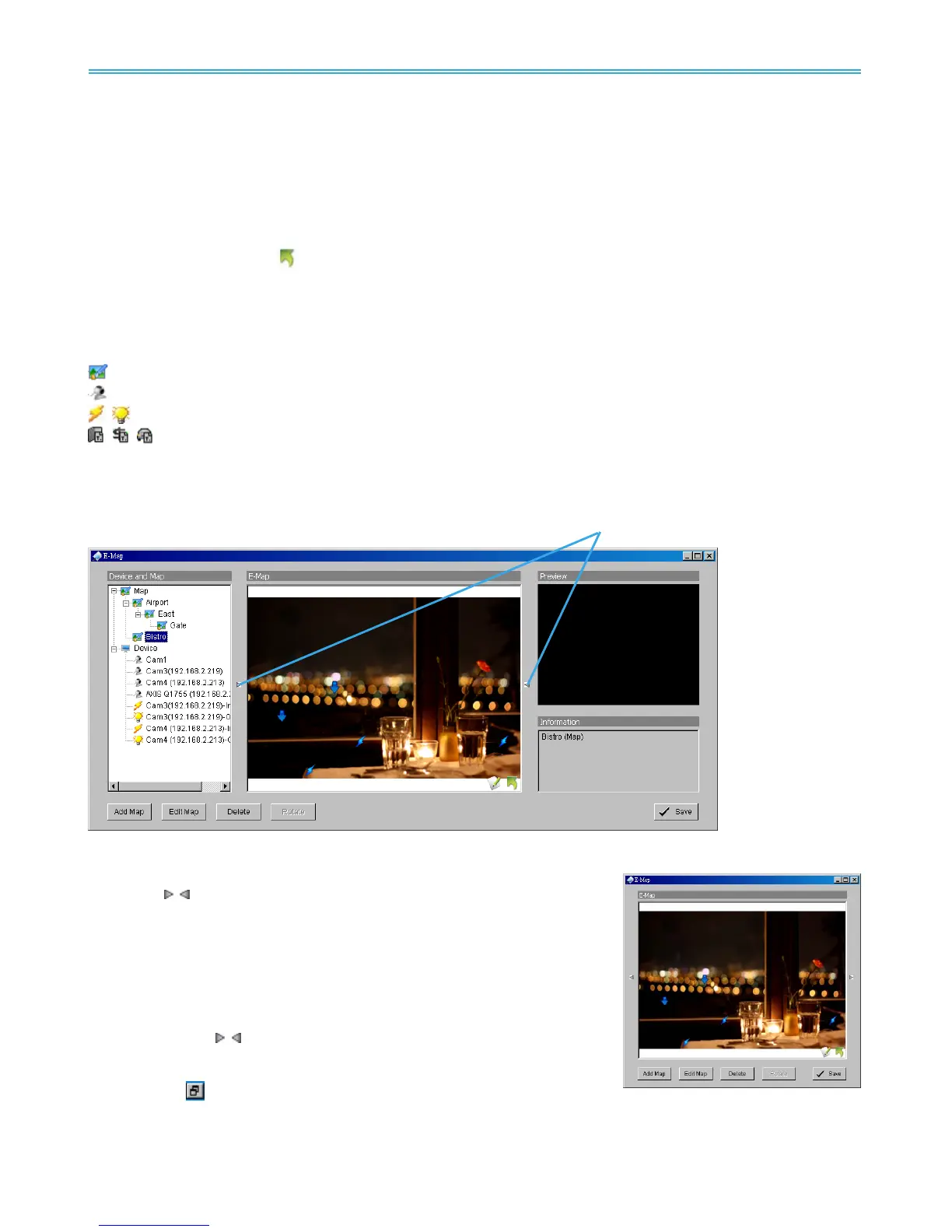
This window will show the map layer and indicators.
Device Indicator:
Select device indicators from the Device and Map Tree list for related information and to preview video.
Map indicator:
Selecting a map indicator will bring you to that map layer. To return to an upper layer, right click on the
map and select UP or click
on the map layer.
6.2.3 Information and Preview windows
This window will show the related information of each indicator.
Map Info – Shows map name.
Camera – Shows camera name and connection status.
Digital Input/Output – Shows Digital Input / Output name and status (0 or 1).
Access Control/POS/LPR – Shows metadata device name, connection status, first associated
camera name and connection status.
6.3 Layout Adjustment
Shrink the window:
Click on “
Triangular indicators” to hide the “Device and Map” or
“Preview” and “Information” windows on the right and left sides. Click
again to go back to the default layout.
Full screen display:
For systems with dual monitor, users can view Main Console on the
primary monitor, and view a full-sized E-Map on the secondary monitor.
Step 1: Click on “
Triangular indicators” to hide the “Device and
Map” or “Preview” and “Information” windows on the right and
left sides.
Step 2: Click “
” on the upper-right corner of the window for the full
screen mode of E-Map.


 To Next Page