Service ManualY100250-4 4-21
Alignment calibration corrects any bi-directional printing misalignment possibly caused by the printer's
mechanical tolerances. Bi-directional printing alignment can be optimized by means of a calibration
procedure which must be performed for each of the following print modes:
- High Speed Draft 10 cpi
- Draft 10 cpi
- Draft 12 cpi
- Near letter quality 10 cpi
- Letter quality 10 cpi
Each print mode has two types of calibration. One type of calibration is for the printing of lines without
tabulation stops and the other is for the printing of lines with tabulation stops. For this reason two specific
texts will be printed, one for each print mode to be calibrated.
Proceed as follows to calibrate the alignments:
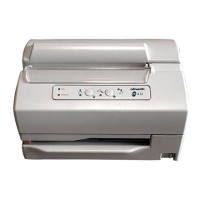
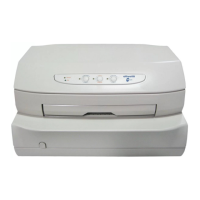
1. Power on the printer with its cover open and while holding down the three console buttons.
2. Wait for the audible signal indicating that the printer has switched to the calibration mode and then
close the printer cover.
3. Press the Station 1 button.
4. Press the Station 2 button.
5. The three console buttons are now active. The "Station 1" button activates printing ahead of time
while "Station 2" delays printing.
6. Pressing the Station 1 and Station 2 buttons before step 5 stores approximate default values, very
close to the correct ones, for all the print modes.
7. Insert an A4 sheet of paper into the front feed slot to check the print alignment status.
8. Press "Station 1" and/or "Station 2" to calibrate the alignments.
9. Repeat steps 7 and 8 cyclically until the calibrations are completed.
10. Press the "Local" button twice to permanently store the alignment setting for the current print mode
and to automatically switch to the next adjustment.
Calibration ends when all the print modes are completed or by simultaneously pressing all three console
buttons. In both cases the printer will switch to the main menu.


 To Next Page