Scan Tool User Guide 29
Read Codes
6: Diagnostic Trouble Codes
• Failure Records —datastream “snapshots”
automatically recorded by the ECU that show
actual data values at the time DTC(s) occurred
• DTC Status — information about DTCs that
have occurred a predetermined number of
times, such as pass or fail this ignition cycle,
times failed, etc.
5 Do one of the following:
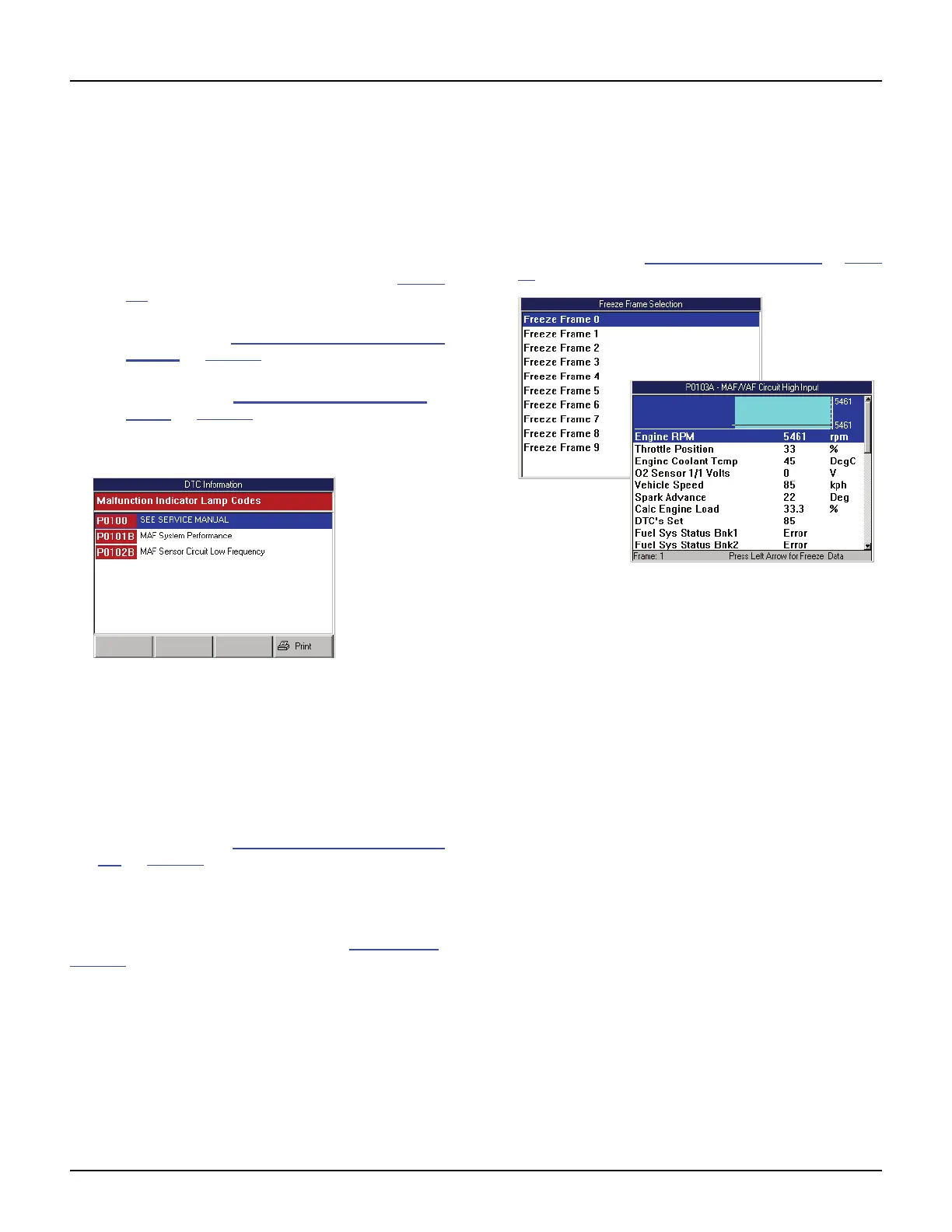
• If the DTC Information screen appears (Figure
6.5), go to step 6.
• If the Failure Records Selection screen
appears. Go to Failure Records (GM / Saturn
/ Isuzu) on page 34.
• If the GM DTC Status Selection screen
appears. Go to DTC Status (GM / Saturn /
Isuzu) on page 35.
NOTE: If there are no DTCs, a message appears
to tell you this.
.
Figure 6.5: DTC Information Screen
NOTE: GM codes are generally listed as A, B, C, or D in
order of importance for repair.
6 View the DTC list and optionally print it.
NOTE: For some vehicles, the DTC Information
screen has a Pathfinder function key. This function
key lets you access the Pathfinder Troubleshooting
function from within the scan diagnostic application.
For details, refer to 10: Pathfinder Troubleshoot-
ing on page 55.
7 When finished viewing the list, use the EXIT key to
return to previous screens.
NOTE: Use the Clear Codes function to erase the codes
from a vehicle’s ECU. For details, refer to Clear Codes
on
page 38
.
Freeze Frame (OBD II)
The Freeze Frame function lets you view datastream
“snapshots” that were automatically recorded by the
ECU when one or more DTCs occurred. By viewing
the actual data values from the time of a fault, you
may be able to determine what caused the fault.
1 Follow the steps in Read and Display Codes on page
27 to display the Freeze Frame Selection screen.
Figure 6.6: Freeze Frame Selection Screen and DTC Freeze Frame
Screen.
2 Select a Frame and press the ENTER key to display
the snapshot data (shown above).
NOTE: Each frame contains a snapshot from when
a DTC occurred.
3 Use the EXIT key to return to previous screens.



 To Next Page