Product overview PrismJET 54 Gen2 OPERATION MANUAL
28 2.1 Names of parts and functions
(1) Operation keys
• The operation keys are assigned with different functions and names depending on printer status
(Normal or Setup menu display).
For details about printer status, refer to "
2.2 Printer status".
• indicates the printer's power state "ON"/ "Standby". Pressing the [Power] key will switch
between "ON" and "Standby".
In the Standby state, even when the power key is not turned on, the printer consumes a very small
amount of power as long as the power cable is plugged in. In this manual, this state is also referred
to as "power off".
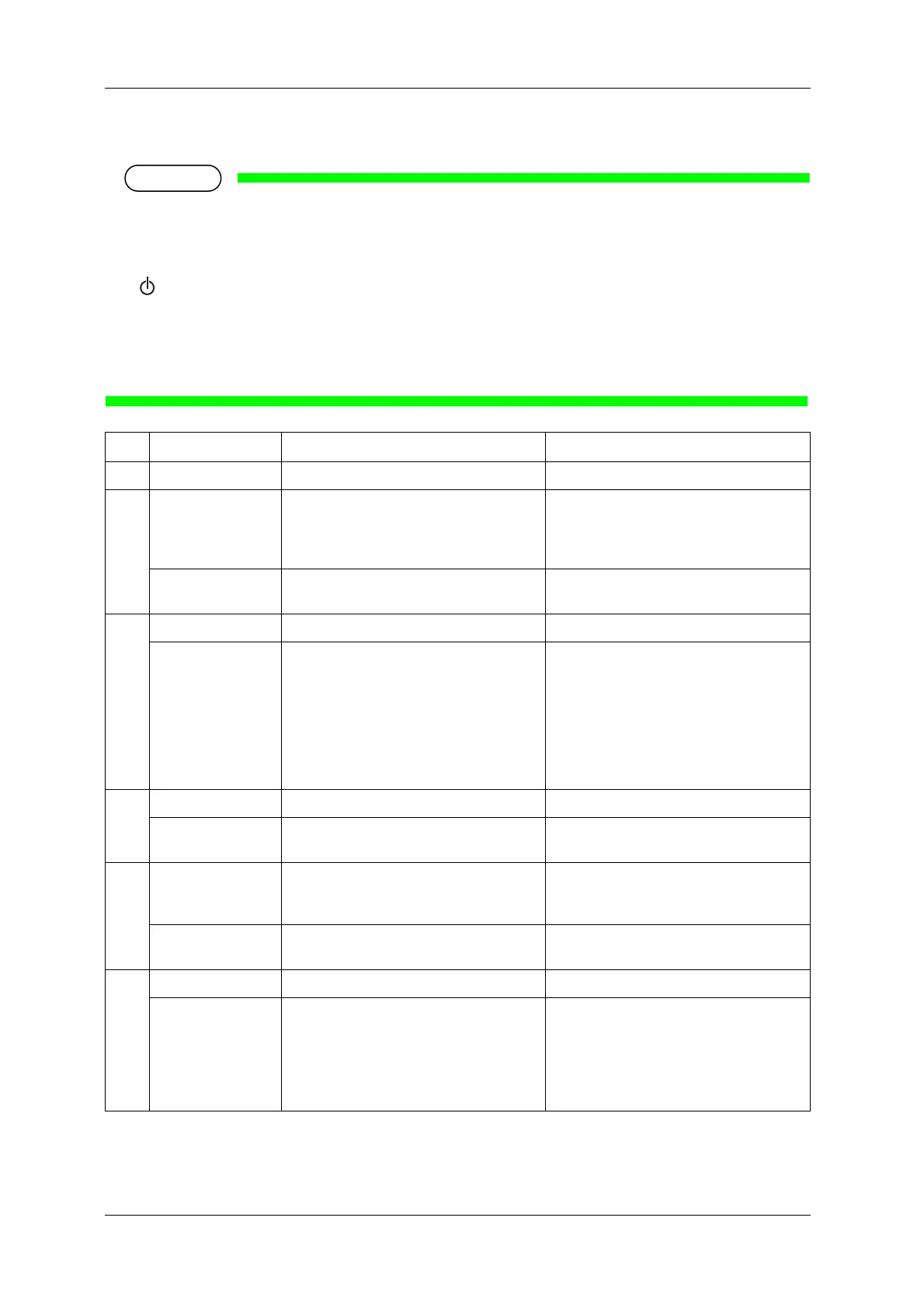
No. Name Normal Setup menu display
1 [Menu] key Shifts to the Setup menu. Shifts from Setup menu display to Normal.
2 [Enter] key • The printer performs an automatically PF
adjustment.
• Restarts printing when the printing is
suspended.
• Select the menu to be set, and shifts to the
next hierarchy.
• The setting is determined and saved.
[Cutting] key Cuts the media when pressed for more than
two seconds.
—
3 [Pause] key Pauses printing. —
[Cancel] key • When printing:
When pressed for more than two seconds,
forcefully terminates printing and deletes
one file of the remaining data.
• When receiving or analyzing data:
When pressed for more than two seconds,
deletes the data already received and
analyzed.
• Returns to the previous menu hierarchy.
Changes made in the setting are discarded.
• Shifts from Setup menu display to Normal.
4[<] key — —
[Nozzle Check] key Press and hold this key for two seconds or
more to perform Nozzle Check printing.
—
5 [>] key • Sets Cleaning Mode.
• The lamp of Cleaning Mode that you set
lights up in green.
Down the menu level in the directory tree.
[Cleaning] key When pressed for more than two seconds,
cleaning starts.
—
6[Backward↑] key Media is fed in the reverse direction. —
[+] key — • Changes to the previous item in the
displayed menu.
• The setting is changed to the reverse
direction.
• The numeric value is increased during
numerical input.


 To Next Page