Manual Operation
R&S
®
NRP2
55User Manual 1173.9157.02 ─ 03
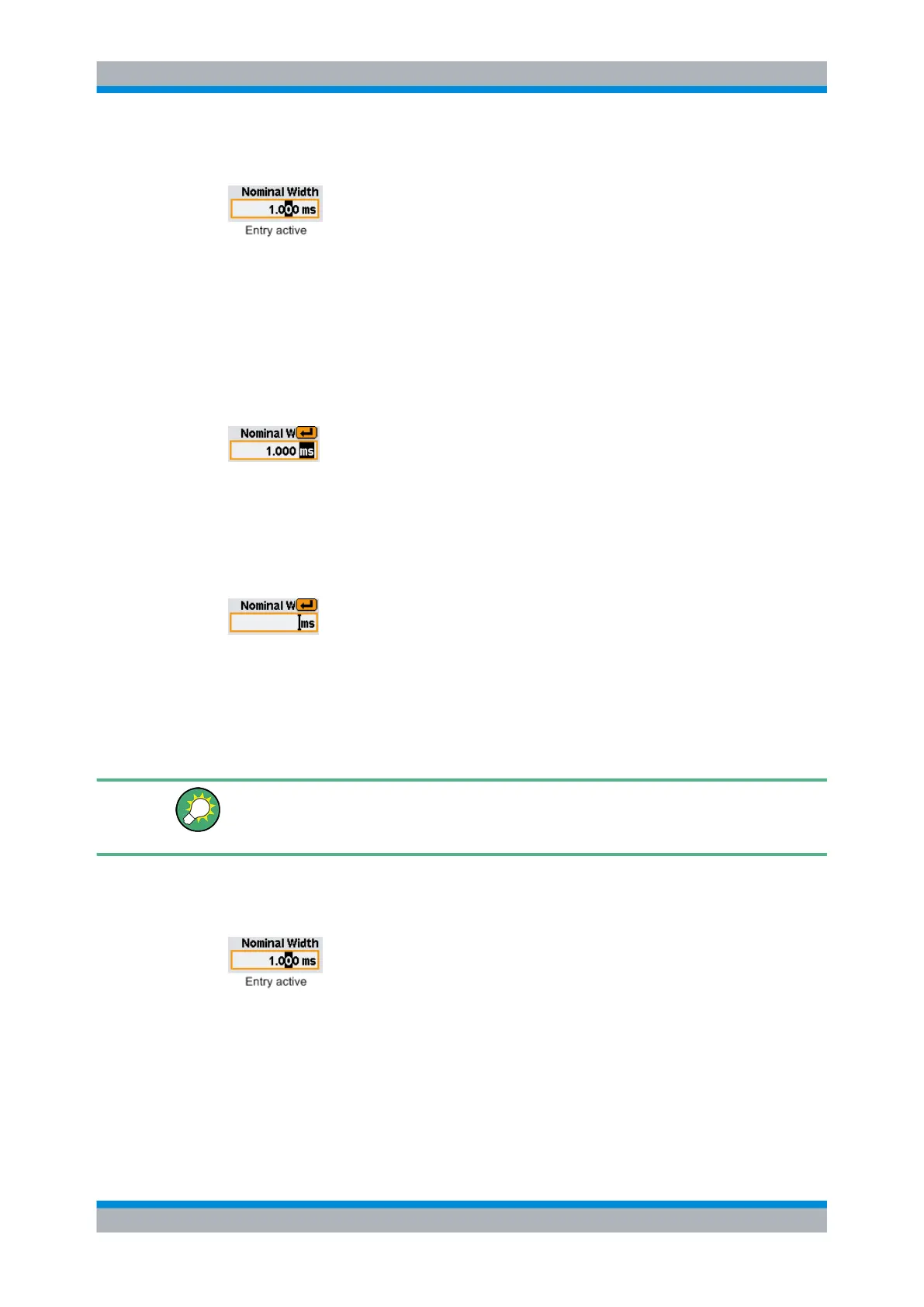
The editor is activated by pressing the appropriate rocker switch.
Editing can be performed in overwrite mode, indicated by the marked character being in
inverse video. Modifications can be made either with the ⇧ ⇩ cursor keys or numeric/digit
softkeys which are provided in a digit or letter panel when the editor is activated.
The ⇦ ⇨ cursor keys are used to select the digit to be edited.
3.5.6 Editing fields (cont.)
In the editing fields for quantities with units, the ⇦ ⇨ cursor keys can be used to select
the unit too; the ⇧ ⇩ cursor keys are used to edit it. Usually, the digit panel also contains
a unit softkey which you can use to change the unit whenever you want.
If you want to make a completely new entry, the whole field can be cleared with the DEL/
1TRIG hardkey. In the insert mode, you can enter digits and/or letters.
Any changes you make to a field can be confirmed with the ↵MENU hardkey. When this
hardkey is pressed, the new value is subjected to a validity check. If the check discovers
an error, a warning message is output.
You can quit the editor by pressing the ESC hardkey; this leaves the old values
unchanged. Any warning messages are cleared.
To set the maximum or minimum value permitted for a parameter, first move the insertion
mark to the left edge of the entry field by using the ⇦ key. Then press the ⇧ key to set
the maximum permissible value or the ⇩ key to set the minimum permissible value.
3.5.7 Editing fields of the Filter, Range and Trigger dialog boxes
The Filter, Range and Trigger dialog boxes are designed such that the result windows
are still visible.
If you edit a value in a Filter, Range and Trigger dialog box using the cursor keys ⇧ ⇩,
the new value is accepted immediately. This feature allows you to quickly assess the
effect of value change and, thus, to perform interactive adjustment of settings.
Dialog boxes and their controls


 To Next Page