4. Click [Next].
5. The software license agreement appears in the [License Agreement] dialog box. After
reading the agreement, click [I accept the terms in the license agreement], and then click
[Next].
6. Specify the installation folder if you want to change the one that is displayed in the
window, and then click [Next].
7. Click [Install].
8. Click [Finish].
Installing the Software to Mac Operating Systems
Operating environment
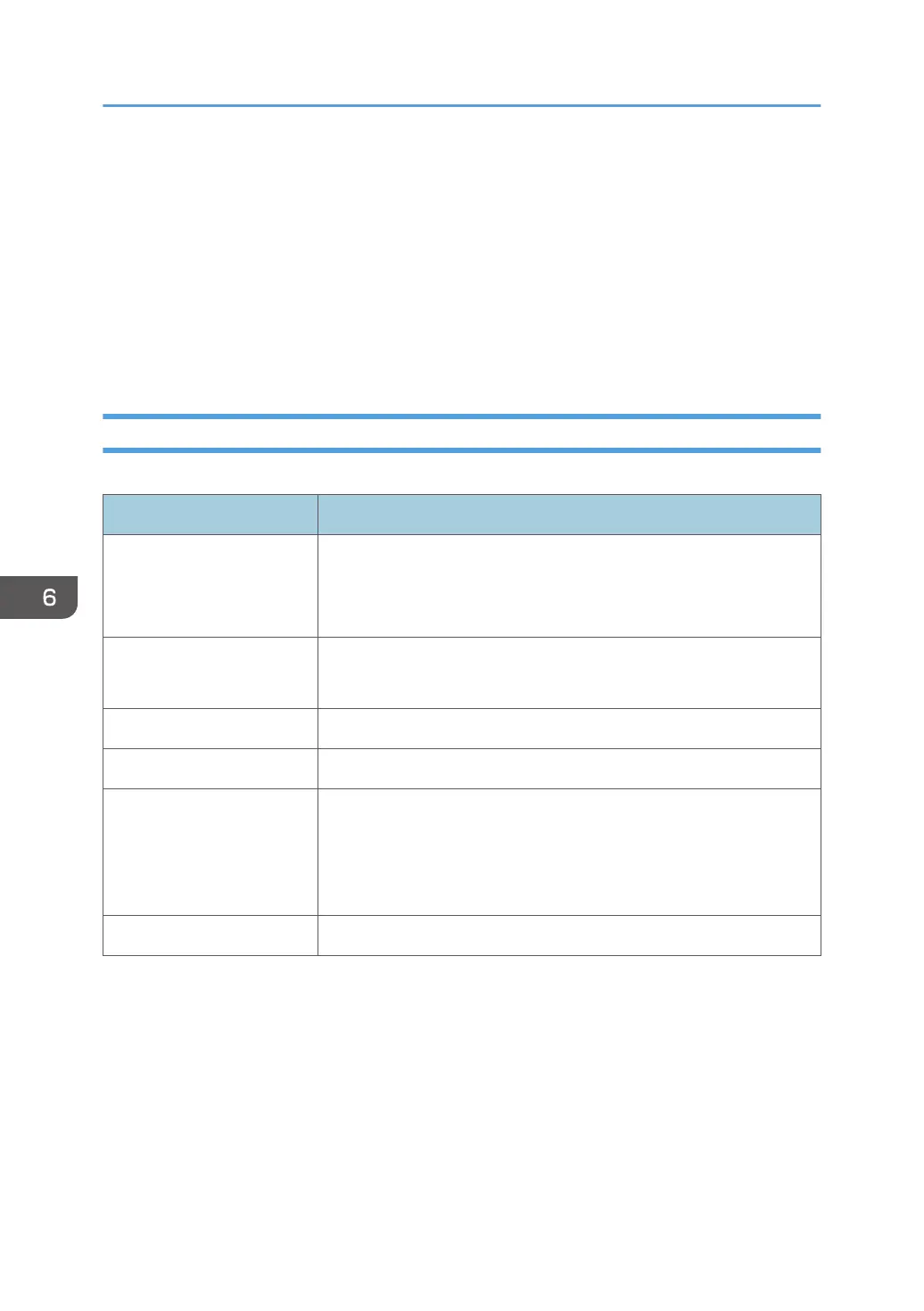
Item Specifications
Operating system • macOS 10.12
• macOS 10.13
• macOS 10.14
CPU • Recommended: Core i3 2.5GHz or more
• Minimum: Core 2 Duo 2GHz or more
Memory 2 GB or more
HDD 100 MB or more free space
Network Line speed
• Minimum: 200 Kbps
* When not using network services other than IWB Remote
Desktop Software
Wireless LAN IEEE802.11a/b/g/n
1. Double-click the file downloaded from the machine’s Web page to execute it.
For details about how to download IWB Remote Desktop Software, see page 130 "Downloading
IWB Remote Desktop Software".
2. Double-click the *.pkg file.
3. Read the displayed message, and then click [Continue].
4. Read the software license agreement, and then click [Continue].
6. Using the Machine to Perform Operations on a Computer Screen
132


 To Next Page