Adding or Deleting Your Remote License
This section explains how to enable the remote whiteboard session by adding a license code of Remote
License, which is an external option.
Adding Your Remote License
1. Touch , the Register/Delete License icon, in Administrator Settings.
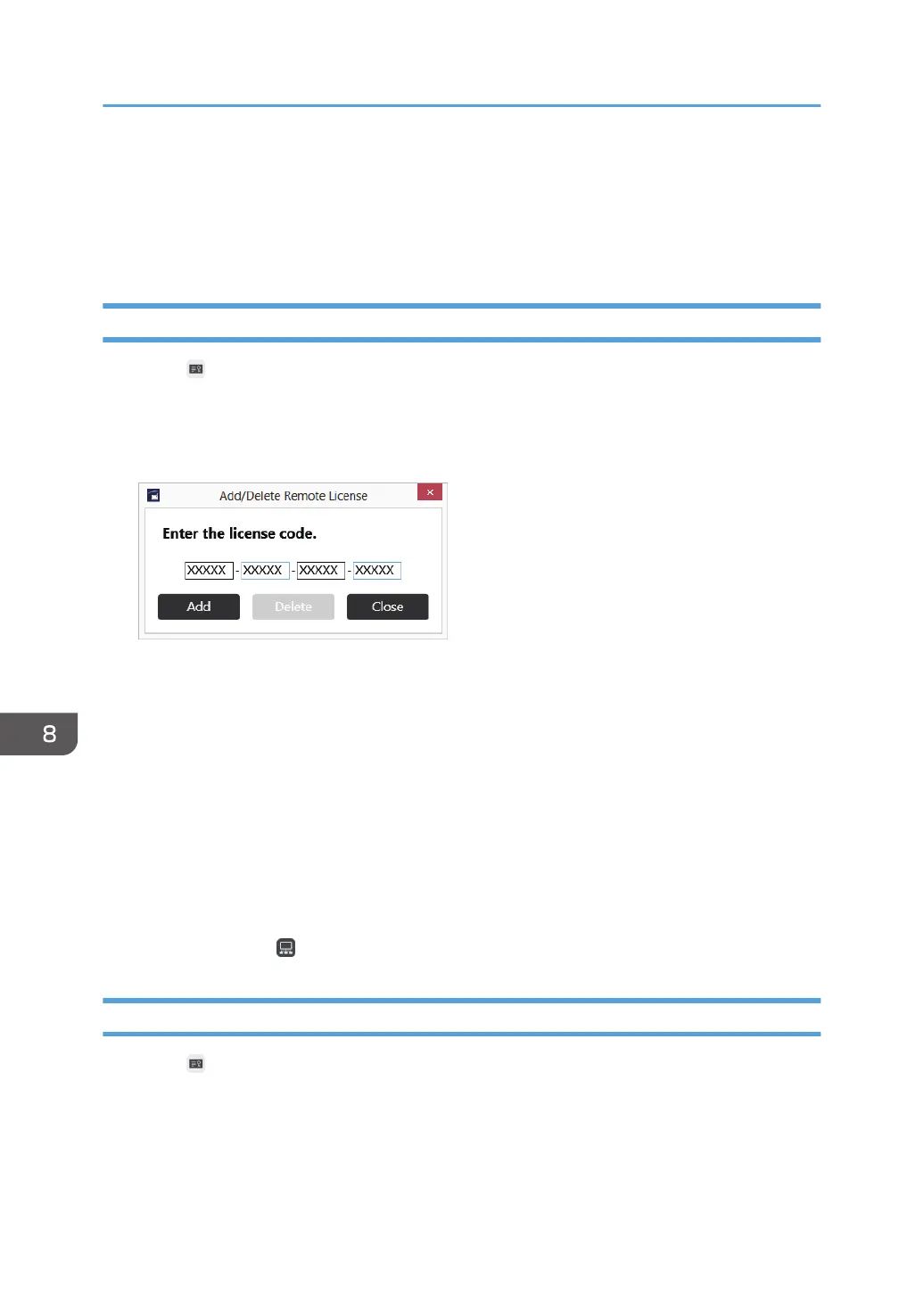
2. Touch [Change] of "Remote Whiteboard"
3. Touch the [Software Keyboard] icon on the desktop two times in quick succession to
display the touch keyboard, and then enter your license code.
It may take approximately 2 seconds until the touch keyboard is displayed.
The license code is not case-sensitive. You can enter the license code in either uppercase or
lowercase.
4. Touch [Add].
When your license code is authenticated, a completion message appears.
If the entered license code is incorrect, an error message appears. Check the license code and
enter the correct one.
5. Touch [OK].
After the registration is complete, close the administrator settings screen, start the main screen of the
machine, and then check that [Open] and [Join] in the remote Whiteboard submenu that appears
when you touch the Sharing icon are enabled.
Deleting a Remote License
1. Touch , the Register/Delete License icon, in Administrator Settings.
2. Touch [Change] of "Remote Whiteboard"
3. Touch [Delete].
8. Changing the Interactive Whiteboard Settings
174


 To Next Page