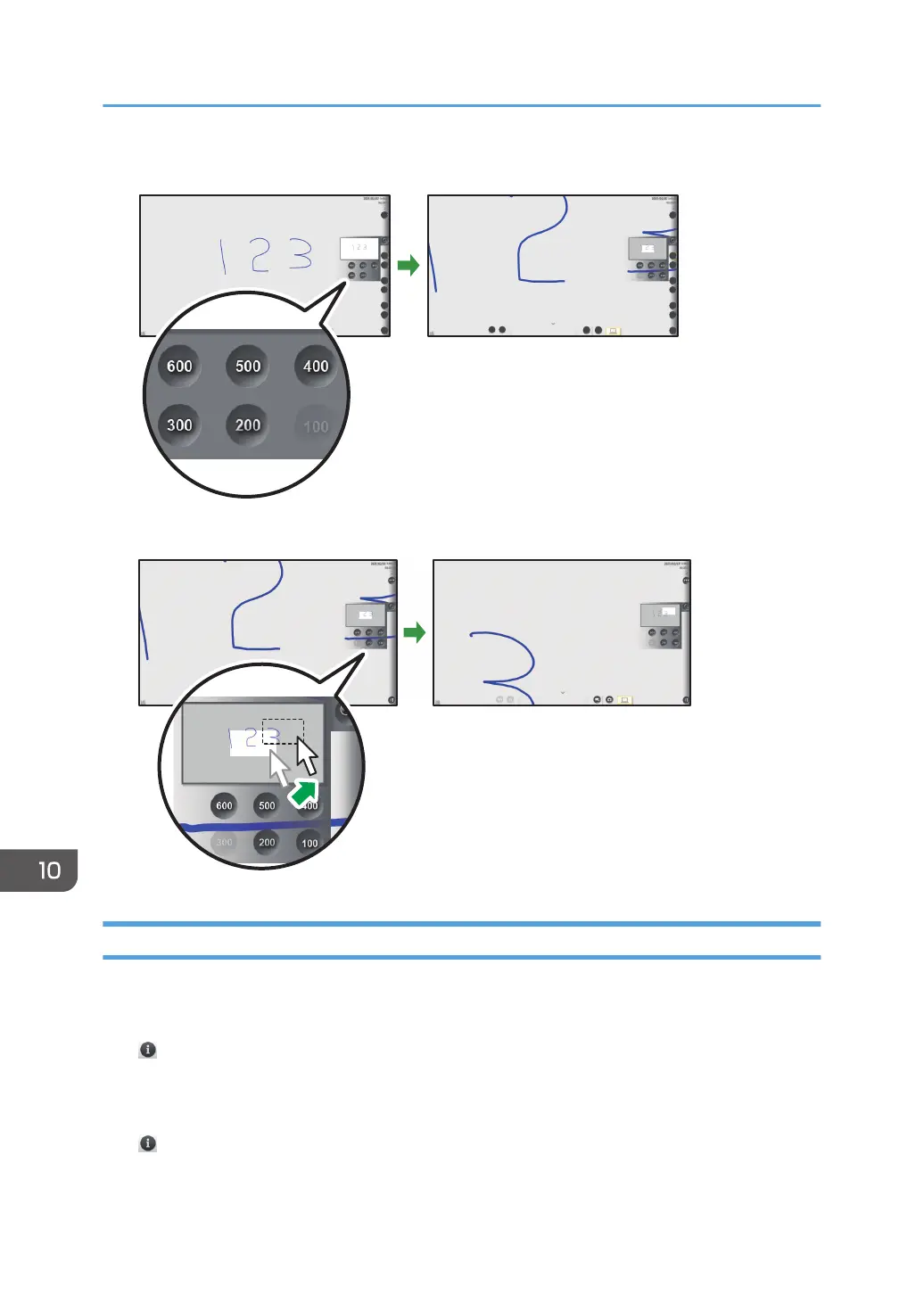
2. Click the display magnification.
3. To move the display area, click and drag the display area.
Configuring the Remote Viewer Settings
This section explains General Settings of Remote Viewer.
The icons displayed in the General Settings screen are as follows:
• , the Version Information icon
Displays the Remote Viewer version information.
When you touch [Display License Agreement], the software license agreement is displayed.
• , the Copyright Information icon
Displays the Remote Viewer copyright information.
10. Appendix
308


 To Next Page