2. Image file name column
Enter the name of the image file you want to register to the machine as a template. Enter the file name
with its extension.
3. Displayed file name column
Enter the name that is displayed on the setting screen. The number of characters must be 255 or less. If
you do not enter a name, the current name of the image file is displayed.
4. Save the list.
• You can specify any name for a file.
• Save the file as a Unicode little endian text file (.txt) with tab-separated values.
• There are different character encodings for Unicode. If the file is saved as a non-Unicode little
endian file, the file cannot be used. The screen which allows you to choose the format used to
save files differs according to the text editor or spreadsheet software you are using.
Display examples for Unicode little
endian format
Display examples for unavailable format
• Unicode
• Unicode text
• Unicode little endian
• UTF-16LE
• Unicode big endian
• UTF-16BE
• UTF-8
5. Save the template file list and the image files in the same folder.
You can specify any name for a folder.
6. Zip the folder.
Do not set a password when you zip the folder.
The maximum size of zip folders is 40 MB.
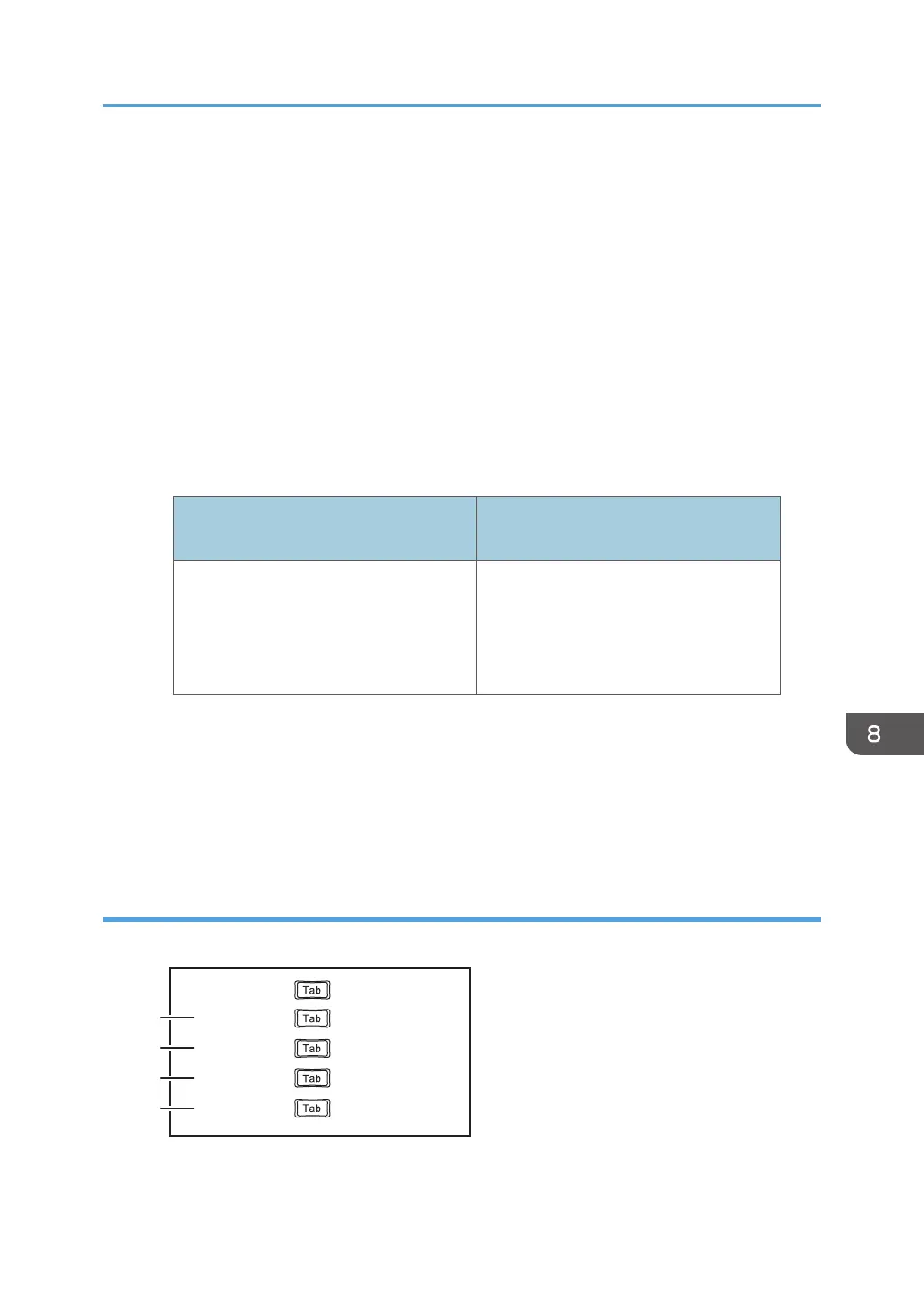
Sample template file list
Using a text editor such as Notepad to create a template file list
Image 01.jpg
Image 02.jpg
Calendar.png
RICOH.png
DVH054
1
2
3
4
image 01
file name display name
xxxxxx
month 01
Managing a Template
193


 To Next Page