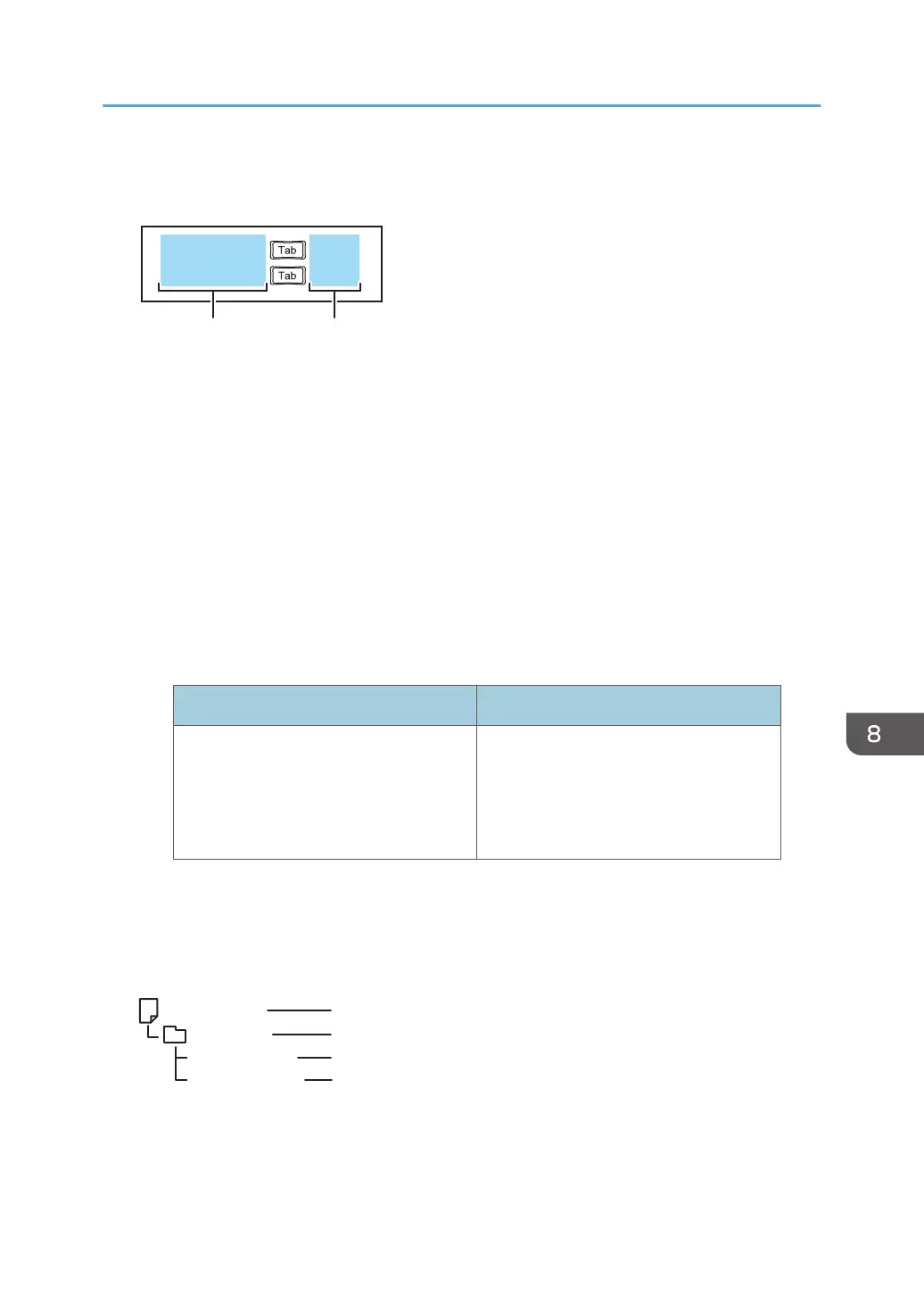
3. Enter the corresponding information for the certificate files in the following format:
Only one file can be uploaded as the server certificate.
certificate1.p12
******
certificate2.p12
******
DXZ005
1 2
1. Certificate file name column
Enter the name of the certificate you want to upload to the machine. Enter the file name with its
extension.
2. Password column
If the certificate file needs a password, enter it in this column.
4. Save the list.
• You can specify any name for a file.
• Save the file as a Unicode little-endian text file (.txt) with tab-separated values.
• There are different character encodings for Unicode. If the file is saved as a non-Unicode
little-endian file, you cannot use the file. The screen which allows you to choose the format
used to save files varies depending on the text editor or spreadsheet software you use.
Unicode little-endian formats Unsupported formats
• Unicode
• Unicode text
• Unicode little-endian
• UTF-16LE
• Unicode big-endian
• UTF-16BE
• UTF-8
5. Save the certificate file list and the certificate files in the same folder.
You can specify any name for the folder.
6. Zip the folder.
The file structure of the zip file must be as follows.
DXZ006
AAAAAAAA.zip
CCCCCCCC.txt
DDDDDDDD.p12
BBBBBBBB
1
2
3
4
1. Zip file (arbitrary file name)
2. Directory (arbitrary directory name)
Managing Certificates
227



 To Next Page