• When you touch the area indicating the name of the cloud storage service, a sign-in screen
appears. If you have already signed in to the service, the home directory of the cloud storage
is displayed.
• When you touch the , the Move Up One Folder icon, you can move to the folder one level
above.
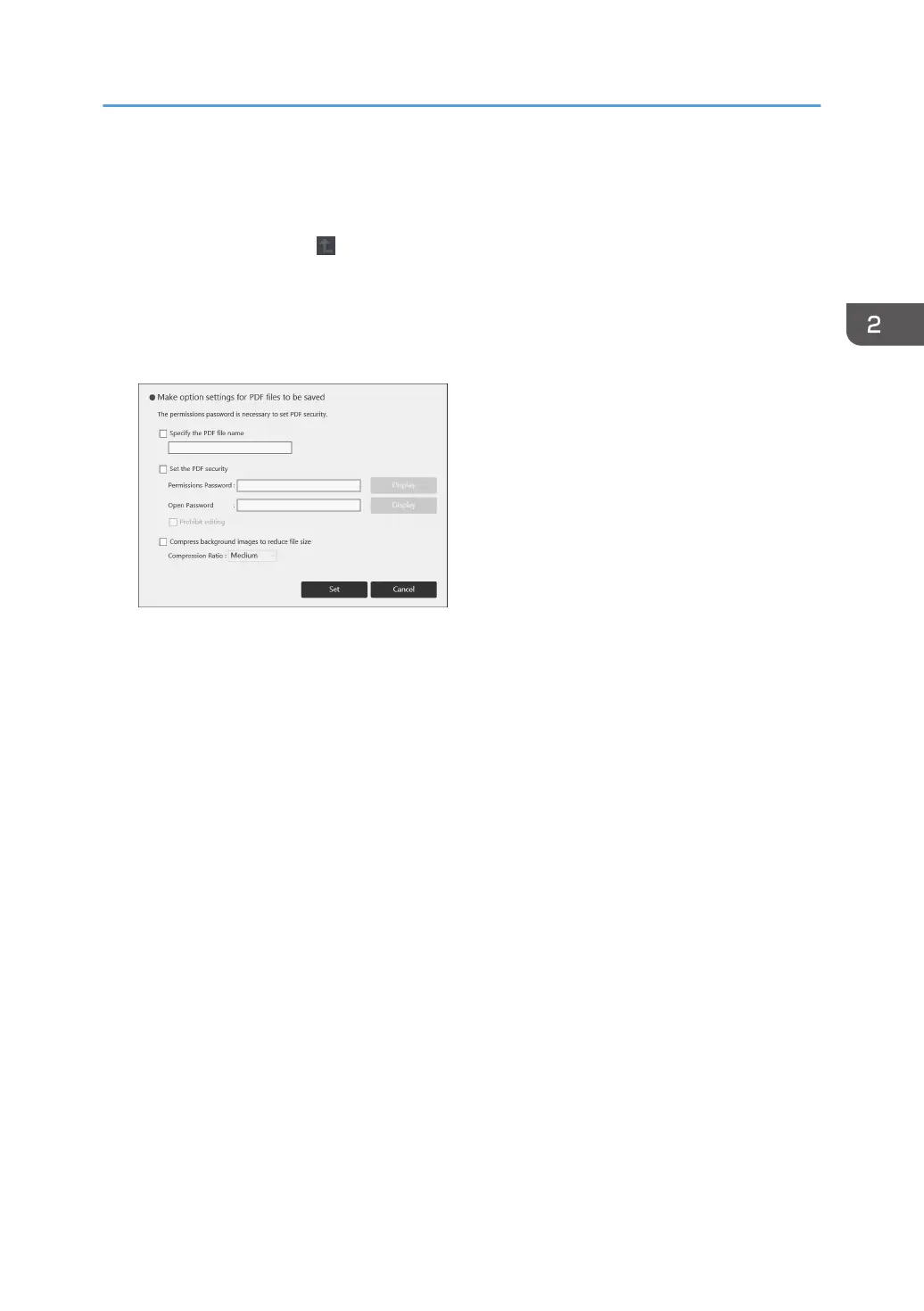
5. To change the file name, specify a password to a PDF file or prohibit editing of a PDF file,
touch [Option Settings for Saved File].
If you do not change the settings, proceed to the next step.
• To change the file name, select [Specify the PDF file name], enter a new file name (up to 100
alphanumeric Unicode characters (UTF-8), excluding \, /, ?, :, *, ", >, <) using the touch
keyboard.
• To specify a password for a PDF file, select the [Set the PDF security] checkbox, and then
enter the [Permissions Password] and [Open Password] (up to 32 alphanumeric characters
each) using the touch keyboard. When entering the password, you can choose whether to
show or hide the password in the password box by touching [Display] or [Hide].
You must specify the [Permissions Password] to specify the [Open Password].
• A password-protected PDF file cannot be read again by the machine.
• To prohibit editing of the PDF file, select the [Prohibit editing] checkbox.
You must specify the [Permissions Password] to select the [Prohibit editing] checkbox.
• To reduce the file size when saving pages, select the [Compress background images to
reduce file size] check box, and then select [High], [Medium] or [Low] in [Compression Ratio].
6. Touch [Set].
7. Touch [Save].
PDF files are saved as shown below.
Operating a File
65


 To Next Page