Correctly install the driver of the GPIB card which has been connected to the PC.
3. Set the GPIB address
Click or tap the Notification Area at the lower-right corner of the screen, then the
Utility menu is displayed. Click or tap IO, and then click or tap the input field of
GPIB to input the GPIB address with the pop-up numeric keypad.
4. Search for the device resource
Start Ultra Sigma, and then click
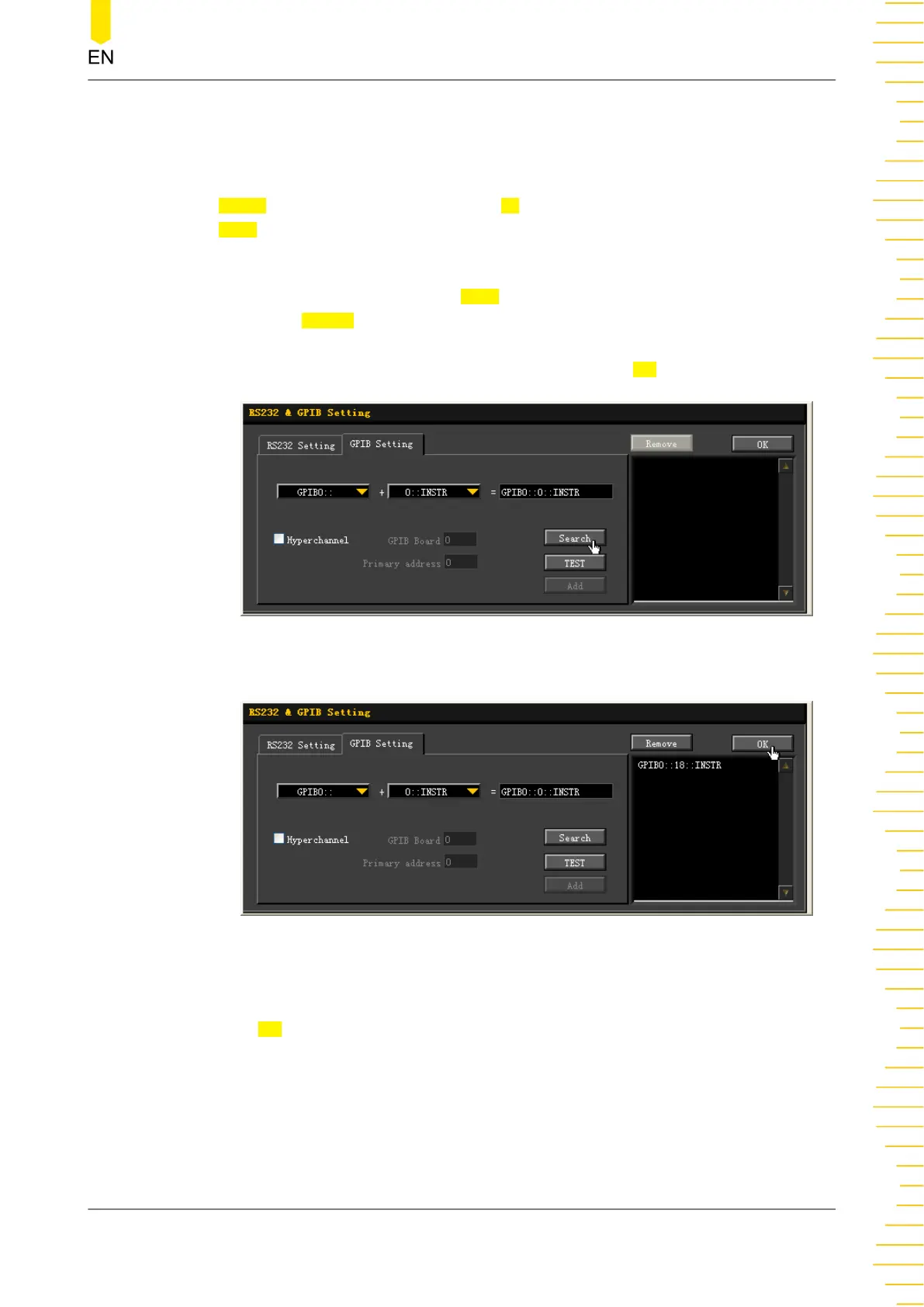
GPIB. A window is displayed as shown in
Figure
24.1
. Click Search and the software searches for the instrument resource currently
connected to the PC via the GPIB interface. The resource found is displayed at the
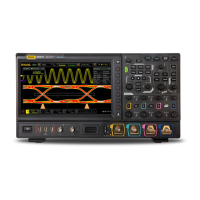
right side of the window, as shown in
Figure 24.2
. Click OK to add it.
Figure 24.1 Search for the Available Device
Figure 24.2 Confirm the Available Device
5. View the device resource
Click
OK to go back to the main interface of Ultra Sigma. The searched instrument
resource will be displayed under the directory of "RIGOL Online Resource".
6. Control the instrument remotely
Right-click the device resource name. In the displayed menu, select "SCPI Panel
Control" to open the programming command control panel. Then you can input
commands to send commands and read data.
Remote Control
Copyright ©RIGOL TECHNOLOGIES CO., LTD. All rights reserved.
381


 To Next Page